Workflows
Workflows are how ainative-business turns one-off tasks into repeatable, multi-step operational playbooks. The product now includes both a workflow library and a blueprint catalog for bootstrapping new flows quickly.
Workflows let you orchestrate multi-step agent operations using six built-in patterns. From simple sequences to parallel research fans and multi-agent swarms, workflows encode repeatable processes that agents execute with human checkpoints where you need them. The blueprint gallery includes both technical and business-function templates.
Screenshots
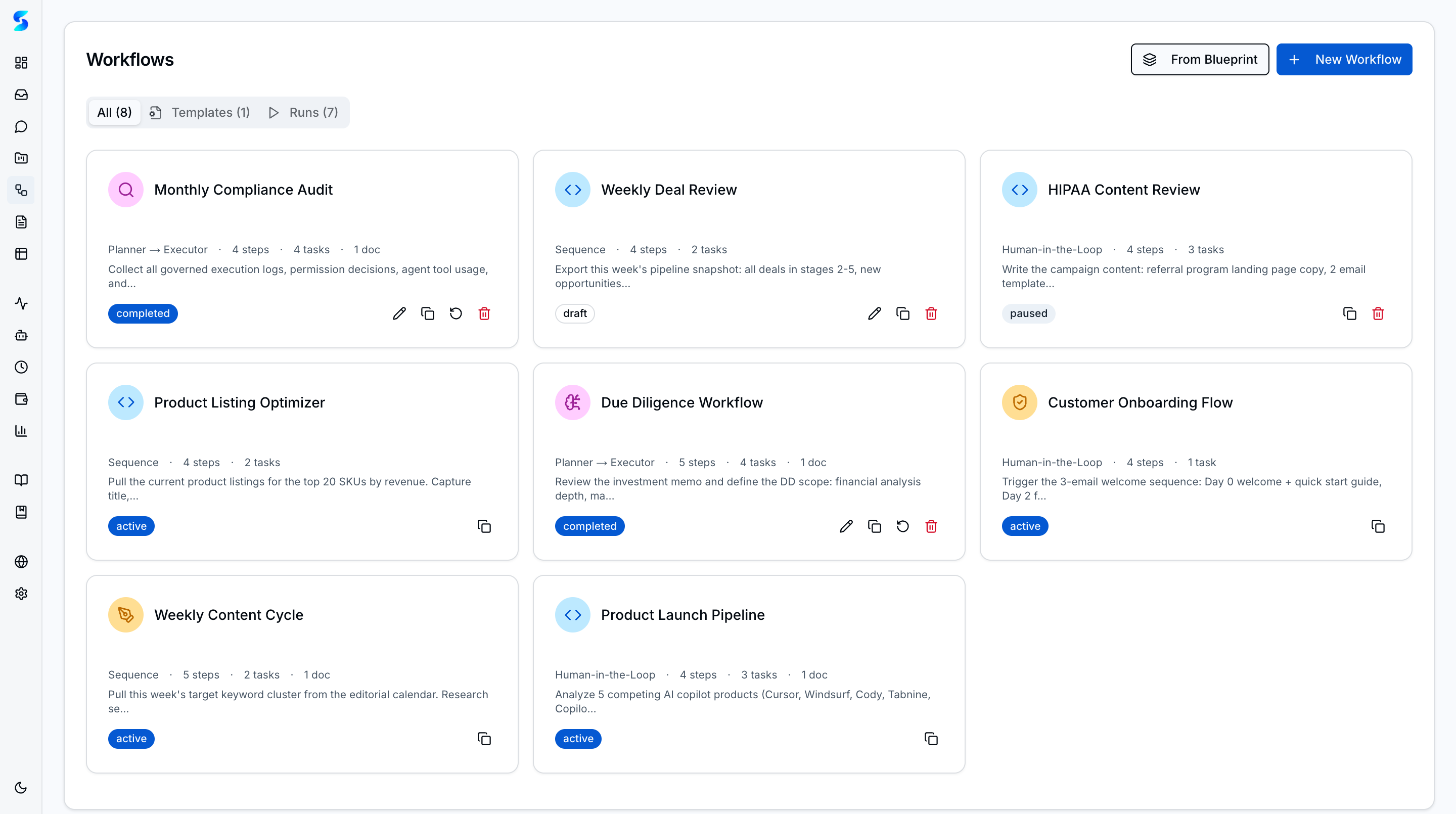
Workflow cards showing name, pattern type, step count, and status
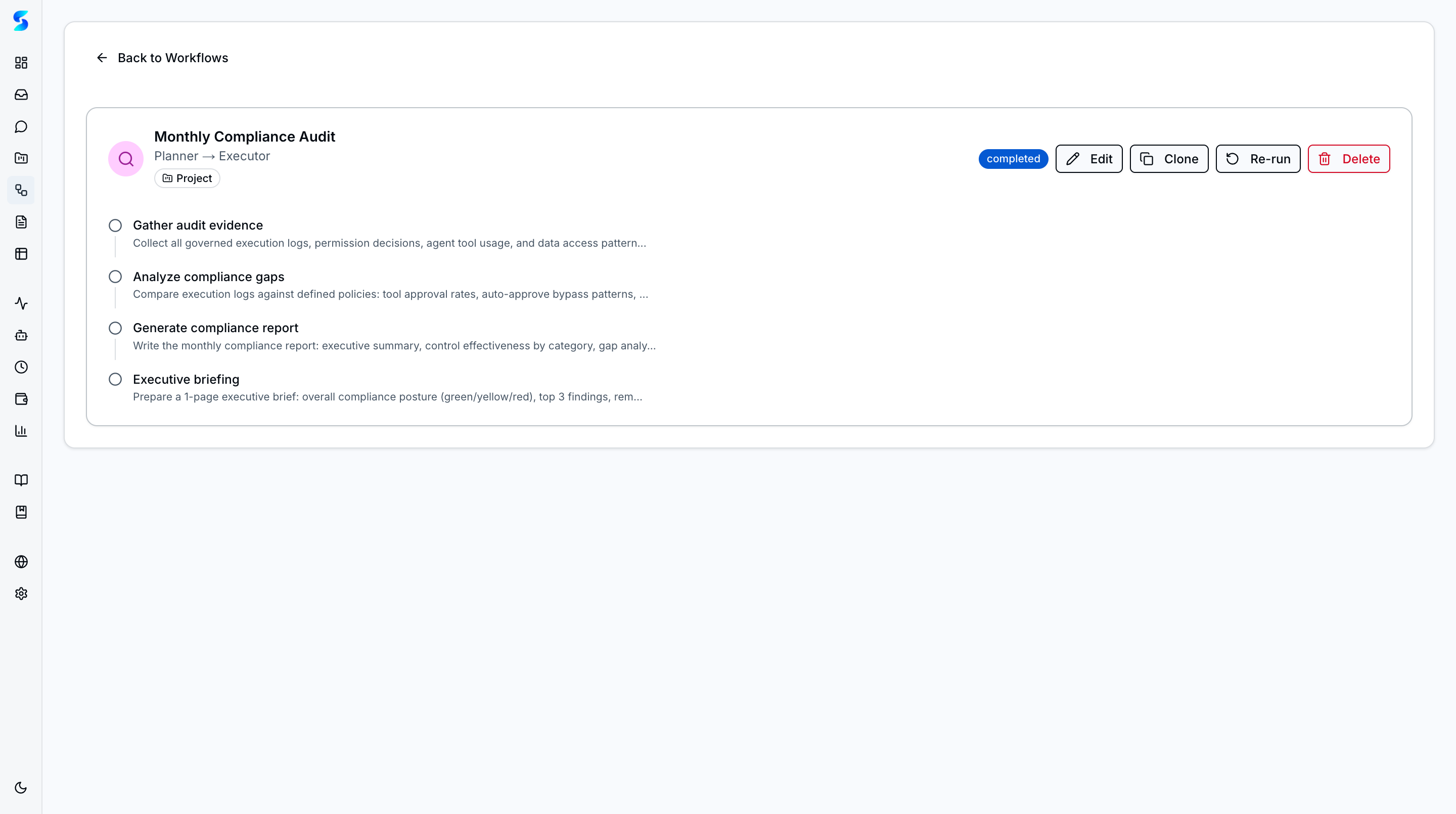 Workflow detail page with step-by-step breakdown and execution status
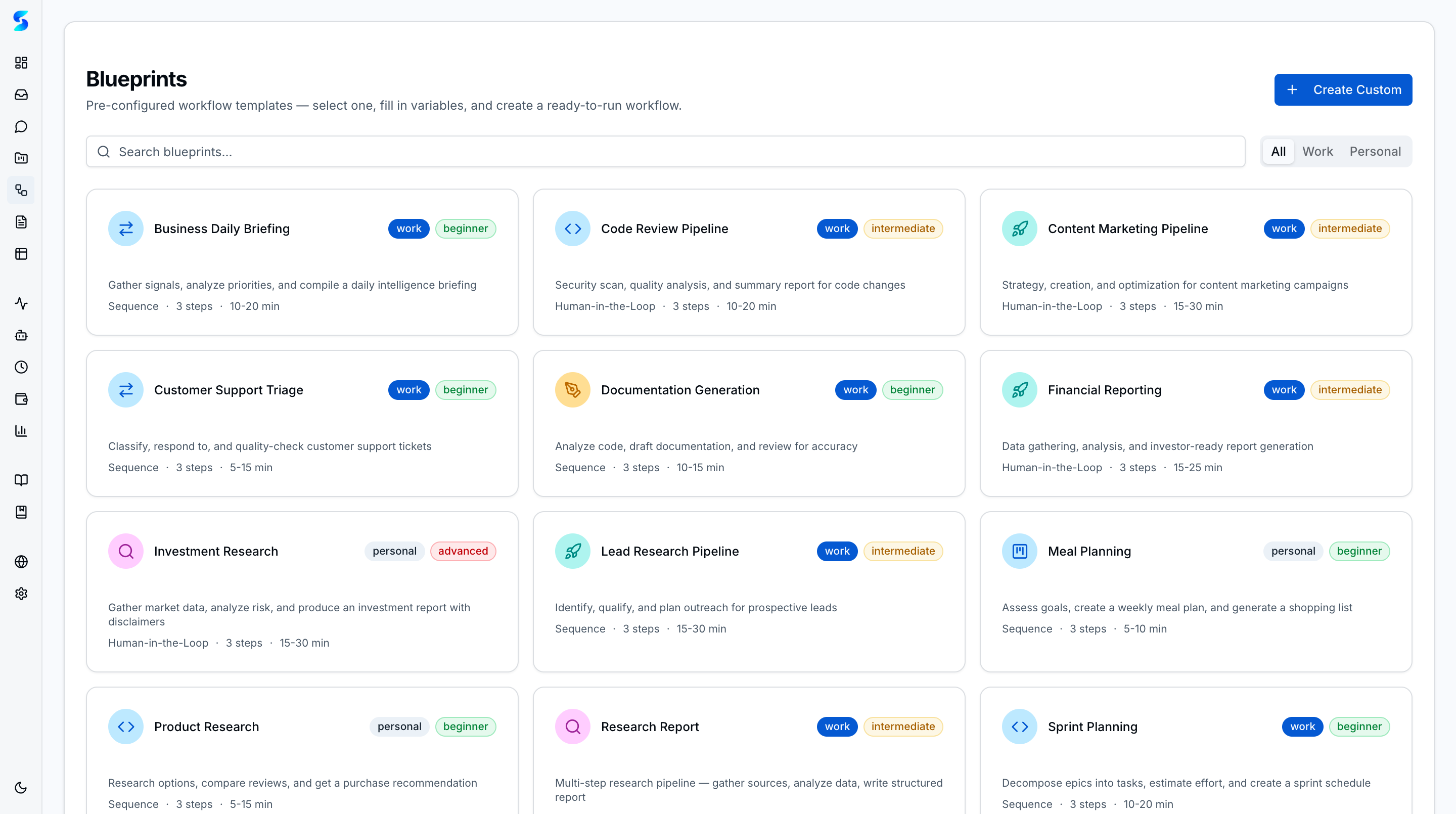 Workflow blueprints gallery with pre-built workflow templates.
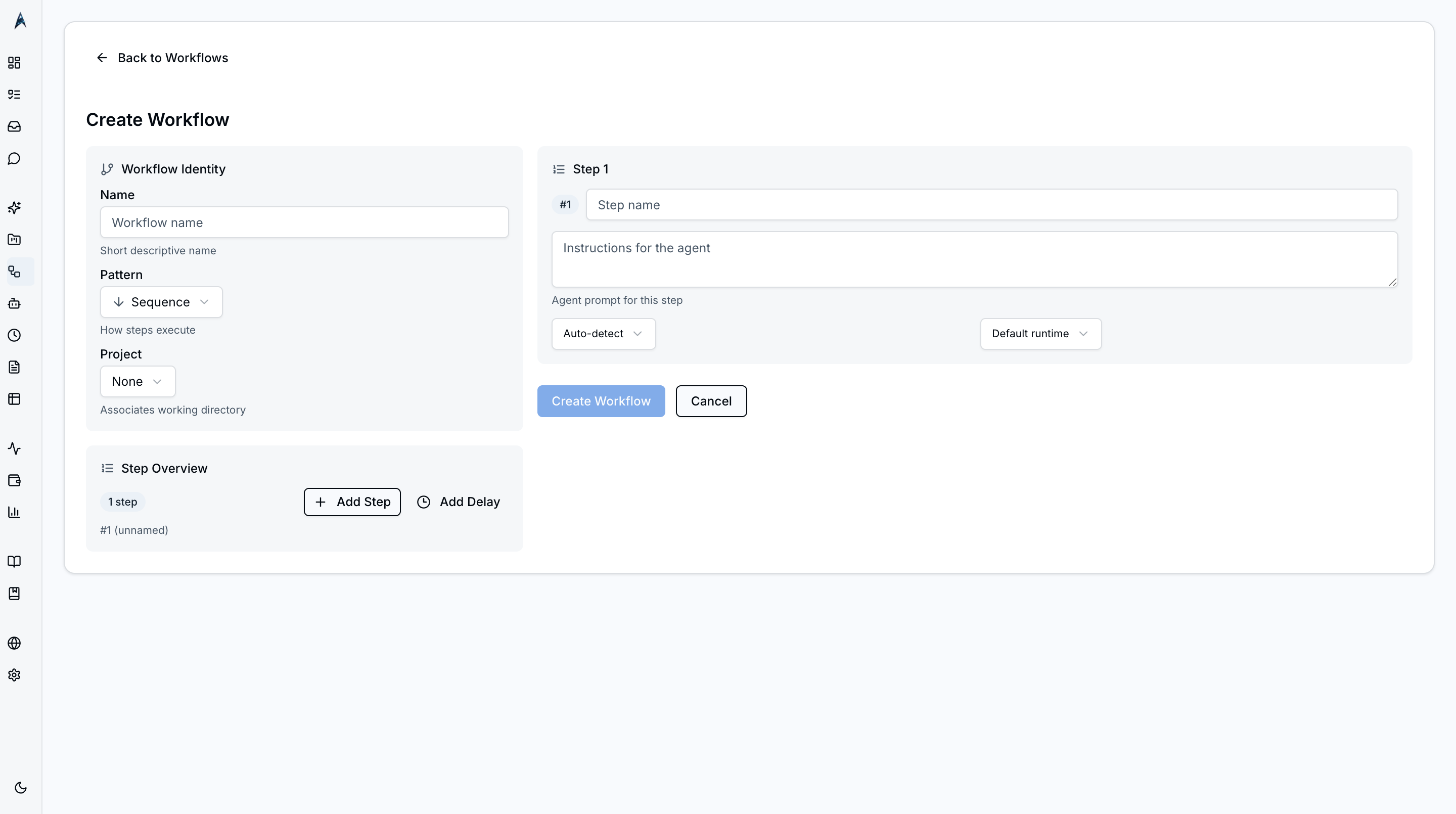 New workflow creation form ready for input — name, pattern selector, and the step-builder section before any steps are added.
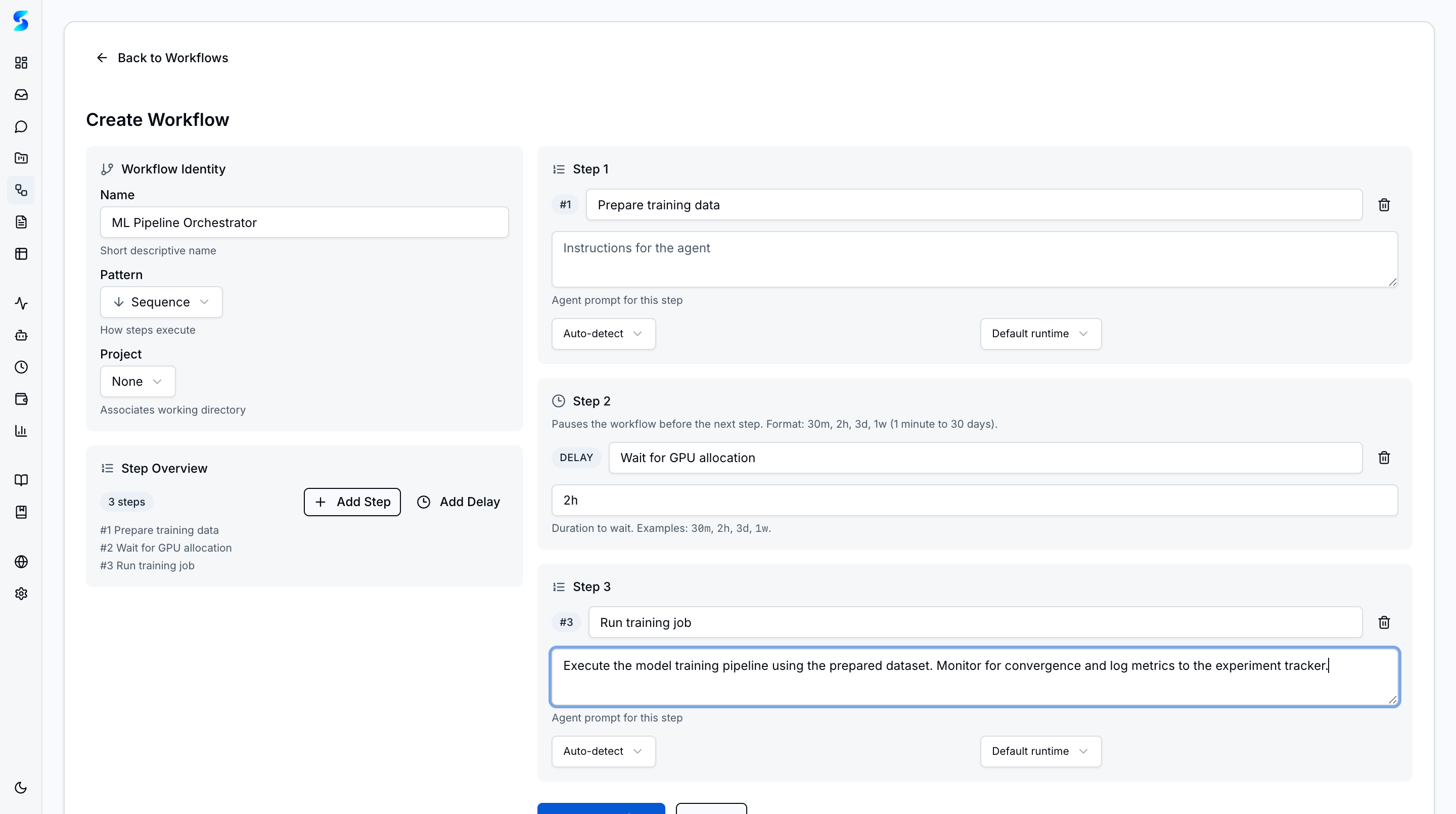 The workflow create form exposes an “Add Delay” button alongside “Add Step”. Delay steps pause execution for a schedule-based duration (30m, 2h, 3d, 1w) before the next step runs — ideal for drip sequences and cooldown windows.
Key Features
Six Pattern Types
Workflows support six orchestration patterns:
- Sequence — Steps execute one after another in order.
- Planner-Executor — A planning step generates a plan, then an executor step carries it out.
- Checkpoint — Inserts a human-in-the-loop approval gate between steps.
- Autonomous Loop — Repeats a step until a stop condition is met (max iterations, goal reached, error threshold, or timeout).
- Parallel Research — Fans out multiple steps to run concurrently, then merges results.
- Multi-Agent Swarm — Multiple agent profiles collaborate on a shared objective with dynamic handoffs.
Step Delays (Drip Sequences & Cooldowns)
Insert pure time-delay steps between agent steps using the Add Delay button in the create form. Delays accept compact durations like 30m, 2h, 3d, or 1w. Execution model is schedule-based, not sleep-based: the delay is persisted in workflows.resume_at and the scheduler resumes the workflow when the time is up. This means delays survive process restarts — a 3-day cooldown will resume correctly even if the dev server is stopped and restarted in between. Resume is atomic and idempotent: the scheduler and a manual “Resume Now” click cannot double-fire the same delay. Delay steps are the primitive behind drip email campaigns, staggered onboarding sequences, and cooldown windows between automated actions.
Workflow Blueprints
The blueprint gallery offers pre-built workflow templates for common patterns:
- Technical blueprints — code review pipelines, deploy-and-verify, research synthesis, documentation generation
- Business-function blueprints — lead research pipeline, content marketing pipeline, customer support triage, financial reporting, business daily briefing
Click any blueprint to preview its steps, then create a workflow pre-populated with the template configuration. Customize steps, profiles, and runtimes to match your specific process.
Blueprints as Chat Templates
Blueprints also double as conversation templates for the Chat surface. A blueprint can declare an optional chatPrompt field that provides a purpose-built opening prompt for chat use; if it is not set, the chat launcher falls back to steps[0].promptTemplate. This means the same blueprint asset powers three entry points — the Workflows gallery, the Chat empty-state picker, and the /new-from-template slash command — without requiring parallel definitions. See the Chat feature doc for the conversation-side flow.
Tabs: All, Templates, Runs
The workflow page organizes content into three tabs. “All” shows every workflow. “Templates” shows reusable patterns you can instantiate. “Runs” shows active and historical executions with their current status.
Workflow Cards
Each workflow card displays the name, pattern type, step count, and current status. Click a card to open the detail view.
Workflow Detail Page
The detail view shows the full step-by-step breakdown of a workflow, including each step’s name, instructions, assigned agent profile, runtime, and execution status. For running workflows, you can see which step is currently active.
Step Builder
The creation form includes a step builder where you define each step with a name and instructions. Each step can be assigned a specific agent profile and runtime, enabling mixed-agent workflows where different profiles handle different steps.
AI-Assisted Workflow Creation
The AI Assist feature can analyze a task and recommend converting it into a workflow with appropriate steps, patterns, and profile assignments.
How To
Create a New Workflow
- Navigate to
/workflowsand click “New Workflow.” - Enter a name and select a pattern type (e.g., Sequence, Checkpoint).
- Optionally link the workflow to a project.
- Use the step builder to add steps — each step needs a name and instructions.
- Assign an agent profile and runtime to each step as needed.
- Click “Create” to save the workflow.
Use a Blueprint
- Go to the “Blueprints” tab on the workflows page.
- Click a blueprint card to preview its configuration.
- Click “Use Blueprint” to create a new workflow instance from it.
- Modify any steps or parameters as needed, then save.
Run a Workflow
- Open the workflow detail page by clicking its card.
- Click “Run” to start execution.
- For Checkpoint patterns, you will be prompted to approve at each gate.
- Monitor progress in real time on the detail page or in the Runs tab.
Monitor Workflow Runs
- Navigate to the “Runs” tab to see all active and completed executions.
- Click a run to see step-by-step progress and any agent output.
- Failed steps display error details to help with debugging.
Related
Related Features
- Task Execution — Individual execution records created by workflow steps
- Profiles — Reusable specialist behavior for each workflow step
- Human-in-the-Loop — Checkpoint approval requests