Documents
The document workspace keeps project files, uploaded references, and extracted content in one place. It is designed for operators who need to verify exactly what context an agent is using before or after execution.
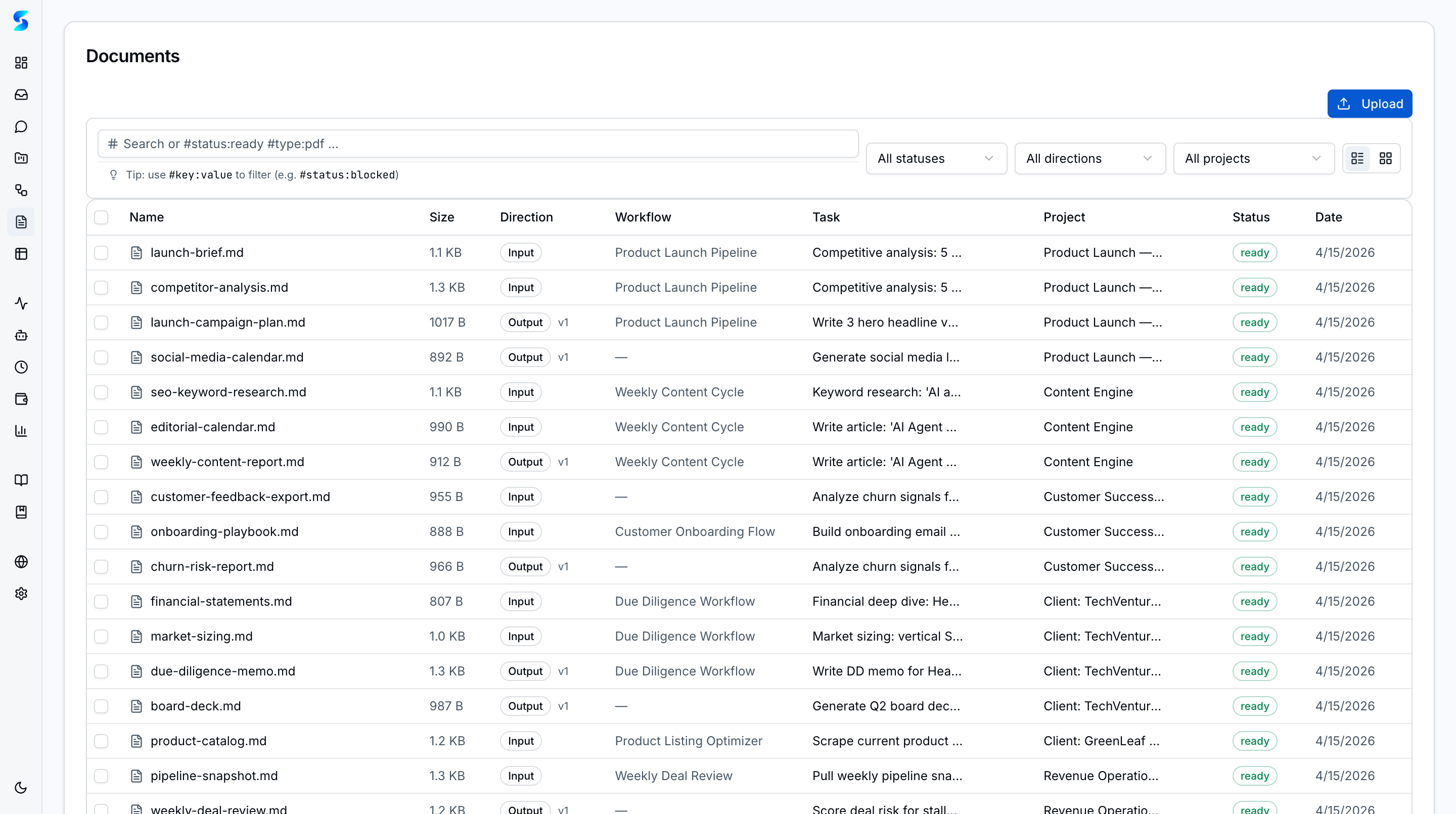
The Document Library is where you upload, manage, and organize files that agents can reference during task execution. ainative-business automatically preprocesses uploaded files to extract text, making their content available as context for agents without manual copy-pasting.
Screenshots
Document library in table view showing file name, type, size, and processing status.
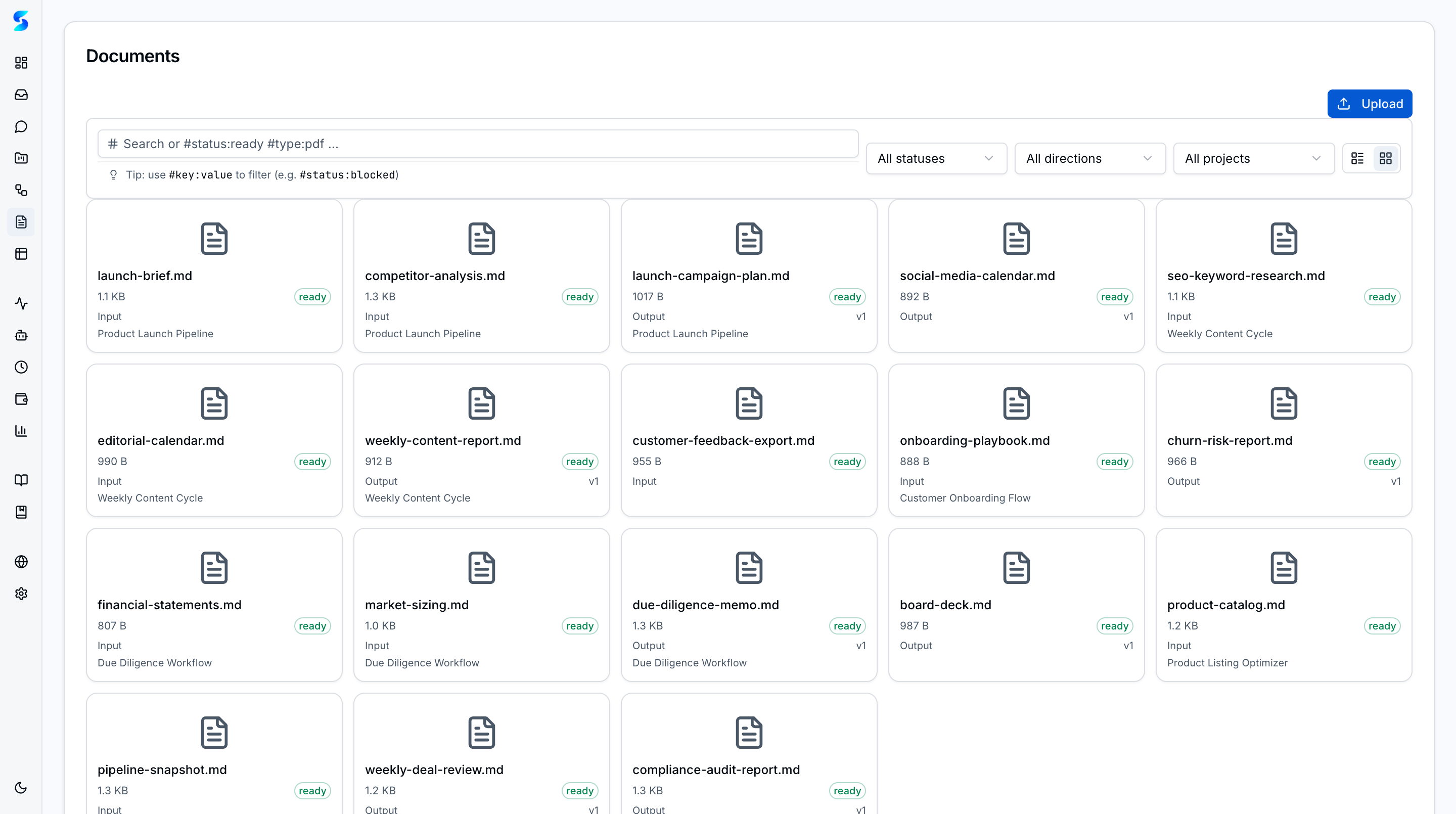 Grid view displaying document thumbnails and metadata cards.
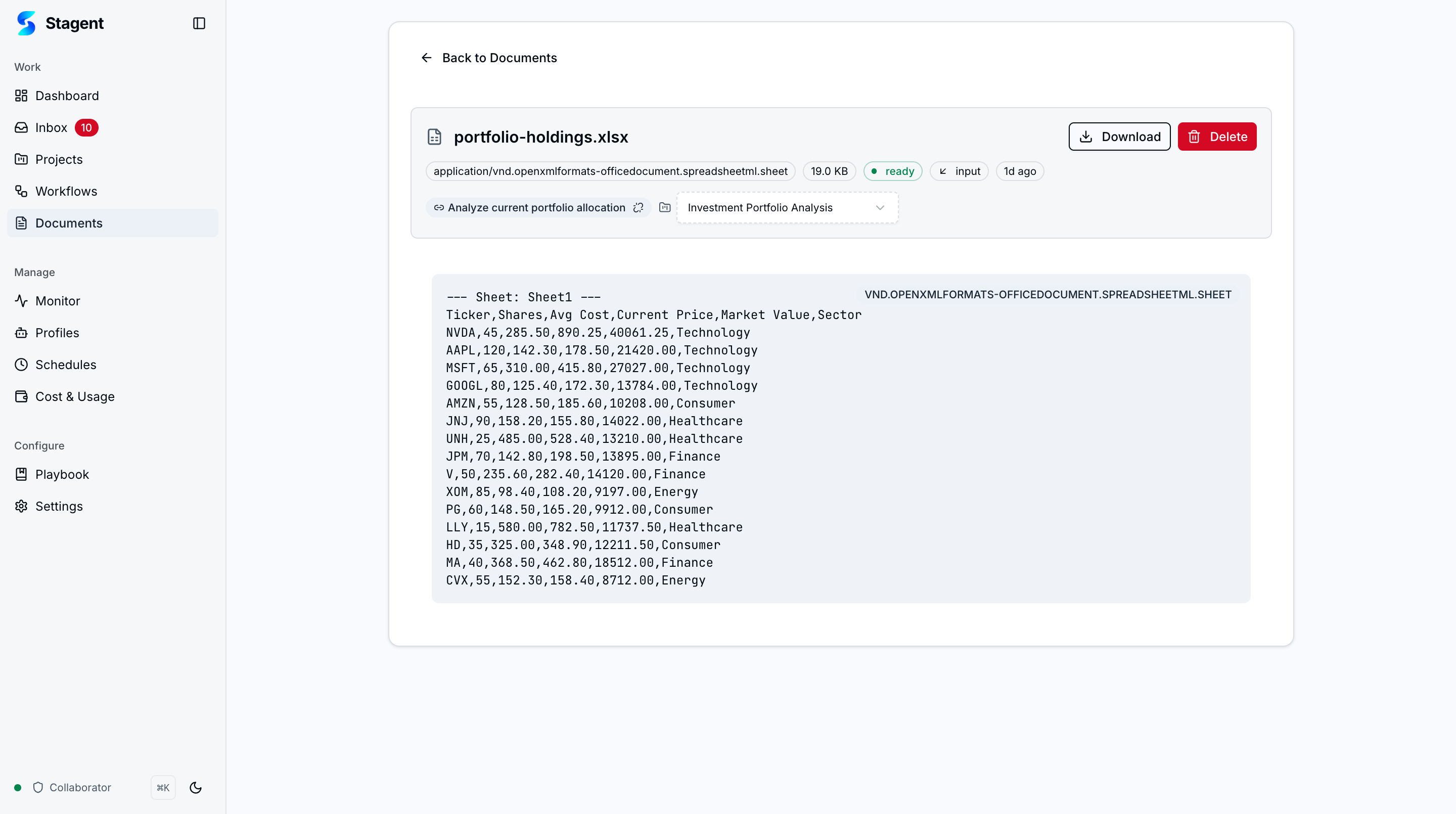 Detail pane for a selected document — extracted text, file metadata, processing status, and Open/Delete/Reprocess actions.
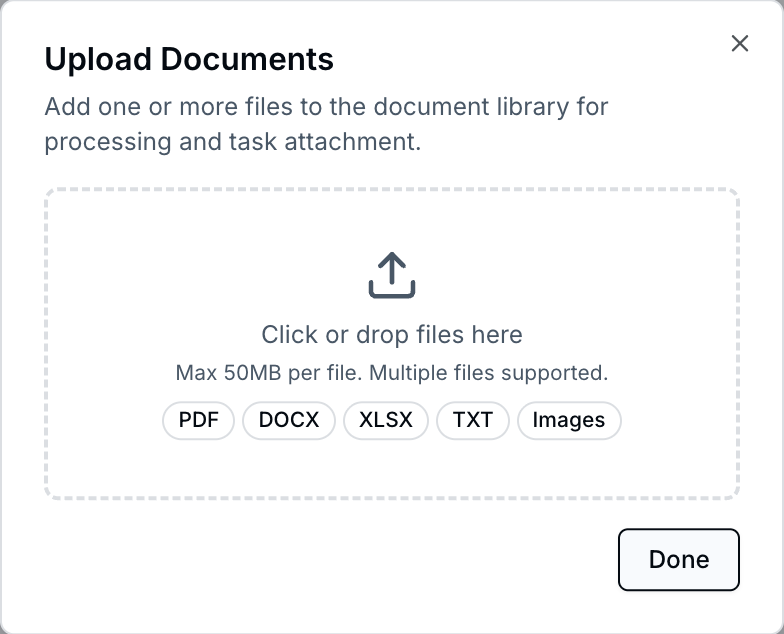 Upload dialog with drag-and-drop zone, supported file-type list, and per-file progress indicators.
Key Features
Table and Grid Views
Toggle between a table view for dense scanning (file name, type, size, processing status, timestamps) and a grid view with visual cards. Both views support selection for bulk operations.
FilterInput and Saved Searches
The /documents list page is the reference consumer for the shared FilterInput component. Type #type:pdf or #scope:"legal review" to filter by namespace — double-quoted values cleanly handle phrases with spaces. Combine filters with a free-text search, then click Save view in the footer to pin the combination as a saved search. Saved searches are available across surfaces (Chat, Tables, Documents) via the ⌘K palette Saved group.
Upload Dialog with Drag-and-Drop
The upload dialog accepts files via drag-and-drop or file picker. A visual indicator shows supported file types. Multiple files can be uploaded in a single batch.
Supported File Types
ainative-business processes a range of document formats:
- PDF — Text extraction via pdf-parse.
- Text — Plain text, Markdown, code files.
- Images — Metadata extraction (dimensions, format).
- Office Documents — Word documents, presentations, and archives.
- Spreadsheets — Excel and CSV files.
Automatic Preprocessing
After upload, ainative-business automatically extracts text content from supported file types. The extracted text is stored alongside the original file, ready to be injected into agent context. Processing status is visible on each document card.
Agent Document Context
Documents can be attached to tasks. When an agent executes a task with attached documents, the extracted text is included in the agent’s context window, giving it direct access to the document content without needing file-system access.
Document Output Generation
Agents can generate documents as output during task execution. Generated files are added to the document library automatically, linked back to the originating task.
How To
Upload Documents
- Navigate to
/documentsand click “Upload.” - Drag and drop files into the upload zone, or click to browse.
- Select one or more files — supported types are shown in the dialog.
- Click “Upload” to start the process.
- Preprocessing begins automatically — watch the status indicator on each document.
Attach Documents to a Task
- When creating or editing a task, look for the document attachment field.
- Select one or more documents from the library.
- The agent will receive the extracted text as part of its context when executing the task.
Switch Between Views
- Use the view toggle at the top of the documents page.
- Table view is best for scanning many documents by metadata.
- Grid view is best for visual browsing when file types include images.
Delete Documents
- Select one or more documents using the checkboxes.
- Click “Delete” to remove them from the library.
- Bulk delete is supported for cleaning up multiple files at once.
Related
Related Features
- Agent Integration — How agents consume document context
- Projects — Documents linked to active initiatives
- Settings — Upload and storage configuration