Human-in-the-Loop
The inbox is the operator-facing governance surface for ainative-business. It consolidates permission requests, agent messages, completions, and failures into a single review queue so agents never act outside the trust boundary you set.
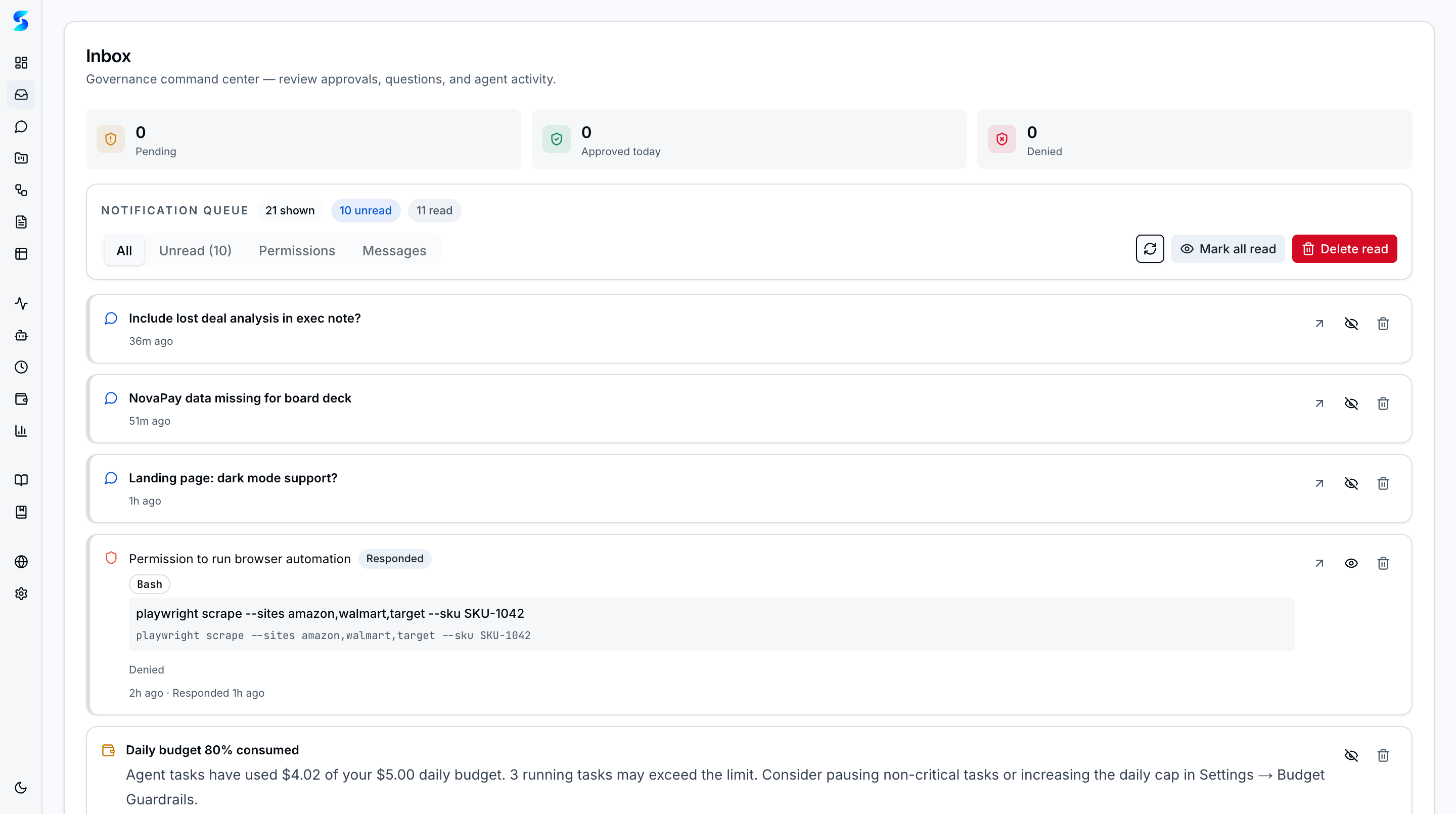
The Inbox is your notification center for all agent activity that needs awareness or action. Notifications range from informational (task completed, agent message) to actionable (permission required, handoff approval). Rich content rendering and progressive disclosure keep the inbox scannable without hiding important details. A dedicated Permissions tab surfaces every persisted tool-permission grant so you can review and revoke at a glance.
Screenshots
Inbox showing notification queue with permission requests, agent messages, budget alerts, and context proposals.
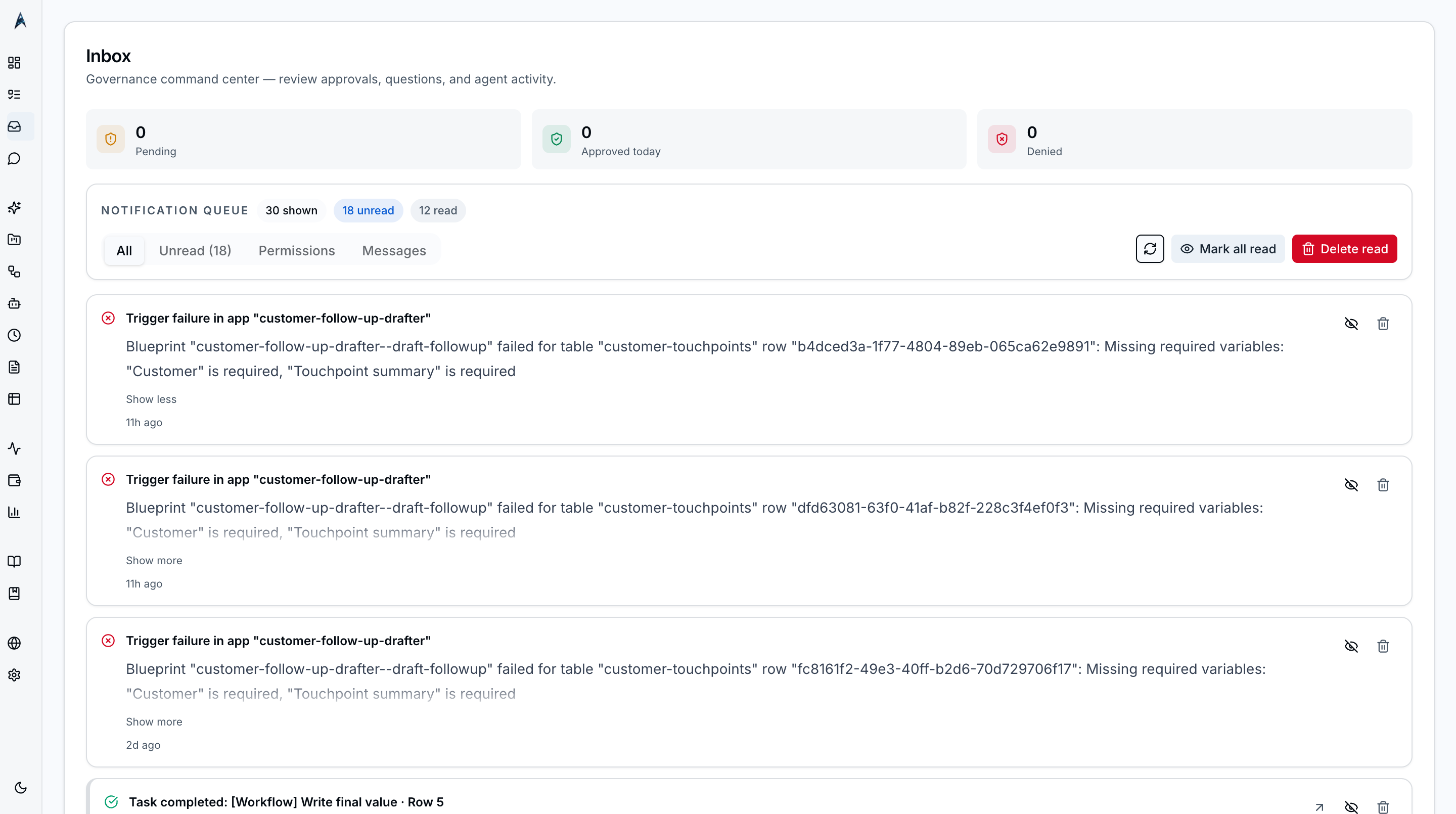 Expanded notification showing full body content and action buttons.
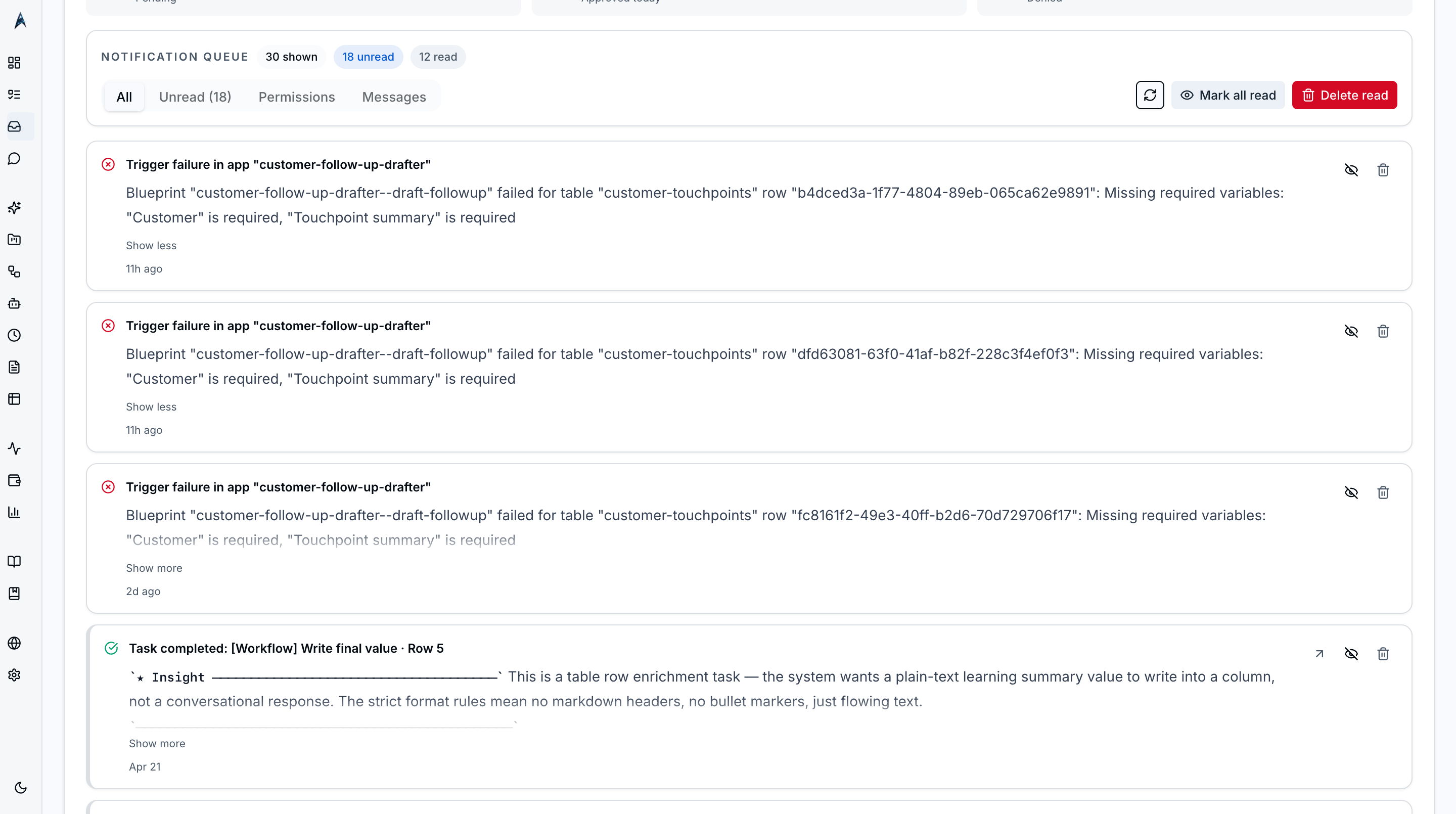 Fully expanded notification with multi-paragraph markdown content, code blocks, and action affordances rendered inline.
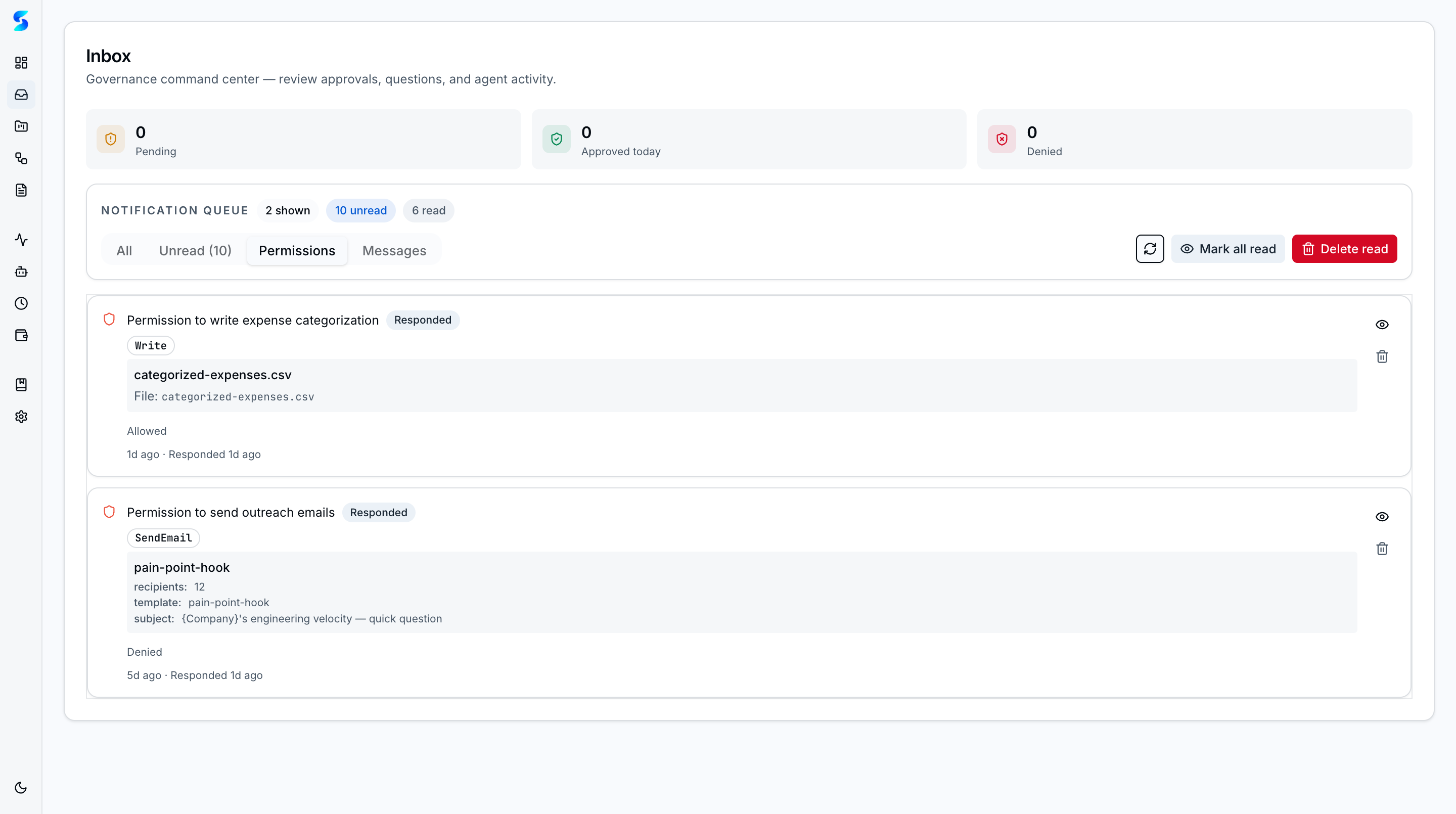 Permissions tab listing every persisted tool-permission grant with the granting preset (if any) and a per-row Revoke button — same data as Settings → Tool Permissions, surfaced where you triage notifications.
Key Features
Notification Categories
Notifications are categorized by type: task completed, agent message, permission required, budget alert, handoff request, and context proposal. Each category has a distinct visual indicator so you can scan the inbox quickly and focus on what matters.
Unread Badges
Unread notifications display a badge count in both the inbox and the sidebar navigation item. Notifications are marked as read when you expand them or take action.
Progressive Disclosure
Long notifications start collapsed with a summary. Click “Show More” to expand the full content. This keeps the inbox compact while ensuring no detail is lost.
Rich Content Rendering
Notification bodies render Markdown content with GitHub Flavored Markdown support. Agent messages can include code blocks, tables, lists, and links — all rendered inline.
Human-in-the-Loop Approvals
When an agent requests permission to use a tool, a “Permission Required” notification appears with Approve and Deny buttons. This is the core human-in-the-loop mechanism — you stay in control of what agents can do.
Agent Handoff Approvals
When one agent hands off work to another via the async message bus, a handoff notification appears in the inbox. You can approve the handoff to let the receiving agent proceed, or deny it to stop the chain. Governance gates enforce chain depth limits and prevent self-handoffs.
Agent Questions (AskUserQuestion)
When an agent needs a direct answer from you — for example, to disambiguate between two valid paths during an upgrade merge — it uses the AskUserQuestion tool. These surface in the inbox as question notifications with a typed reply box (rendered by the QuestionReplyActions branch of the permission-response view). Submit a short answer inline and the agent resumes from where it paused. Questions are distinct from permission requests: there is no “Approve / Deny,” only the reply field.
Upgrade Failure Notifications
If the hourly upgrade-detection poller fails three consecutive times (network error, unreachable remote, etc.), a persistent notification is posted to the inbox so the issue does not go silent. The three-strike dedup prevents a flood — only the first sustained failure raises a notification, and it clears automatically once the poller succeeds again.
Ambient Approval Toasts
For quick permission grants, ambient toasts appear at the edge of the screen. You can approve or deny without navigating to the inbox, keeping your workflow uninterrupted.
Budget Alerts
When spending approaches a configured budget cap (at 80% and 100%), the inbox surfaces budget alert notifications so you can take action before agents are blocked.
How To
Review Notifications
- Navigate to
/inboxor click the Inbox item in the sidebar. - Scan the notification list — unread items are visually distinct.
- Click a notification to expand its details.
- Click “Show More” for long notifications to see the full content.
Approve or Deny a Permission Request
- Look for notifications with the “Permission Required” category.
- Expand the notification to see what tool the agent wants to use and why.
- Click “Approve” to grant the permission, or “Deny” to reject it.
- The agent resumes or halts based on your decision.
Handle Agent Handoffs
- Look for notifications with the “Handoff Request” category.
- Review which agent is handing off to which, and the context being passed.
- Approve to let the receiving agent begin work, or deny to stop the chain.
Handle Ambient Toasts
- When a toast appears at the screen edge, review the permission request summary.
- Click “Approve” or “Deny” directly on the toast.
- The toast dismisses automatically after action or timeout.
Related
Related Features
- Agent Integration — The canUseTool pattern that generates notifications
- Monitoring — See agent activity in real time
- Task Execution — Where task runs originate