Projects
Projects are the top-level containers for work in ainative-business. They group tasks, workflows, schedules, and documents around one initiative so the system can reason about context without losing operator visibility.
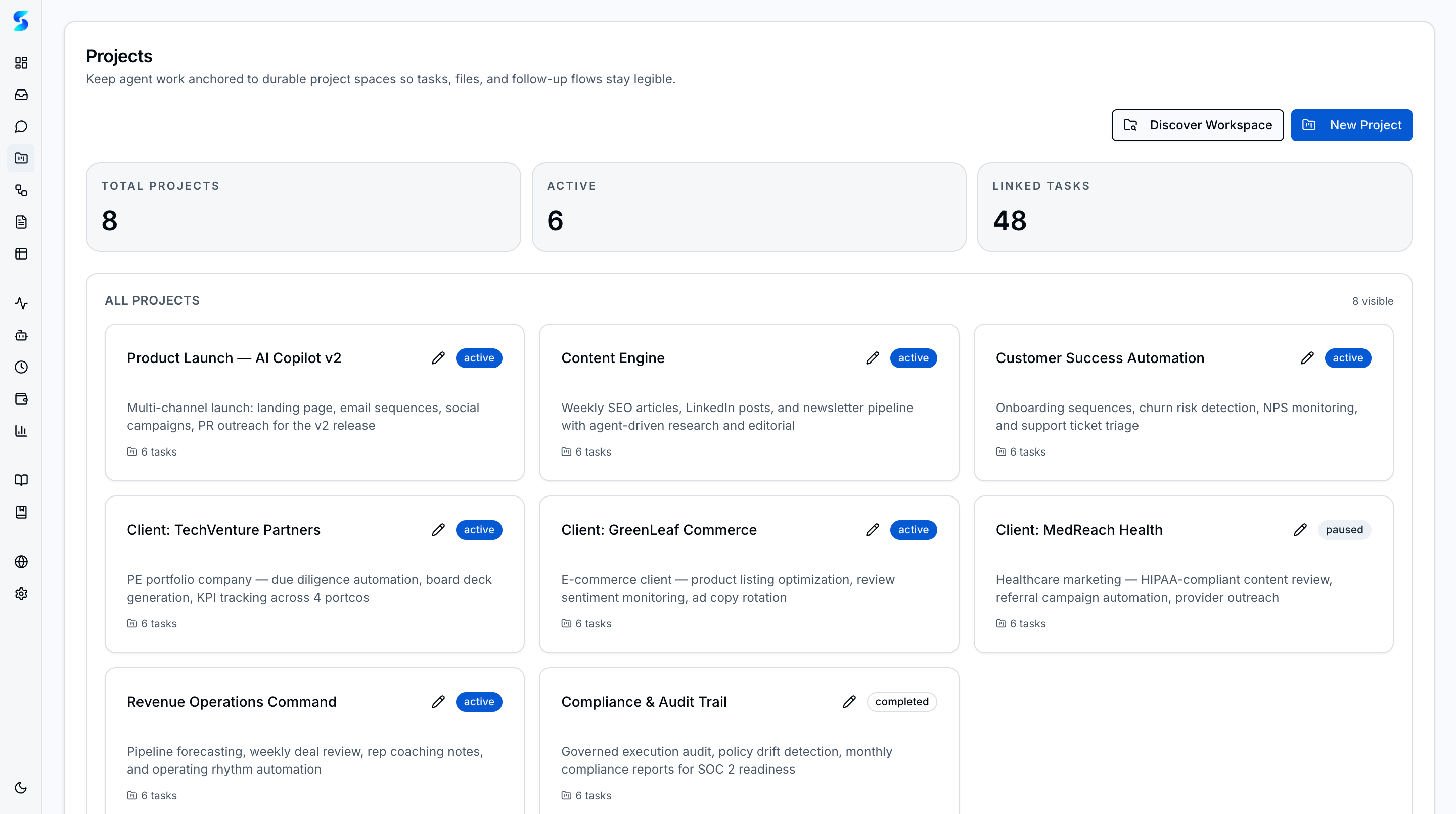
Projects are workspaces that group related tasks, workflows, and documents under a shared context. Each project can specify a working directory, enabling agents to execute file-system-aware tasks within the correct folder on your machine.
Screenshots
Project cards showing name, status, and description for each workspace
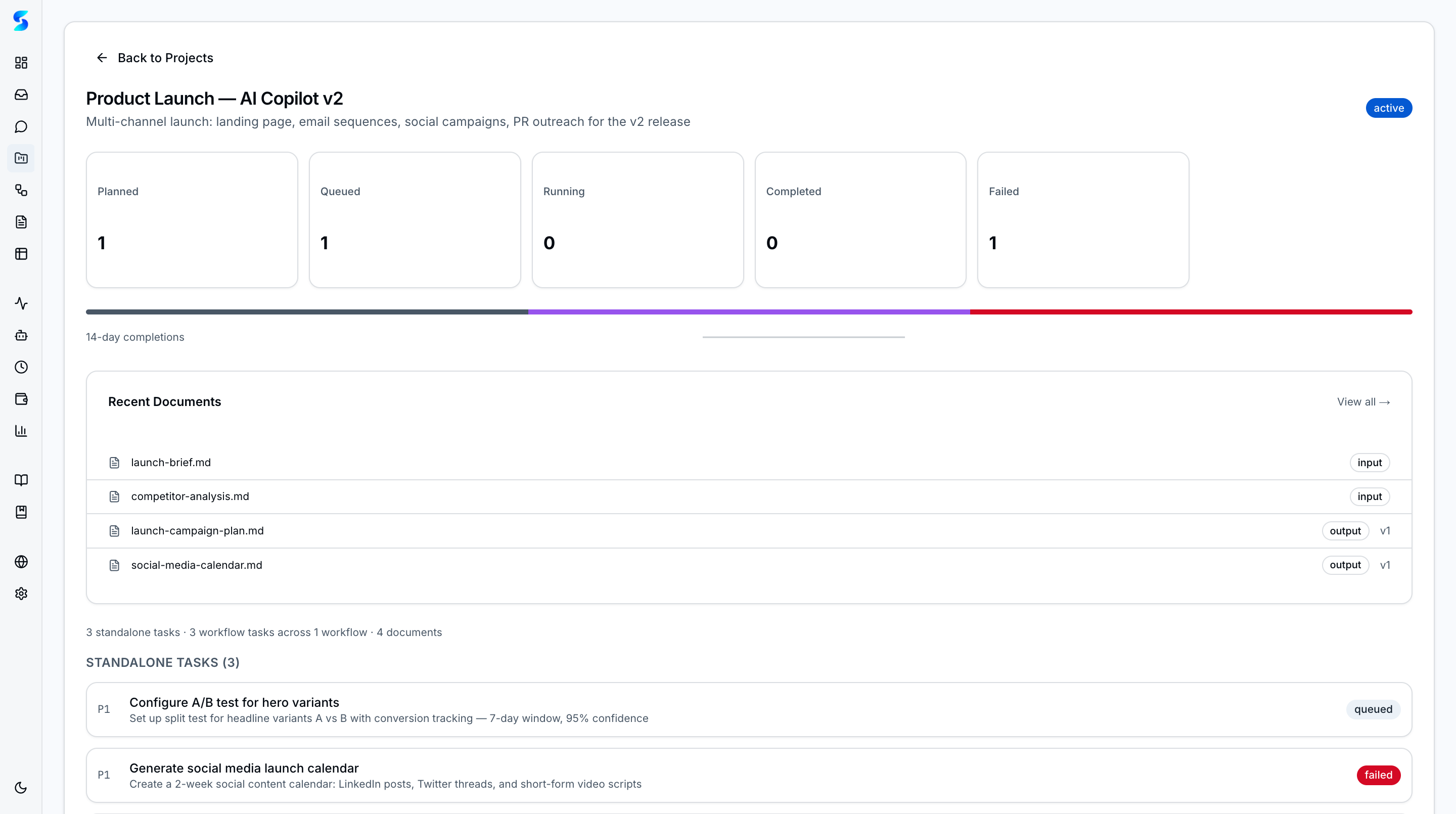 Project detail page with associated tasks, workflows, and documents
Key Features
Project Workspaces
Each project acts as a container for related work. Tasks, workflows, and documents associated with a project share context, making it easy to organize complex initiatives with multiple agent activities.
Project Cards
The project list displays cards with the project name, current status, and a brief description. Cards are interactive — click to navigate to the project detail page.
Project Detail Page
The detail page shows everything associated with a project: its tasks (with status), linked workflows, and attached documents. This is your single-pane view of all activity within a project.
Working Directory
Each project can specify a local file-system path as its working directory. When agents execute tasks for this project, they resolve file operations relative to this directory. This enables safe, scoped file access without giving agents free rein over your machine.
Create Project Dialog
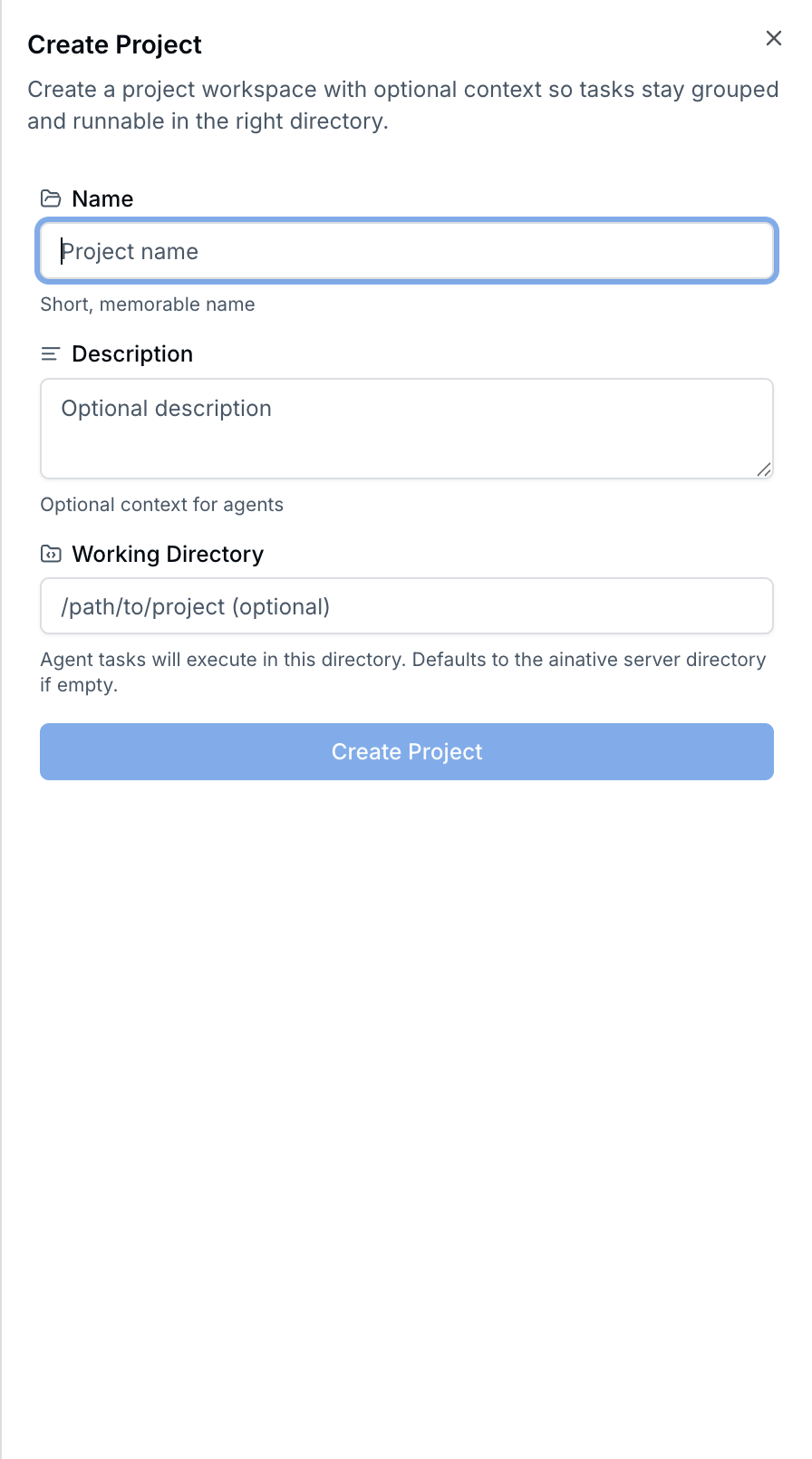 New Project dialog ready for input — name, description, and optional working directory.
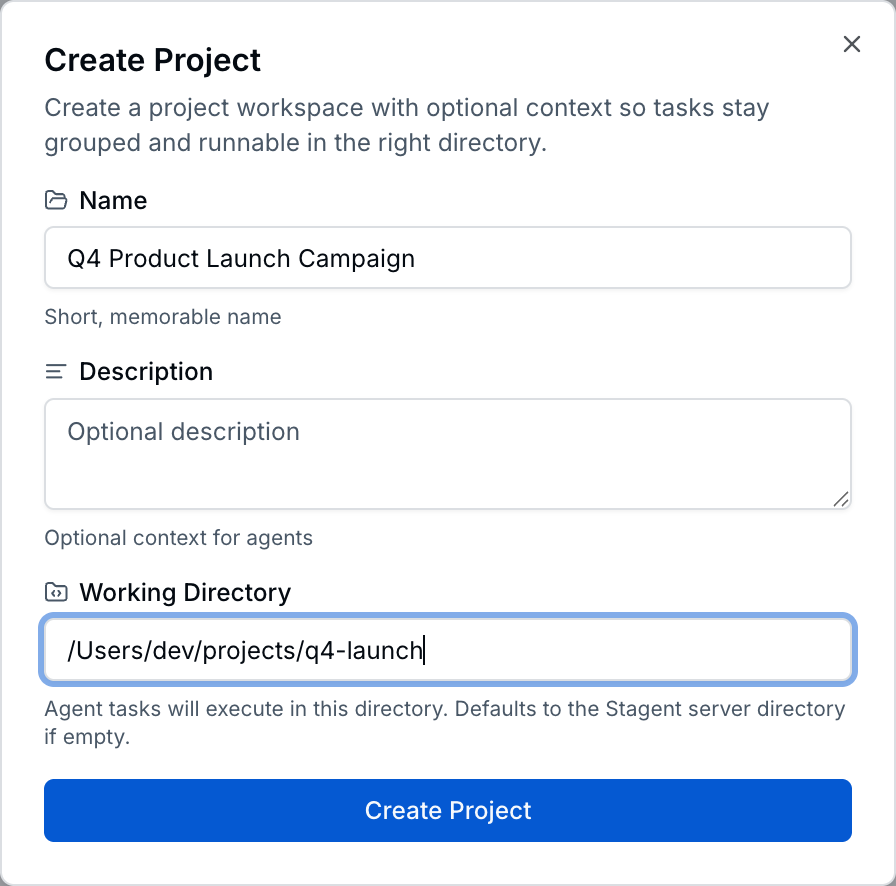 Form populated with name, description, and an absolute working-directory path before submission.
The creation dialog collects a project name, description, and optional working directory. Projects can be created empty and populated with tasks and documents later. The working directory must be an absolute path on the host machine — agents executing tasks for this project resolve file operations relative to it.
How To
Create a New Project
- Navigate to
/projectsand click “New Project.” - Enter a name and description for the project.
- Optionally set a working directory (e.g.,
/Users/you/code/my-repo). - Click “Create” to add the project.
View Project Details
- Click any project card on the projects list page.
- The detail page shows all associated tasks, workflows, and documents.
- Click any linked item to navigate directly to its detail view.
Associate Tasks with a Project
- When creating or editing a task, select a project from the project dropdown.
- The task will appear in the project’s detail page under associated tasks.
- The agent executing the task will use the project’s working directory as its base path.
Manage Project Status
- Open the project detail page.
- Update the project status as work progresses (e.g., Active, Completed, Archived).
- Status changes are reflected on the project card in the list view.
Related
Related Features
- Home & Dashboard — Workspace-level entry points into projects
- Task Execution — The task lifecycle inside each project
- Documents — Documents linked to projects