Schedules
Schedules turn repeatable prompts into recurring or one-shot automations with two distinct modes. Clock-driven schedules fire on a fixed cadence, while heartbeat schedules evaluate a checklist of conditions before acting — suppressing no-op runs and only creating tasks when meaningful work is needed. Both modes support natural language intervals, delivery channel notifications, and full execution history.
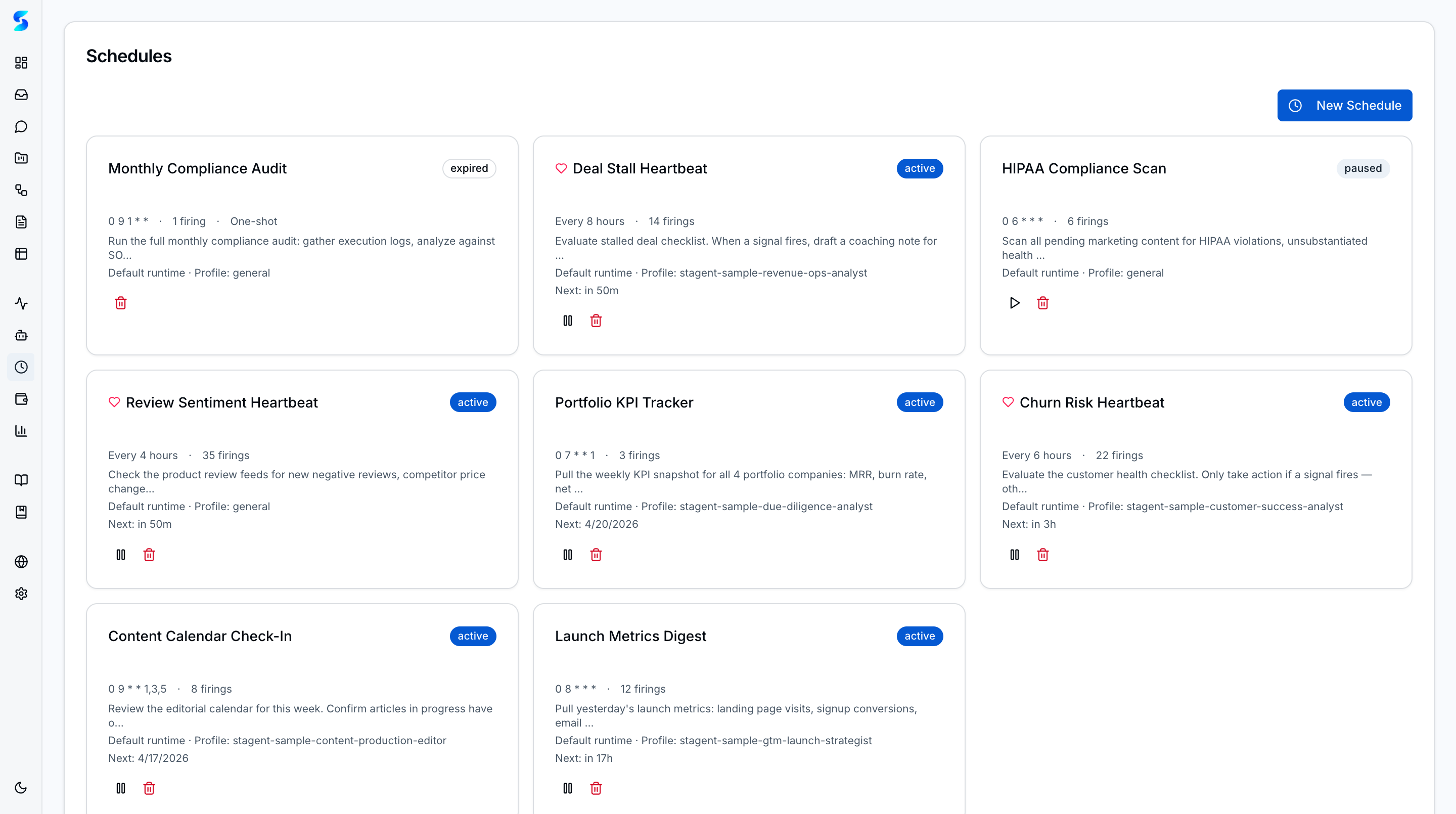
Automate recurring AI prompts on configurable intervals with two distinct scheduling modes. Clock-driven schedules fire on a fixed cadence (every hour, daily at 9 AM). Heartbeat schedules go further — they evaluate a checklist of conditions before deciding whether to act, suppressing no-op runs and only creating tasks when meaningful work is needed. Both modes support natural language intervals, delivery channel notifications, and full execution history.
Screenshots
The schedules list displays all configured schedules with status, type (clock or heartbeat), interval, next run time, and associated project.
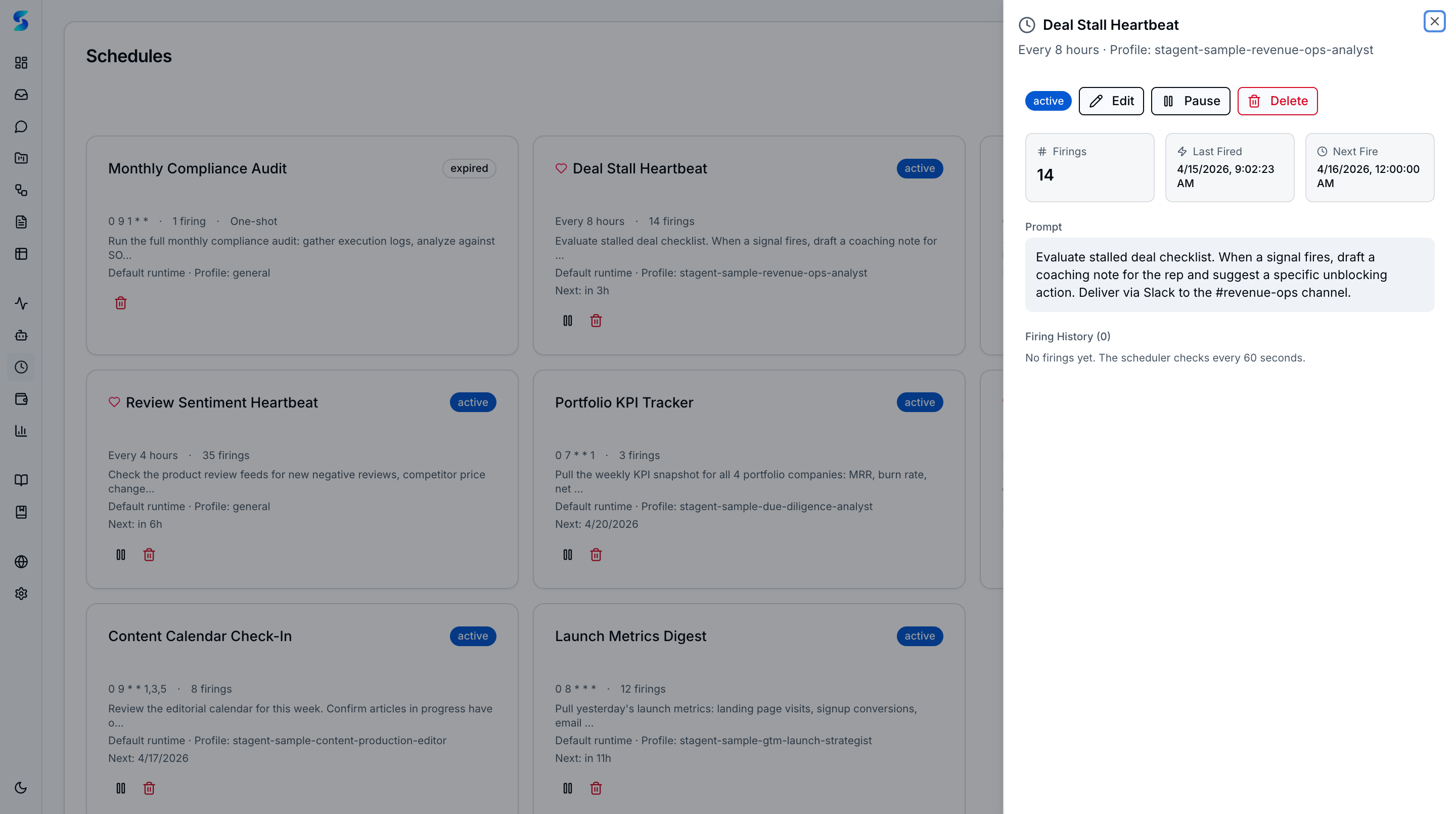 The schedule detail sheet shows full configuration, checklist items (for heartbeats), execution statistics, and chronological firing history.
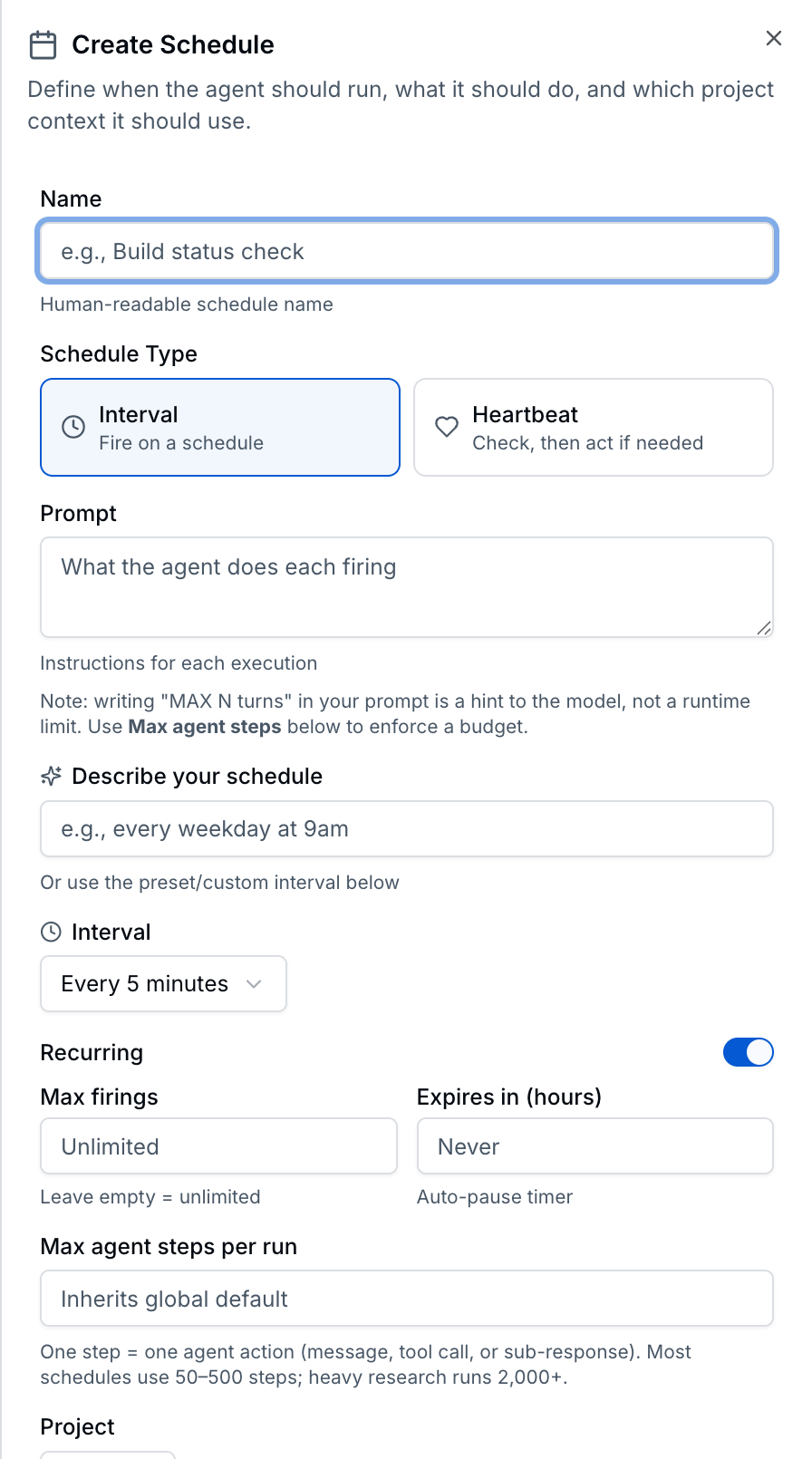 The Create Schedule sheet exposes the new per-schedule turn-budget field. Max agent steps per run caps how many actions the agent takes in a single firing before the runtime aborts.
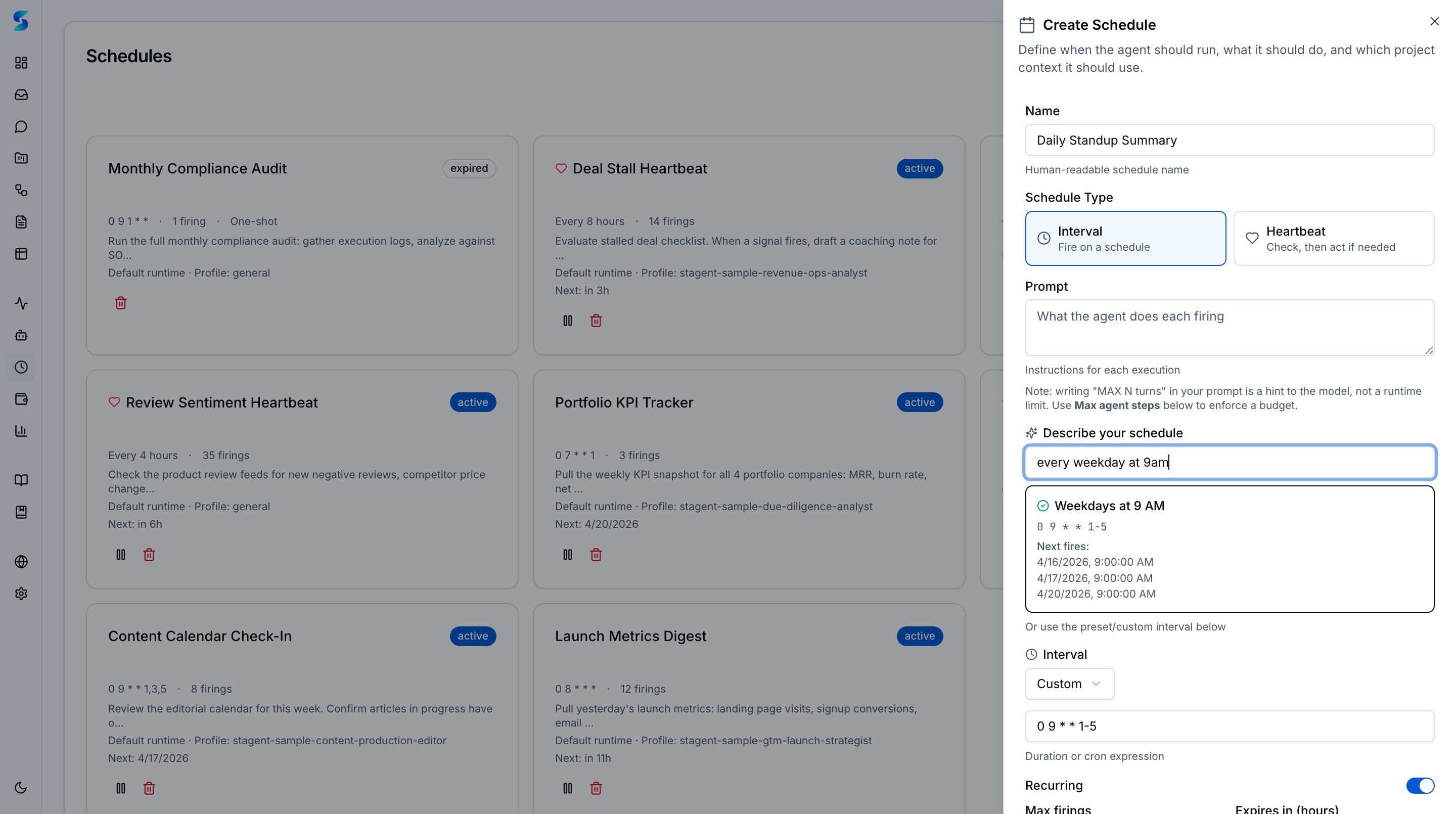 Filled schedule form showing a weekday 9am security audit with a 250-step budget. Writing “MAX N turns” in your prompt is a hint to the model — the Max agent steps field is the enforced runtime limit.
Key Features
Two Schedule Types
Clock-driven schedules fire on a fixed interval regardless of workspace state. They are ideal for periodic reports, data refreshes, and time-based automations.
Heartbeat schedules evaluate a checklist of conditions before each firing. If no conditions are met, the run is suppressed — no task is created, no tokens are spent. This makes heartbeats ideal for proactive monitoring: “check if any PRs are stale,” “flag overdue invoices,” “summarize new support tickets.” The agent only acts when there is something worth acting on.
Natural Language Intervals
Describe your schedule cadence in plain English instead of writing cron expressions. The natural language parser understands patterns like:
- “every 30 minutes”
- “daily at 9am”
- “every Monday at 10am”
- “weekdays at 5pm”
- “every 2 hours during business hours”
A preview shows exactly how the system interpreted your input before you save.
Heartbeat Checklists
Each heartbeat schedule includes a checklist of items the agent evaluates on every firing. The checklist editor lets you add, remove, and reorder items. Example checklist for a “Daily Operations Check”:
- Are there any failed tasks from overnight?
- Do any projects have stale tasks older than 7 days?
- Are there pending approval requests in the inbox?
Active Hours Windowing
Restrict schedule firings to specific time windows. For example, configure a heartbeat to only run during business hours (9 AM - 6 PM, weekdays). Firings outside the window are silently skipped.
Suppression Logic
Heartbeat schedules track suppression counts. If the agent evaluates the checklist and finds nothing to report, the firing is marked as suppressed rather than creating an empty task. This keeps your task board clean and your token spend low.
Cost Controls
Each schedule can have a per-firing cost budget. If a single execution exceeds the budget, it is flagged in the firing history. Combined with budget guardrails from Settings, this prevents runaway spend from frequently firing schedules.
Delivery Channel Integration
Attach one or more delivery channels (Slack, Telegram, webhook) to a schedule. When the schedule fires and produces results, a notification is sent to each active channel with the task summary and a link back to the full results.
Schedule Editing
Edit any schedule after creation. Update the name, prompt, interval, runtime, agent profile, checklist, or delivery channels without deleting and recreating. Changes take effect on the next firing.
Firing History
Every schedule firing creates a tracked child task. The detail view shows a chronological history of all past executions — including suppressed firings — with timestamps, outcomes, and token usage.
Pause and Resume
Suspend a schedule without losing its configuration or execution history. Pausing stops future runs while preserving the next-run calculation, so resuming picks up right where it left off.
Orchestration & Safety
Schedule orchestration v2 adds four orchestration primitives that keep concurrent schedules, long-running firings, and noisy prompts from destabilising the workspace.
Global Concurrency Cap
A configurable ceiling on how many scheduled runs can execute simultaneously. When the cap is reached, new firings are queued rather than launched in parallel. The atomic slot-claim primitive ensures that two schedules firing at the exact same tick cannot both slip past the limit — at most one claims each available slot. The cap adapts to chat pressure: active streaming chat sessions count against the ceiling so scheduled runs do not contend with interactive work.
Lease Reaper
Each running firing holds a lease recorded in the slot registry. A background reaper periodically checks for stale leases — firings whose host process died or whose runtime never responded — and reclaims their slots via AbortController. This is the safety net that prevents hung runs from permanently occupying capacity.
Pre-Flight Cron Collision Warning
When you save a schedule whose cron expression overlaps with an existing schedule (both would fire in the same minute on the same day), the form shows a warning banner at save time listing the conflicting schedules. You can still save — collisions are not blocked — but you see the conflict before committing so you can spread the load if desired.
Per-Schedule Turn Budget
The Max agent steps per run field caps the number of agent actions (messages, tool calls, sub-responses) allowed in a single firing. The runtime enforces this as a hard limit — not a prompt hint — and emits an explicit failure_reason if the budget is exceeded. Most schedules run comfortably in the 50–500 step range; heavy research runs sometimes need 2,000+. A separate streak counter grants one grace breach before the schedule is auto-paused, so a single over-budget run does not kill a stable schedule.
Manual Execute with Force-Bypass
The schedule detail view exposes a manual execute action that runs the schedule once, immediately, without waiting for the next scheduled tick. Manual runs still honour the concurrency cap by default; power users can force-bypass the cap for urgent one-off runs, with the bypass recorded in the audit ledger as a manual_force_bypass usage event.
Firing Metrics for Tuning
Every firing writes a row into schedule_firing_metrics capturing start time, end time, steps consumed, tool calls made, and terminal reason. This is the forensic trail you use to tune Max agent steps, detect runaway prompts, and spot schedules that routinely run close to their budget.
How To
Create a Clock-Driven Schedule
- Navigate to Schedules from the sidebar under the Compose group.
- Click Create Schedule to open the creation form.
- Enter a descriptive name and select type Clock.
- Describe the interval in natural language (e.g., “every day at 9am”).
- Write the prompt that the agent will execute on each run.
- Optionally select a project, runtime, agent profile, and delivery channels.
- Save the schedule.
Create a Heartbeat Schedule
- Click Create Schedule and select type Heartbeat.
- Enter a name like “Morning Operations Check.”
- Set the interval (e.g., “weekdays at 8am”).
- Add checklist items describing what the agent should evaluate.
- Optionally configure active hours to restrict when it runs.
- Attach delivery channels for Slack or Telegram notifications.
- Save. The heartbeat begins evaluating on its next firing.
Use Natural Language Intervals
- In the schedule creation or edit form, type a plain-English cadence in the interval field.
- A preview appears below showing the parsed schedule (e.g., “Fires at 09:00 every weekday”).
- If the preview does not match your intent, rephrase and check again.
- No cron syntax is needed, but standard cron expressions are also accepted for power users.
Pause and Resume a Schedule
- Open the schedules list at Schedules.
- Click the pause button to suspend future executions, or the resume button to reactivate a paused schedule.
- The schedule status updates immediately.
Related
- Profiles — Agent profiles used by schedule firings
- Monitor — View execution logs from schedule firings
- Delivery Channels — Attach channels for schedule notifications
- Cost & Usage — Track spend from scheduled executions
Related Features
- Profiles — Choose which specialist should run the schedule
- Workflows — Feed recurring automation into multi-step processes
- Task Execution — Review the work created by scheduled runs