Chat
The chat surface is an AI-powered command center for the workspace. Instead of a blank prompt, it opens to a Tool Catalog organizing suggested prompts into four action categories plus a Smart Picks row of personalized suggestions drawn from your actual projects, tasks, and documents. Conversations can also originate from Slack and Telegram via bidirectional delivery channels.
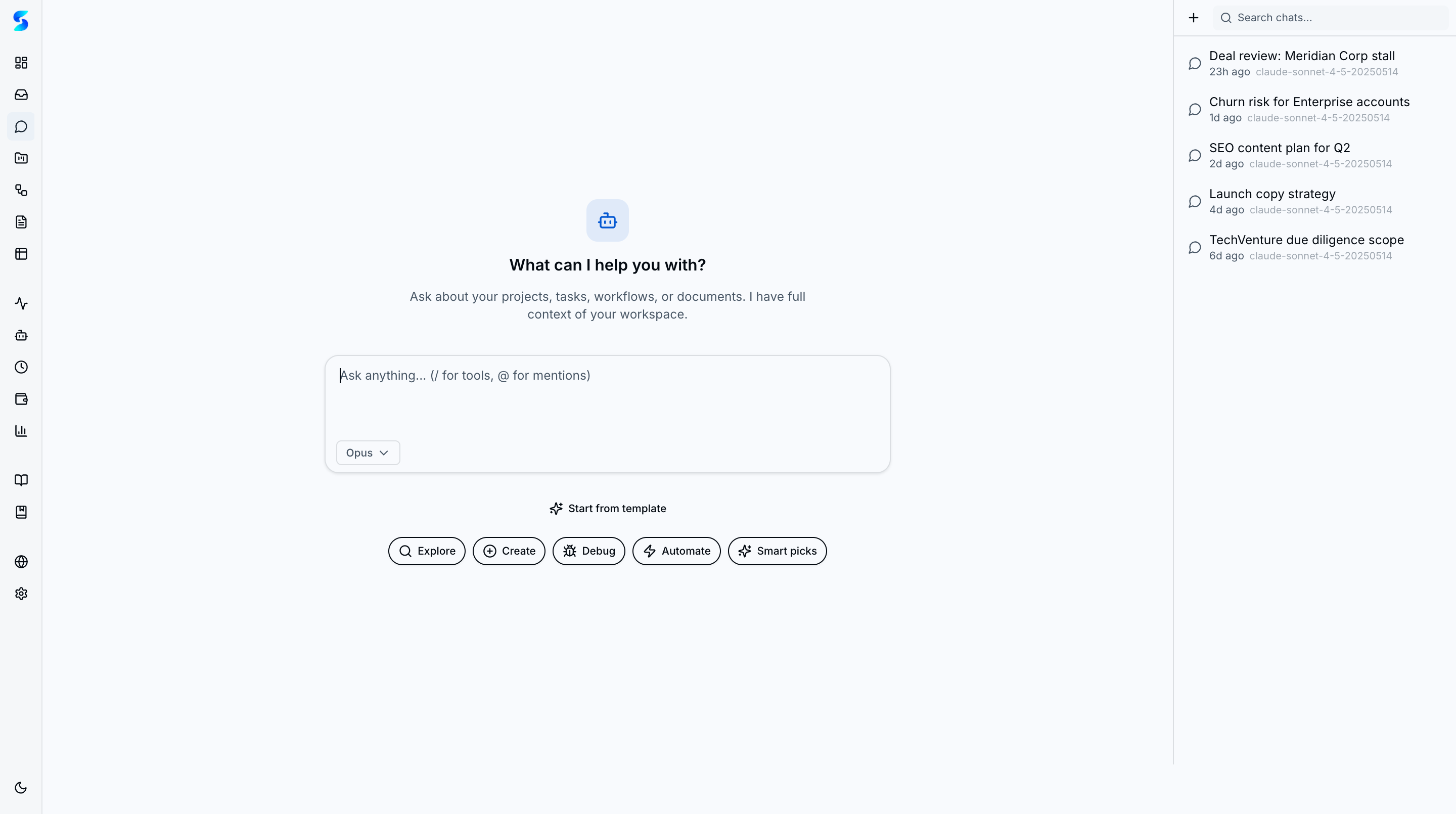
The Chat page is your AI-powered command center for everything in your workspace. Instead of a blank prompt, you land on a Tool Catalog that organizes suggested prompts into action-oriented categories — Explore, Create, Debug, and Automate — plus a Smart Picks row of personalized suggestions drawn from your actual projects, tasks, and documents. Pick a model, choose a prompt (or type your own), and get context-aware answers with direct links to the items the assistant mentions. Conversations support branching so you can rewind to any earlier turn, try a different angle, and keep the original thread intact. Conversations can also originate from Slack and Telegram via bidirectional delivery channels.
Screenshots
Tool catalog with hero heading, action category tabs, Smart Picks row, and conversation sidebar.
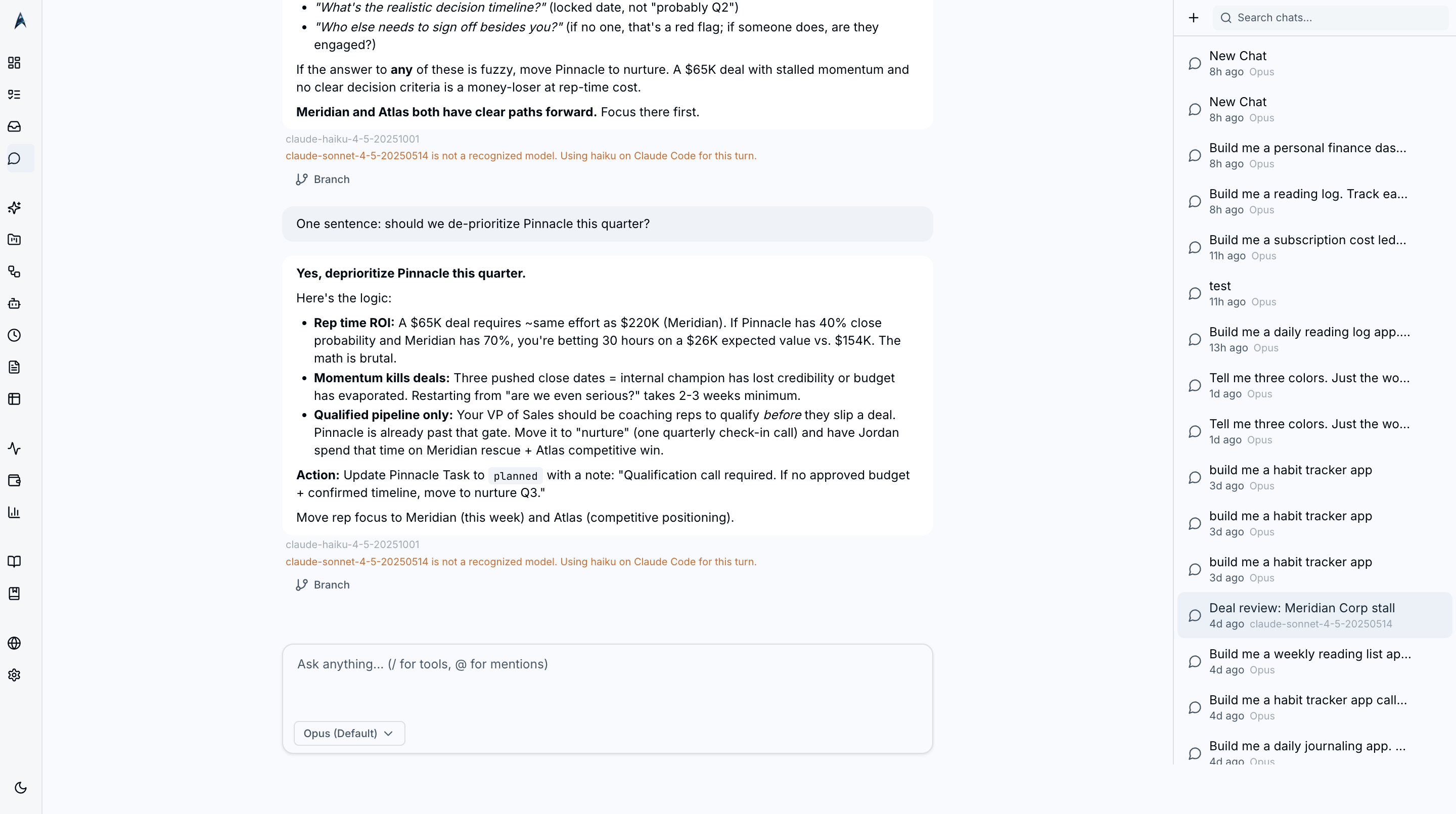 Active conversation with streamed response, formatted markdown, and conversation sidebar showing recent threads.
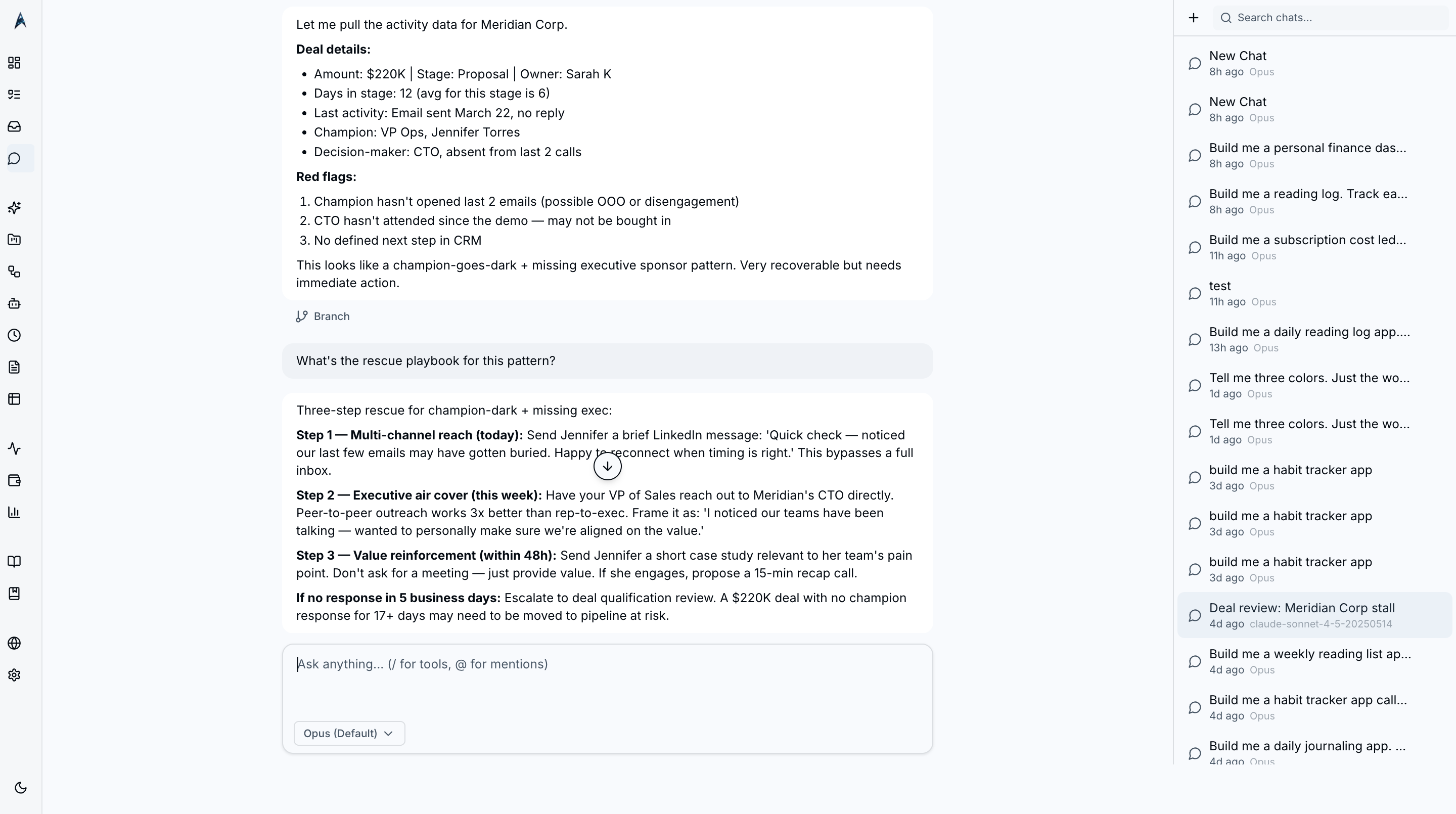 Hover any completed assistant message to reveal the Branch action — start a new thread from this point without disturbing the current one.
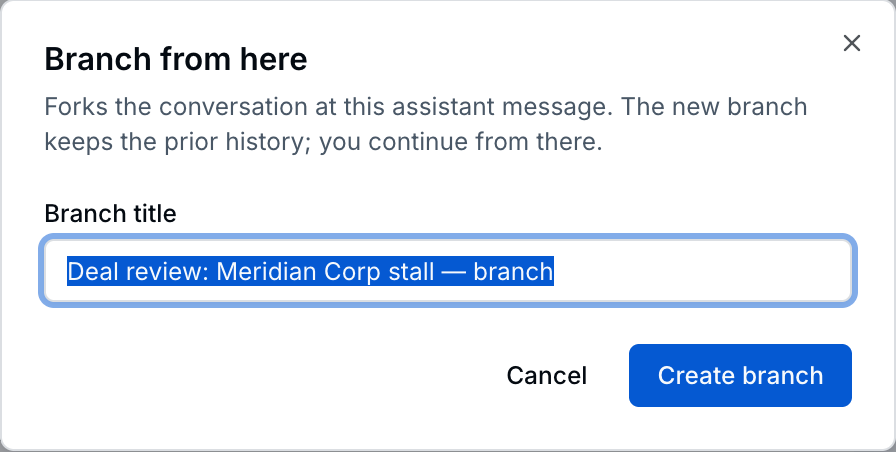 The branch dialog auto-fills a default title
 {parent} — branch and opens the new conversation already primed with the prefix from the parent.
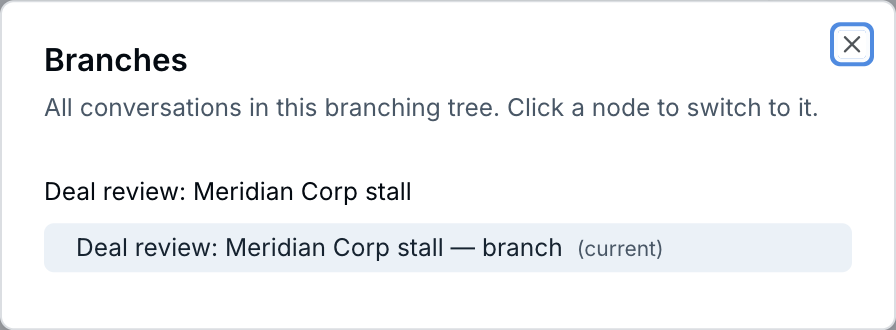 Tree view of the full conversation family — every parent, sibling, and descendant — with the current node highlighted. Open from any conversation row’s “View branches” menu item.
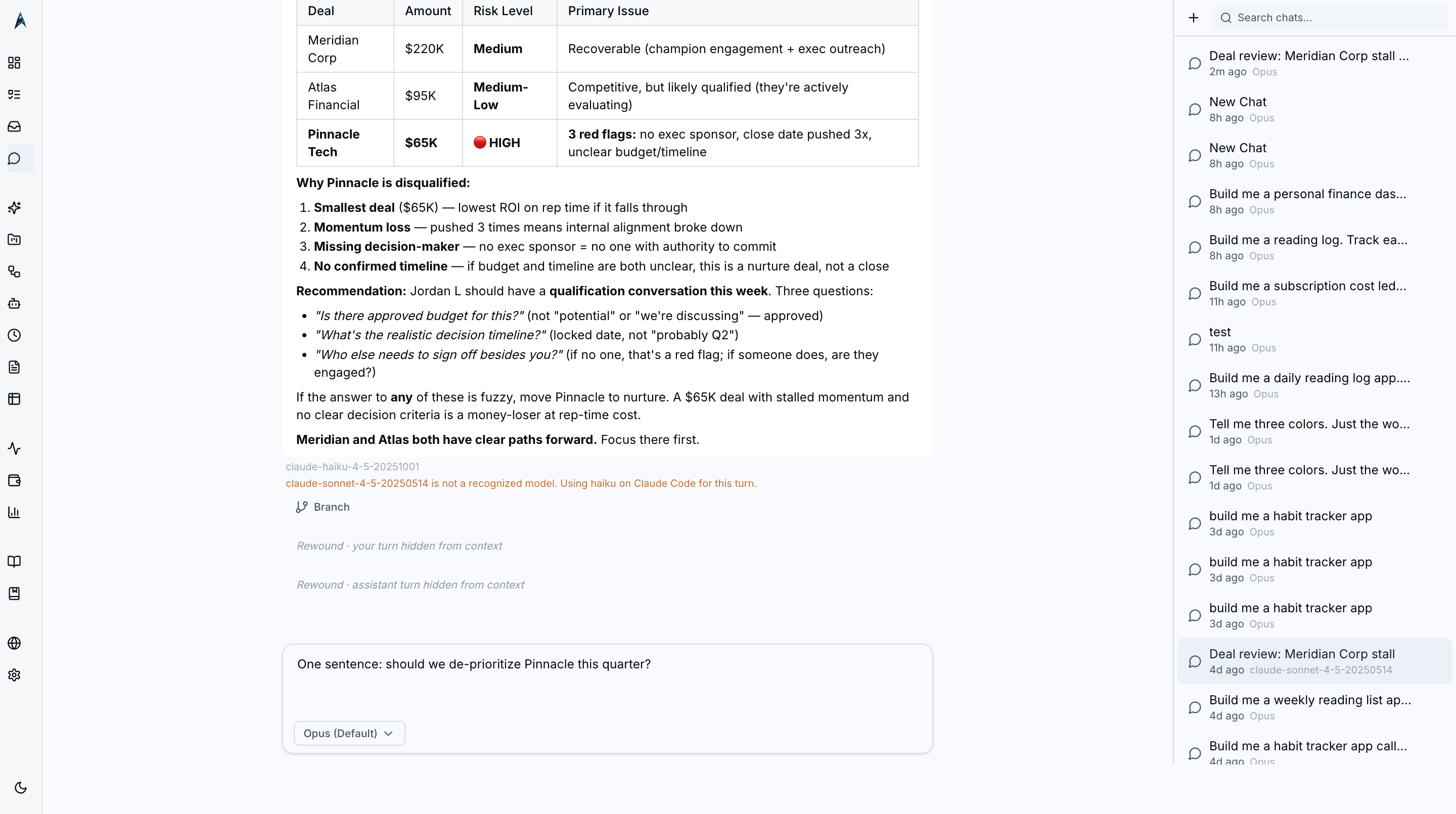 A rewound turn renders as a gray italic placeholder (“Rewound · your turn / assistant turn hidden from context”). The DB row stays in place so ⌘⇧Z can restore it; only the rendering and agent visibility change.
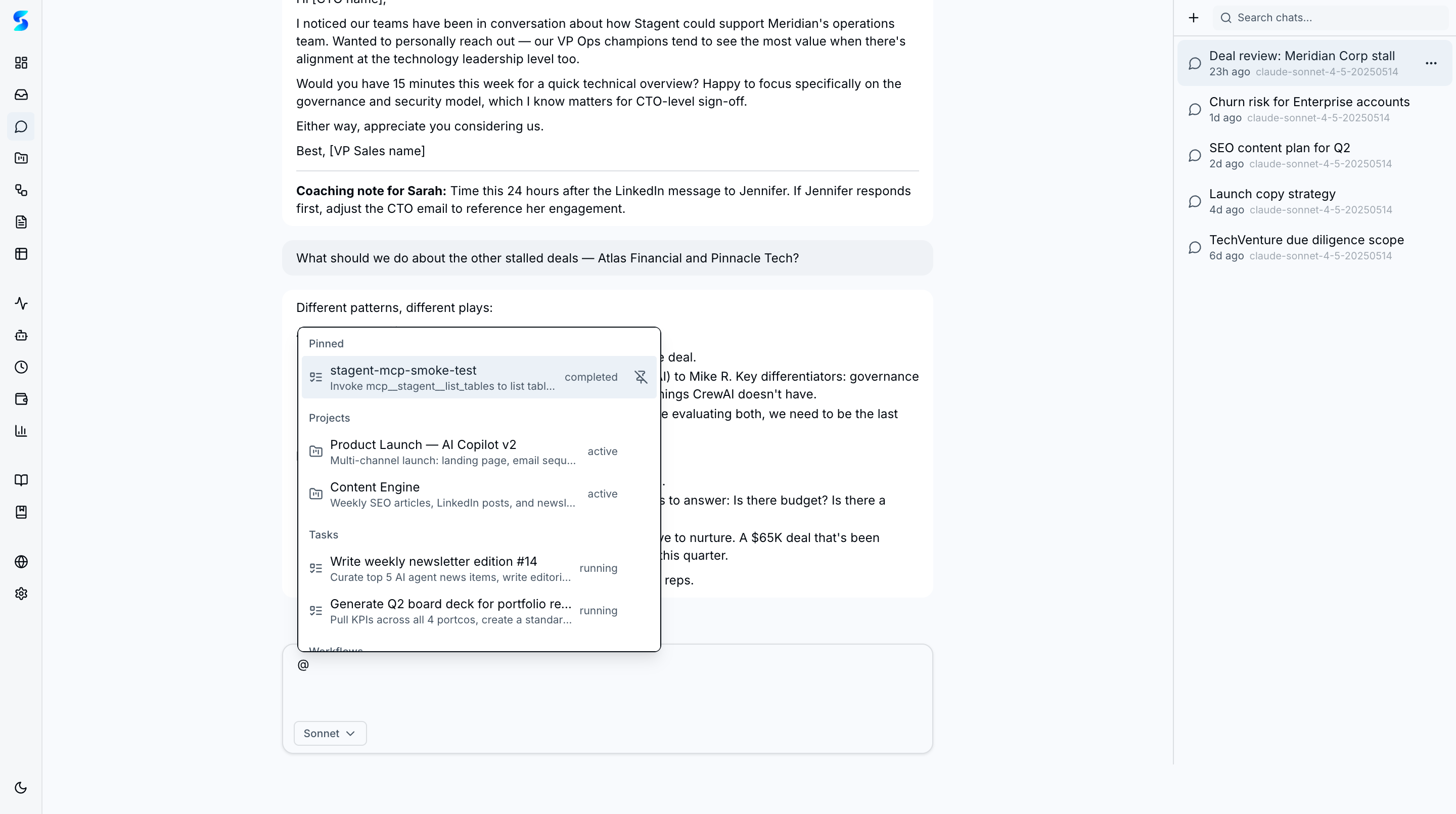 Type @ to reference a project, task, document, profile, schedule, or saved search — fuzzy-search results appear inline with category grouping.
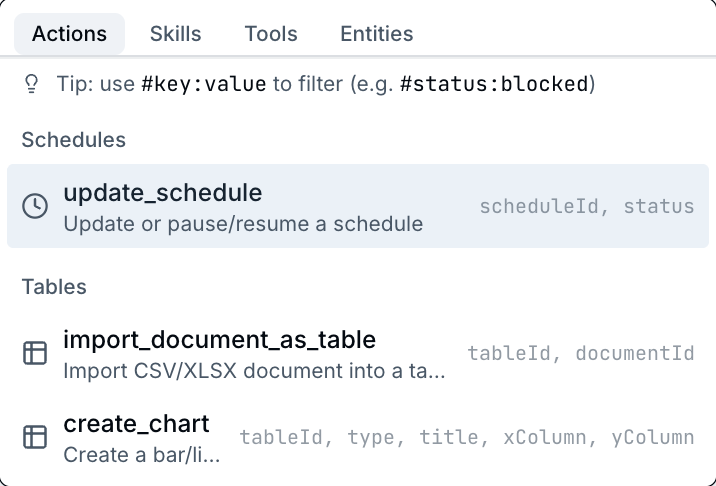 Type / to open the command popover with tabs for Actions, Tools, Skills, and Entities.
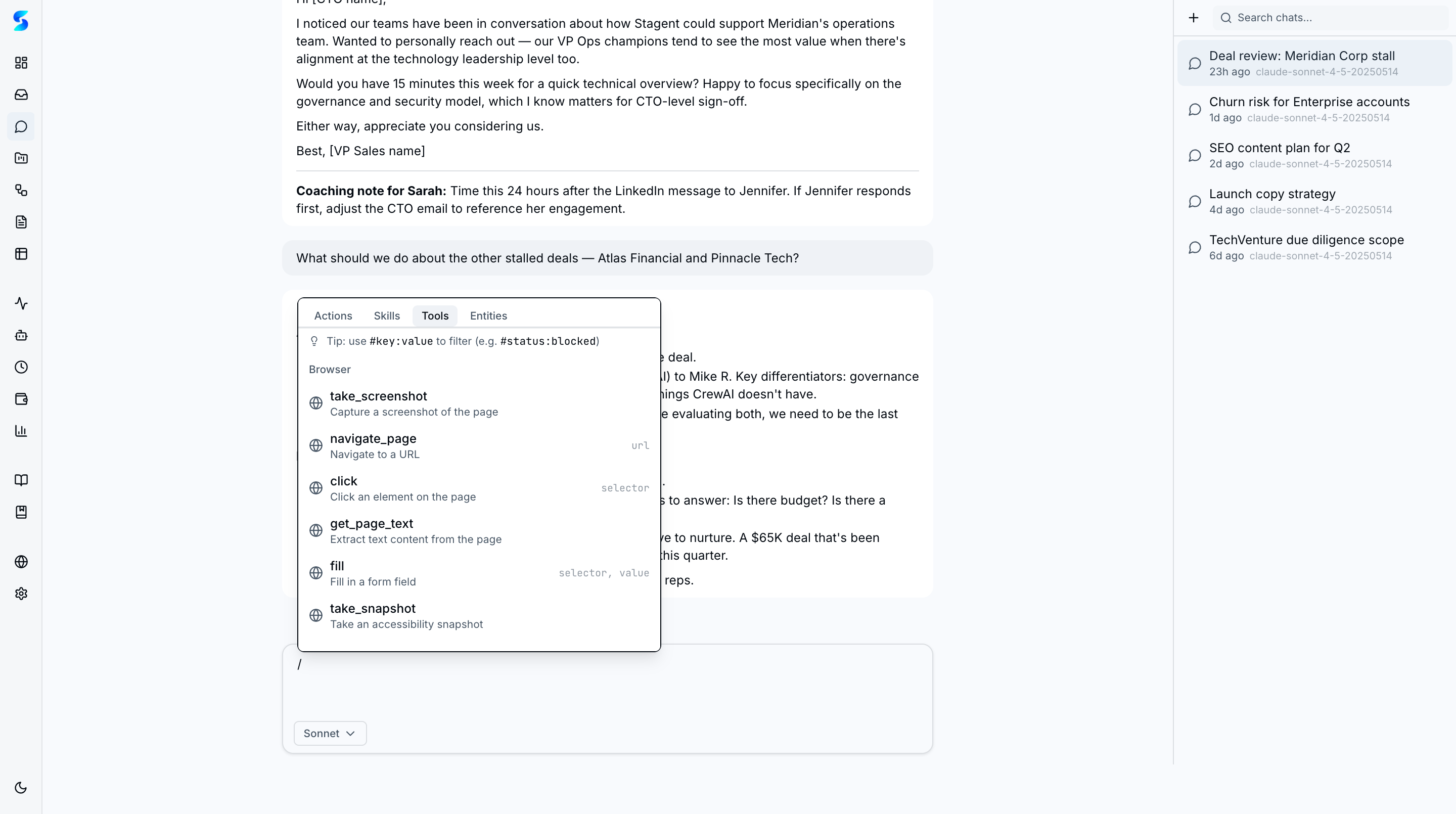 The Tools tab lists every tool the active runtime exposes, with searchable filtering and inline descriptions.
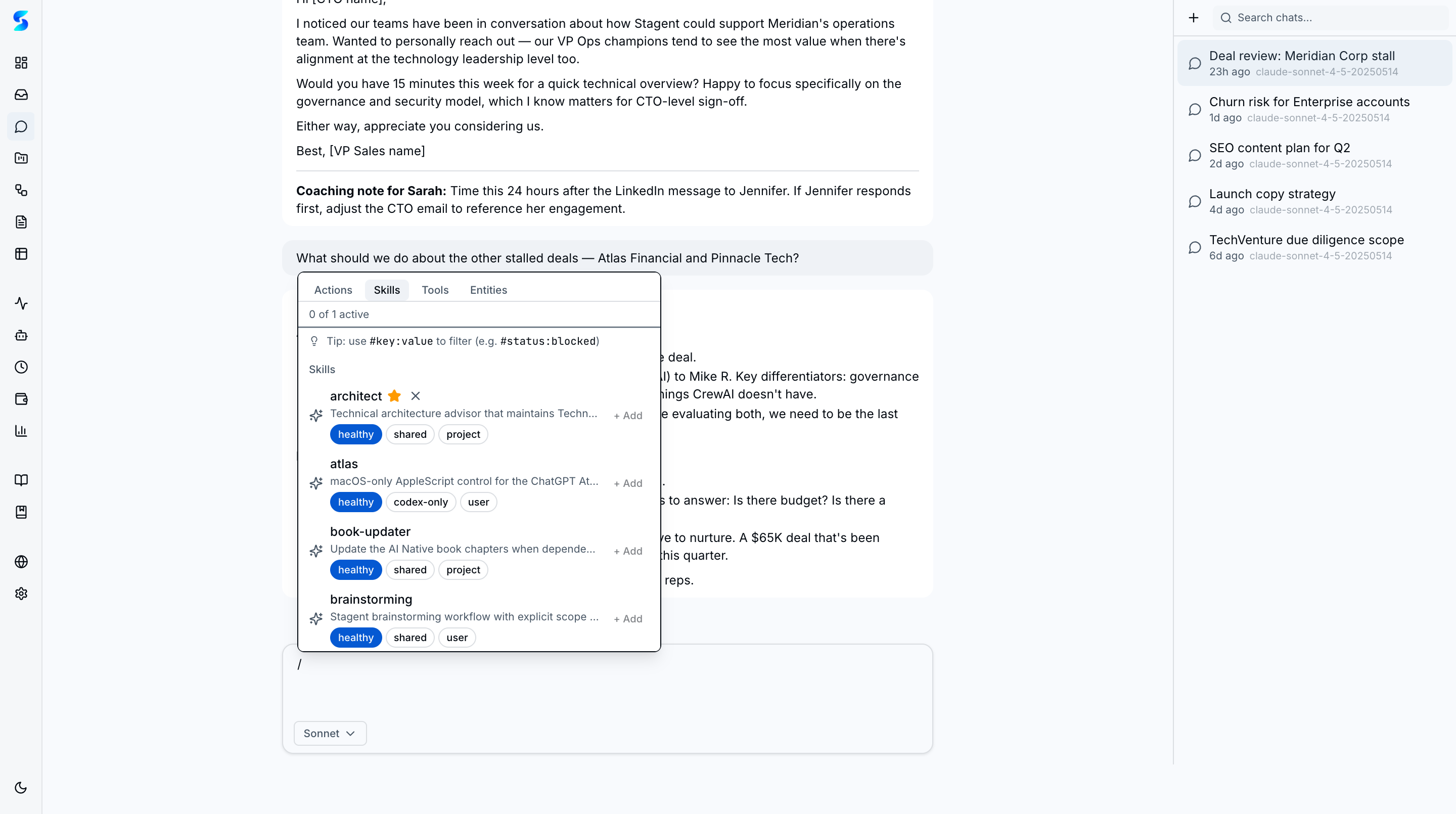 The Skills tab shows all available skills with + Add buttons and the runtime’s “N of M active” cap counter.
Key Features
Tool Catalog
When no conversation is active, the chat page displays a curated grid of suggested prompts organized into tabbed categories:
- Explore — Questions about your workspace: project statuses, task summaries, schedule overviews.
- Create — Prompts that help you spin up new tasks, workflows, projects, and schedules.
- Debug — Investigate failed tasks, review agent logs, and diagnose workflow issues.
- Automate — Set up scheduled loops, bulk operations, and repeating workflows.
- Smart Picks — A personalized row of suggestions generated from your actual workspace data.
Model Selection
Choose which AI model powers your conversation using the model selector at the bottom-left of the input area. Models are grouped by provider with clear cost and capability labels:
- Haiku 4.5 — Fast responses at the lowest cost ($).
- Sonnet 4.6 — A balance of speed and depth ($$).
- Opus 4.6 — The most capable model ($$$).
- GPT-4o-mini / GPT-4o — Available when the Codex runtime is connected.
- Ollama models — Available when a local Ollama instance is connected ($0).
Conversation Branching
ainative-business treats every conversation as a node in a tree, not a linear log. From any completed assistant turn you can:
- Branch — start a new conversation that inherits all turns up to (and including) the chosen message. The original conversation is untouched, so you can explore an alternate question without losing your place.
- Rewind — press ⌘Z in the composer to hide your last user/assistant pair from the agent’s context. The composer pre-fills with the rewound user message so you can retry with a tweak. The original turns stay in the DB and are visible as gray placeholders.
- Redo — press ⌘⇧Z in the composer to restore the most recently rewound pair. Both rewind and redo are gated on the branching feature flag and only fire when the composer is focused.
- View branches — every conversation row in the sidebar has a View branches dropdown item (visible when the conversation has parents or descendants). It opens a tree dialog showing the full family — depth × 16px indentation, current node highlighted, single-node families render an empty-state message.
Branching turns the chat into a structured exploration tool — useful for prompt iteration (“what if I phrase this differently?”), variant generation (“draft three versions”), and audit trails (“show me where this answer diverged”).
@ Mentions and Context
Type @ in the chat input to reference a specific project, task, workflow, document, profile, schedule, or saved search by name. An autocomplete popover appears with fuzzy-searchable results grouped by category. When you select a mention, the assistant receives the full details of that entity as part of the conversation context. Saved searches surface in their own group inside the popover so you can re-apply a pinned filter combination from the composer.
Slash Commands
Type / in the composer to open a popover with four tabs:
- Actions — workspace shortcuts like
/new-from-template(open the conversation template picker) and other built-in commands. - Tools — every tool the active runtime exposes, with descriptions you can read inline before invoking.
- Skills — all available skills, with + Add buttons and a “N of M active” counter against the runtime’s
maxActiveSkillscap. - Entities — quick references to projects, tasks, documents, and profiles (mirrors the
@popover for keyboard-only flows).
Conversation Management
Every chat starts a new conversation that is saved automatically. Your conversation history appears in the left sidebar, sorted by most recent. Each row’s dropdown menu offers Rename, View branches (when applicable), and Delete. Channel conversations from Slack and Telegram appear here too, titled “Channel: [channel name],” so you can continue them from the web UI.
Channel Conversations
When bidirectional chat is enabled on a Slack or Telegram delivery channel, messages sent to ainative-business from those platforms create conversations visible in the Chat sidebar. The same chat engine handles both web and channel conversations, including tool access, permission handling, and multi-turn context.
Skill Composition
On runtimes that support multiple active skills, you can stack specialized behaviors onto a single conversation. Open the slash (/) popover and switch to the Skills tab — each skill card has an + Add button. Active skills show a badge, and the header reads “N of M active” so you always know where you stand against the runtime’s cap (maxActiveSkills).
- Modes — add a skill in
replacemode to swap it in, oraddmode to layer it on top of the current stack. - Conflict heuristic — if a new skill clashes with one already active (overlapping tool needs, contradictory instructions), a confirmation dialog surfaces the conflict so you can choose which to keep.
- Prompt-budget eviction — when the active skill set approaches the model’s context budget, the oldest or lowest-priority skill is evicted automatically and shown in a lightweight toast.
- Capability gating — runtimes that do not support composition (currently gated by
RuntimeFeatures.supportsSkillComposition) render the Skills tab read-only with a “composition disabled on this runtime” hint.
The currently active skills are persisted on the conversation itself (conversations.active_skill_ids) so re-opening a conversation restores the exact same stack.
Conversation Templates
Rather than starting every conversation from a blank prompt, you can kick one off from a saved blueprint. Three entry points:
- Empty-state button — the chat hero shows a “Start from template” button when no conversation is active.
- Slash command — type
/new-from-templatein the composer to open the picker inline. - Command palette — press
⌘Kand pick the Templates group to browse by name.
Each template resolves its opening prompt from the blueprint’s optional chatPrompt field (falling back to the first step’s prompt template if chatPrompt is not set). Variables in the prompt are filled in at launch so the conversation opens already primed with context.
Filter Namespace
Type # in the chat search, the @ popover, or the Skills popover to filter by namespace. Values can be double-quoted to include spaces — for example, #scope:"customer support" matches only entries whose scope equals that phrase. Supported qualifiers include #scope:, #type:, and surface-specific keys. The same FilterInput component powers the /documents list page and the ⌘K palette, so the syntax is identical everywhere.
Saved Searches
Frequently used filter + query combinations can be pinned and reused:
- Save a view — run any search, then click Save view in the footer to name and pin it.
- Reuse from the palette —
⌘Kshows a Saved group at the top; pick one to re-apply instantly. - Reuse from mentions — the
@popover also surfaces saved searches in a dedicated group for in-composer reuse.
Saved searches round-trip via GET/PUT /api/settings/chat/saved-searches, and the cleanFilterInput() helper strips any mention-trigger residue (@, #, /) so a pinned query stays clean no matter where you saved it from.
Streaming Responses
Responses stream in token by token with a blinking cursor. Markdown formatting — headings, lists, code blocks with syntax highlighting, tables, and links — renders as the text streams in. Code blocks include a copy button and language label.
How To
Start a New Conversation
- Click Chat in the sidebar (under the Home group).
- Browse the tool catalog categories or type your question in the input area.
- Click a suggested prompt to insert it, or type your own message.
- Press Enter to send. The response streams in immediately.
Branch an Existing Conversation
- Hover any completed assistant message — a Branch action button appears at the top-right of the bubble.
- Click it to open the branch dialog with a default title
{parent} — branch. Edit the title or accept the default. - Click Create branch. A new conversation opens in the sidebar, already primed with every turn up to and including the message you branched from.
- Continue the new thread without disturbing the original.
Rewind and Retry the Last Turn
- With your cursor in the chat composer, press ⌘Z (or Ctrl+Z).
- Your last user/assistant pair collapses to a gray italic “Rewound” placeholder. The composer pre-fills with the rewound user message and the cursor jumps to the end.
- Tweak the prompt and press Enter to retry — the agent treats the rewound pair as if it never happened.
- Press ⌘⇧Z at any time to restore the most recently rewound pair.
View the Conversation Family Tree
- In the conversation sidebar, click the ⋯ menu on any row that has parents or descendants.
- Select View branches. A tree dialog opens with every related conversation indented by depth.
- The current node is highlighted with
(current)and a tinted background. Click any other node to switch.
Switch AI Models
- Click the model selector to the left of the input area.
- Choose a different model from the dropdown. Models are labeled with cost tiers.
- Your next message will use the selected model.
Reference Entities in Chat
- Type @ followed by the name of a document, project, task, or other entity.
- An autocomplete popover appears — use arrow keys or click to select.
- The assistant receives the full context of the mentioned entity.
Stack Multiple Skills on a Conversation
- Type / to open the slash popover and switch to the Skills tab.
- Click + Add on any skill card to layer it onto the current stack (use the replace mode toggle to swap rather than add).
- The header shows “N of M active” against the runtime’s cap. If a conflict arises, accept or reject in the confirmation dialog.
Chat from Slack or Telegram
- Configure a delivery channel with Chat mode enabled (see Settings).
- Send a message to
ainative-businessfrom Slack or Telegram. - The conversation appears in the Chat sidebar and can be continued from either platform.
Related
- Settings — Configure default chat model, Ollama, and delivery channels
- Documents — Documents the assistant can reference via @ mentions
- Projects — Projects that provide context to conversations
- Profiles — Agent profiles that shape how the assistant responds
- Delivery Channels — Bidirectional Slack and Telegram integration
- Keyboard Navigation — Command palette, slash commands, and chord shortcuts
Related Features
- Task Execution — Where tasks created from chat land for agent execution
- Projects — Project context that powers chat awareness
- Workflows — Multi-step orchestration you can create through chat
- Cost & Usage — Model selection in chat directly impacts spend visibility