Apps
Apps are composed views — curated combinations of tasks, workflows, schedules, and chat surfaces packaged as ready-to-run kits. Pick a starter (Tracker, Coach, Ledger, Inbox, Research, Workflow Hub), customize the manifest, and ship.
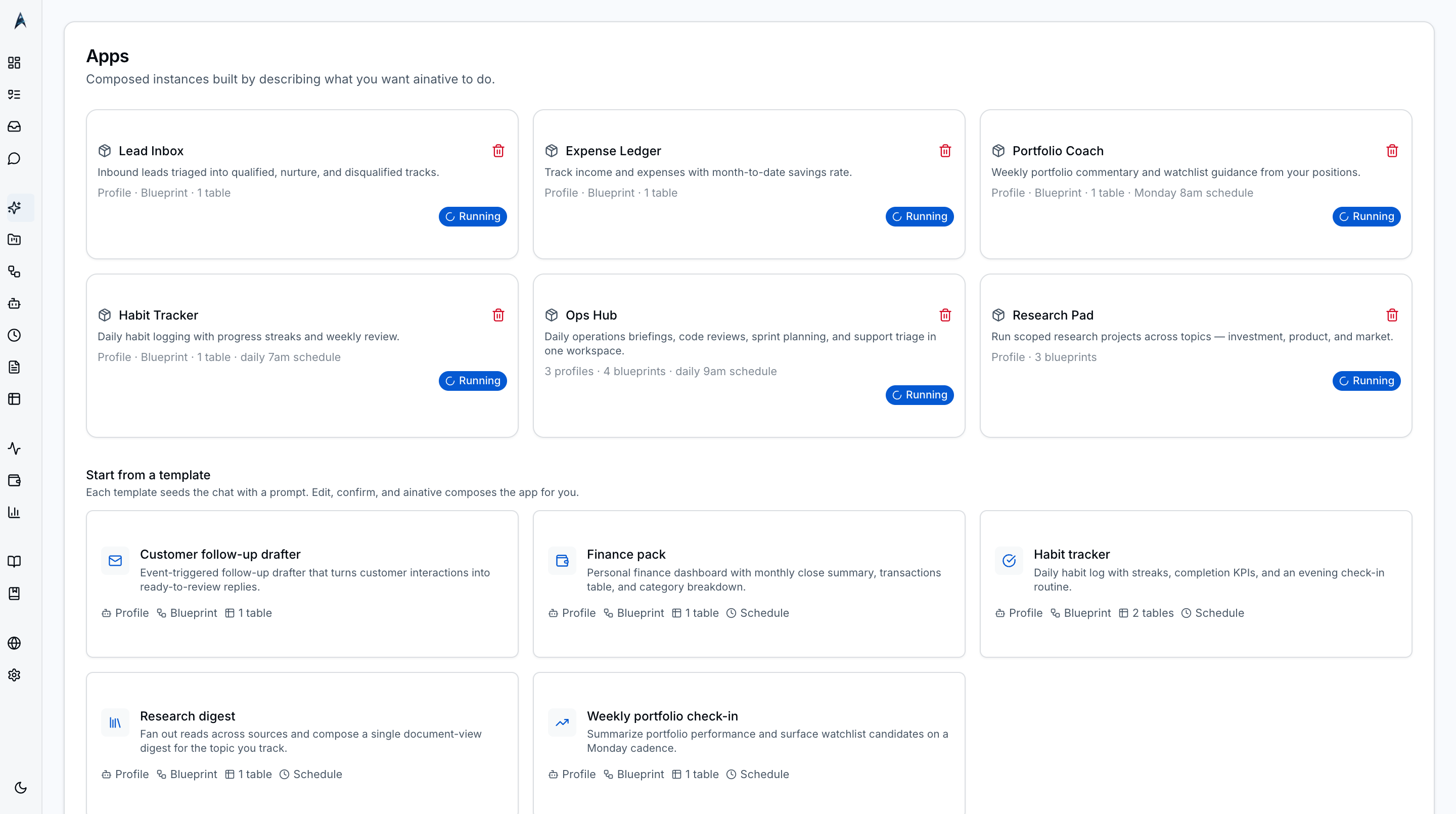
Apps are compositions of existing primitives — agent profiles, workflow blueprints, user tables, schedules, and document routing rules — bundled into a single useful tool. Where the rest of ainative-business exposes those primitives individually (in their own pages: Profiles, Workflows, Tables, Schedules), the Apps page packages them into focused, kit-aware experiences. There is no new code in an app — only a YAML manifest at ~/.ainative/apps/[id]/manifest.yaml that references existing primitives by slug.
The Apps page lives under the Home group in the sidebar and serves as the launchpad for these composed bundles. It has two sections: materialized apps (apps you have already installed and can use right now) and the starters showcase (one-click templates that hand off to chat to seed the underlying primitives).
Screenshots
The Apps launchpad — materialized apps at the top, starters showcase below. Each starter card lists the kit it uses so users can pick by visual layout intent.
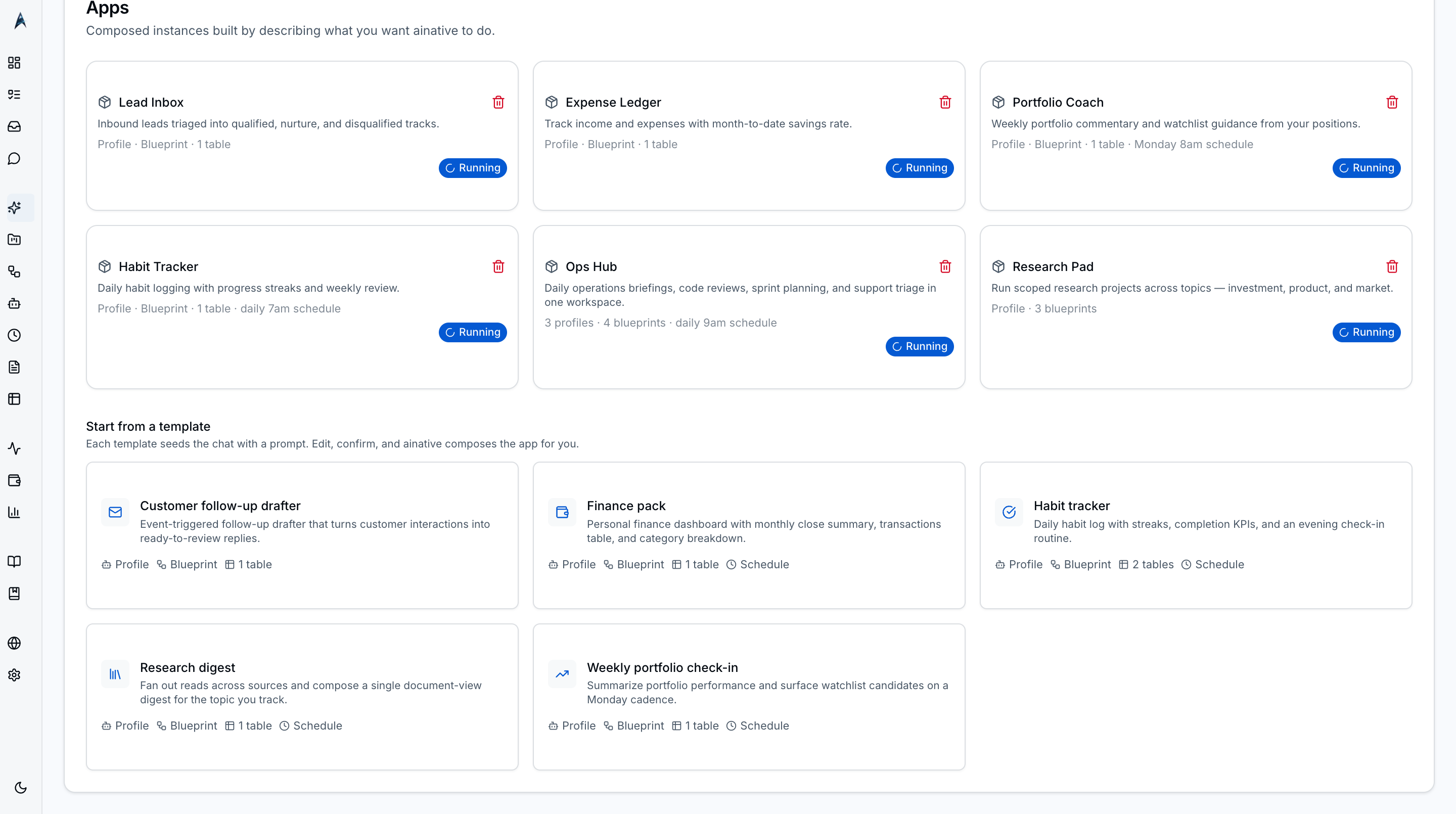 Zoomed view of the starters showcase — one card per kit, each labelled with the kit name and a one-line description so users can pick by intent rather than data shape.
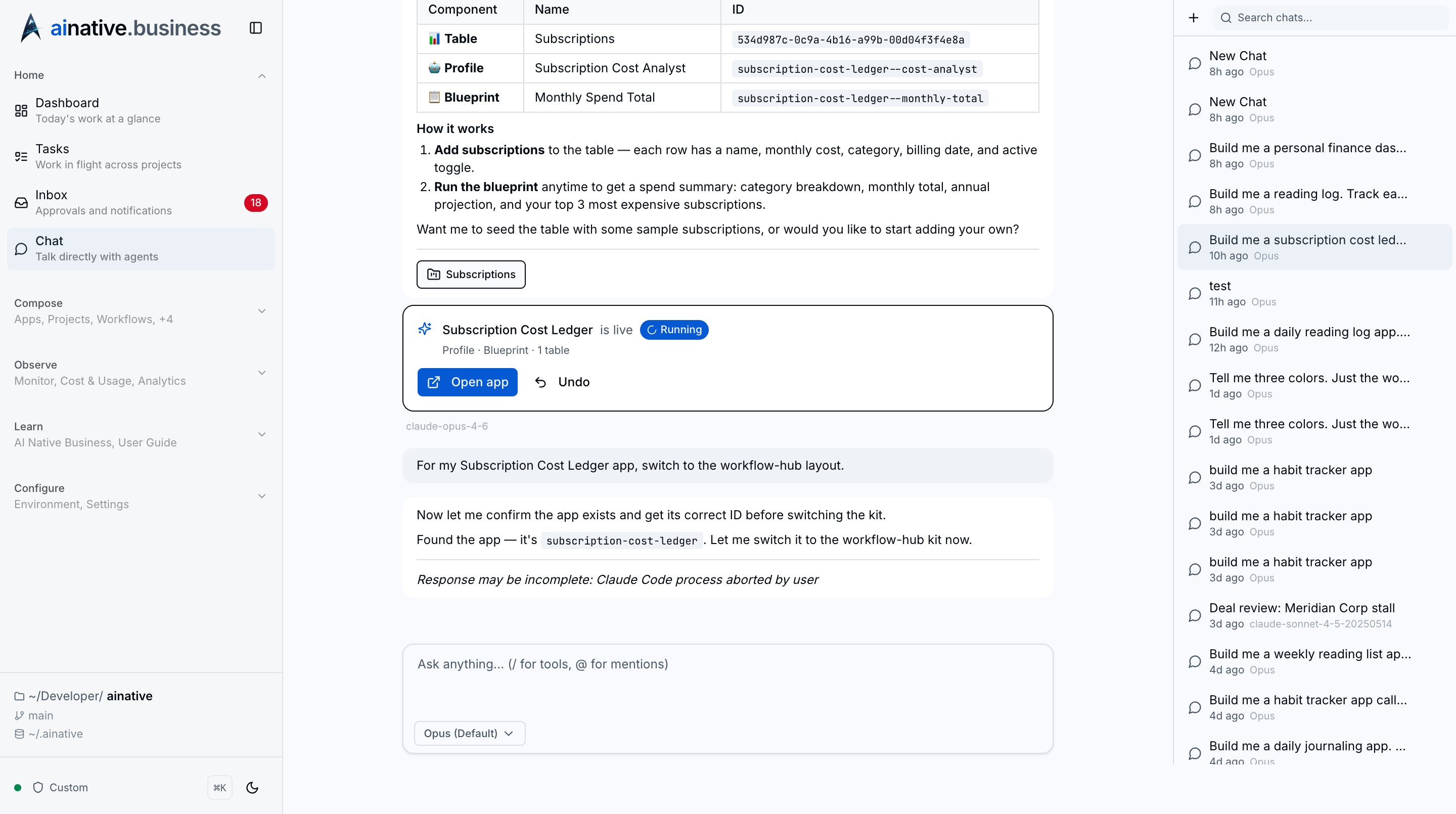 Clicking a starter does not install the app; it opens a chat conversation pre-seeded with a manifest-authoring prompt the user can edit before any primitives are written to disk.
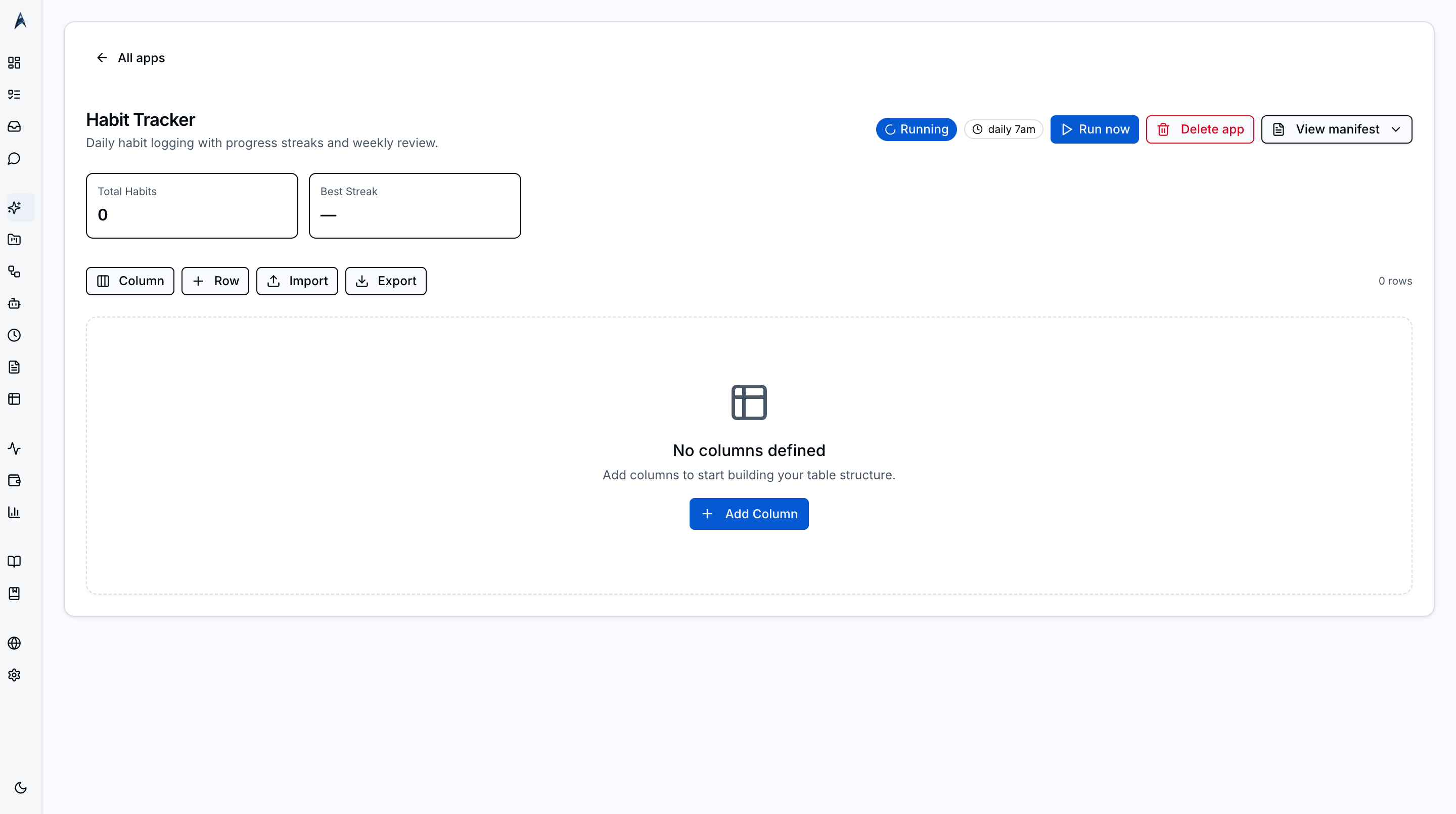 The Tracker kit leads with a data table and supports daily-cadence schedules. Best for habit logs, daily check-ins, and any app where the table is the main artifact.
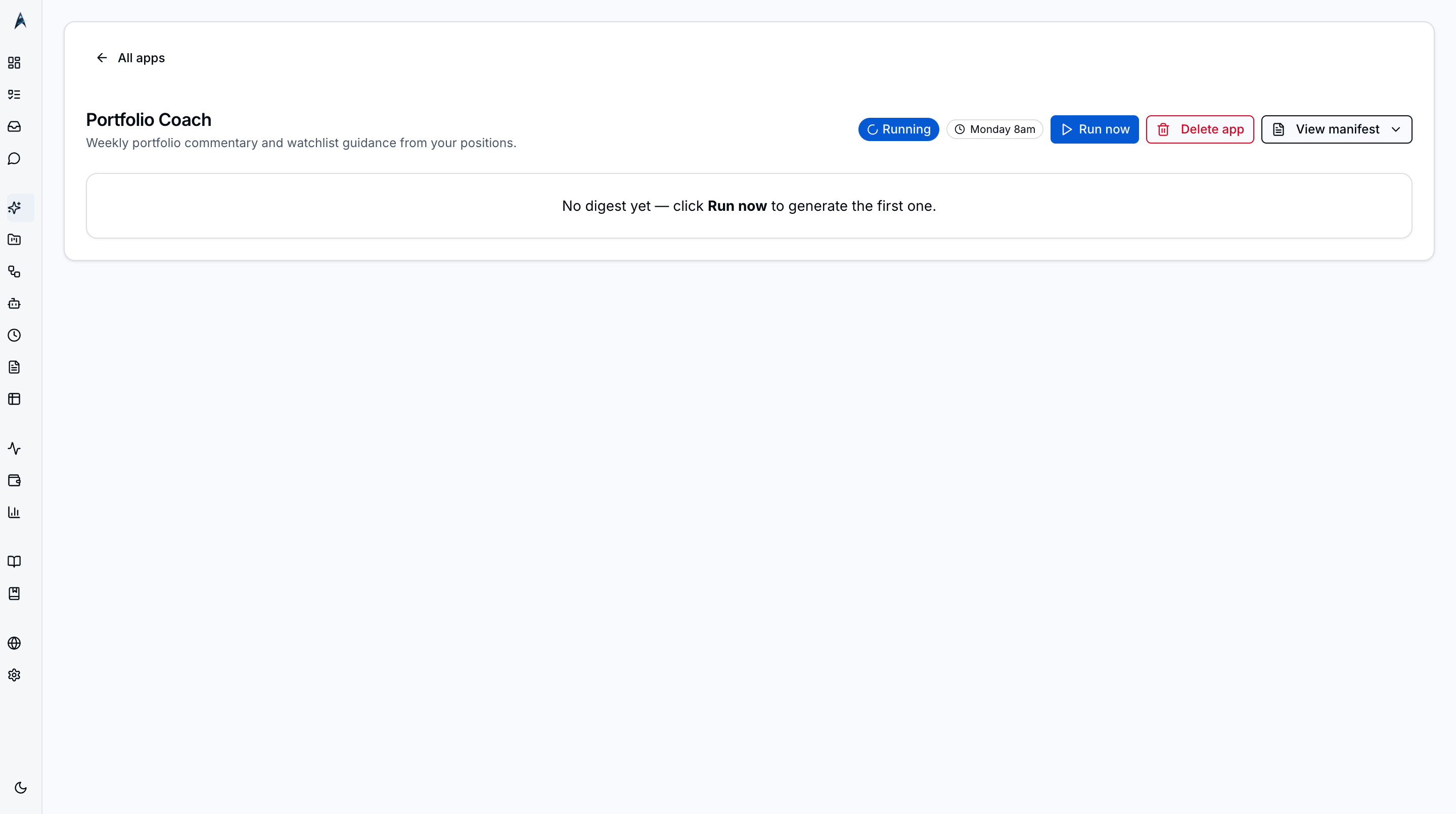 The Coach kit leads with the agent profile and a weekly run history. Best for portfolio coaches, study coaches, and any role-driven app where the agent narrative matters more than tabular data.
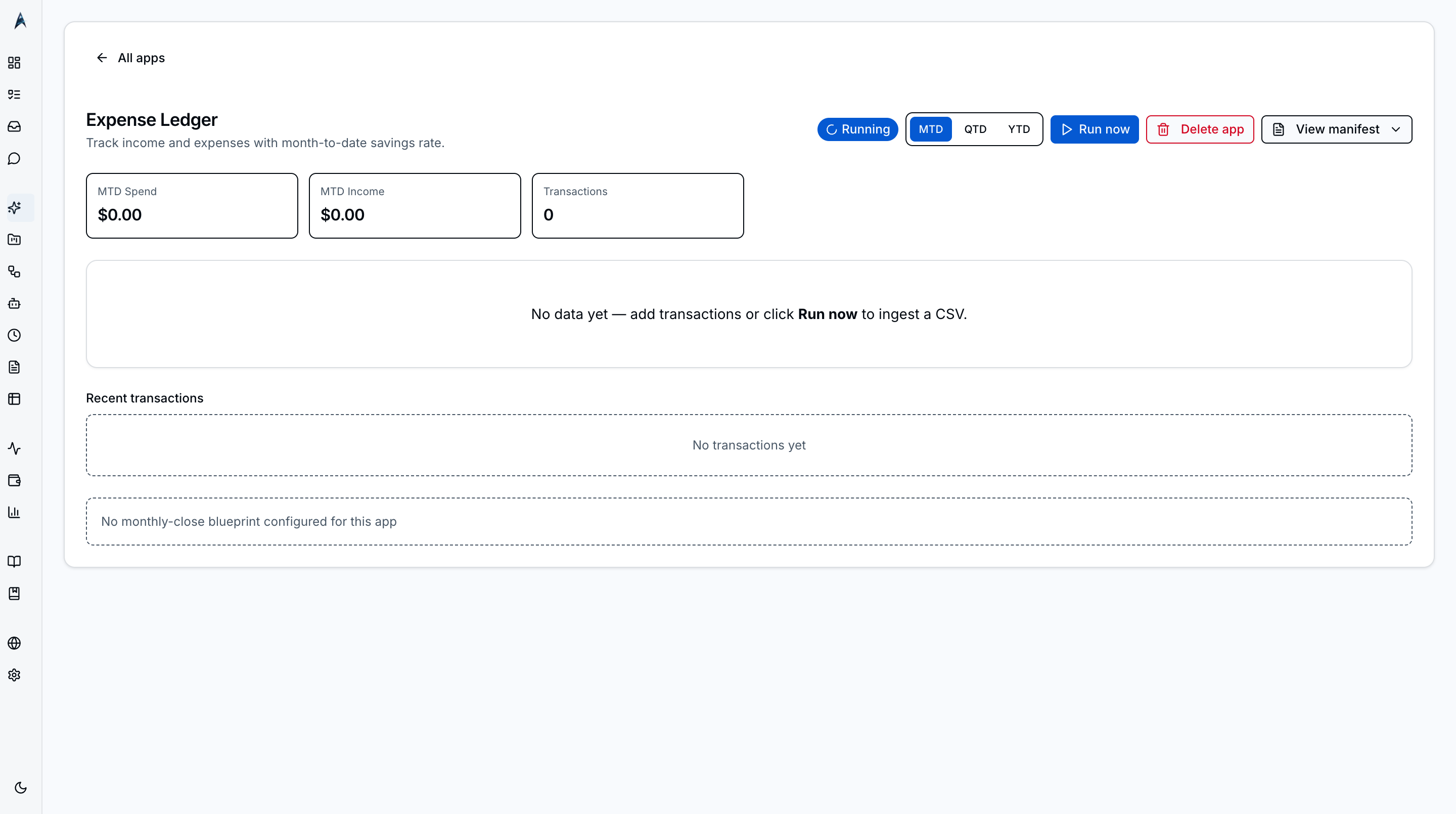 The Ledger kit leads with transactions and money-shaped KPIs (month-to-date income, spend, net). Built for expense logs, invoice trackers, or anywhere amounts add up.
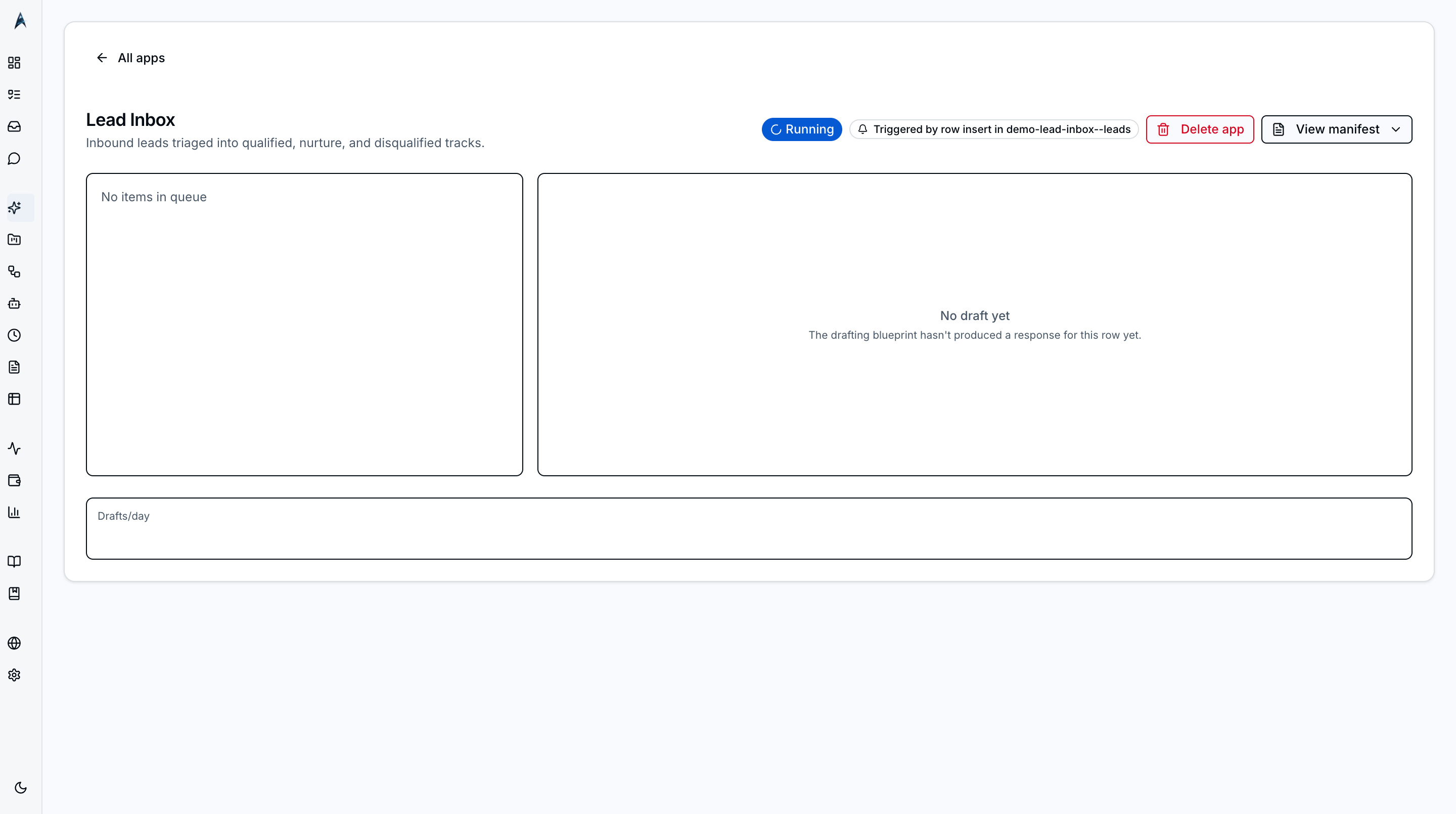 The Inbox kit leads with a triage table that fires a workflow blueprint on row-insert. Designed for lead inboxes, support queues, and any “items arrive, then get processed” flow.
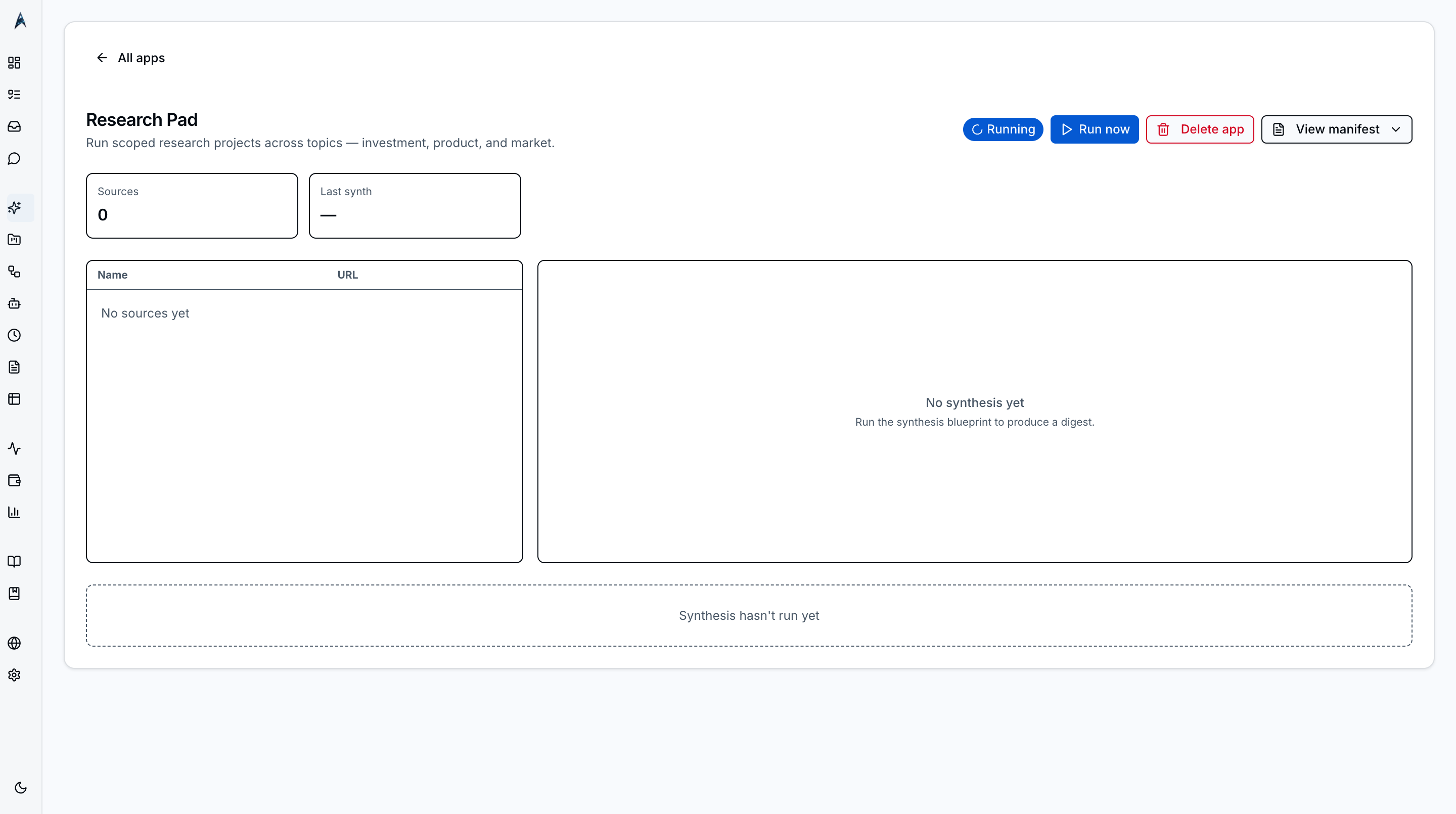 The Research kit leads with multiple research blueprints and a run timeline. Built for research notebooks where each topic spawns a workflow run that adds rows to a notes table.
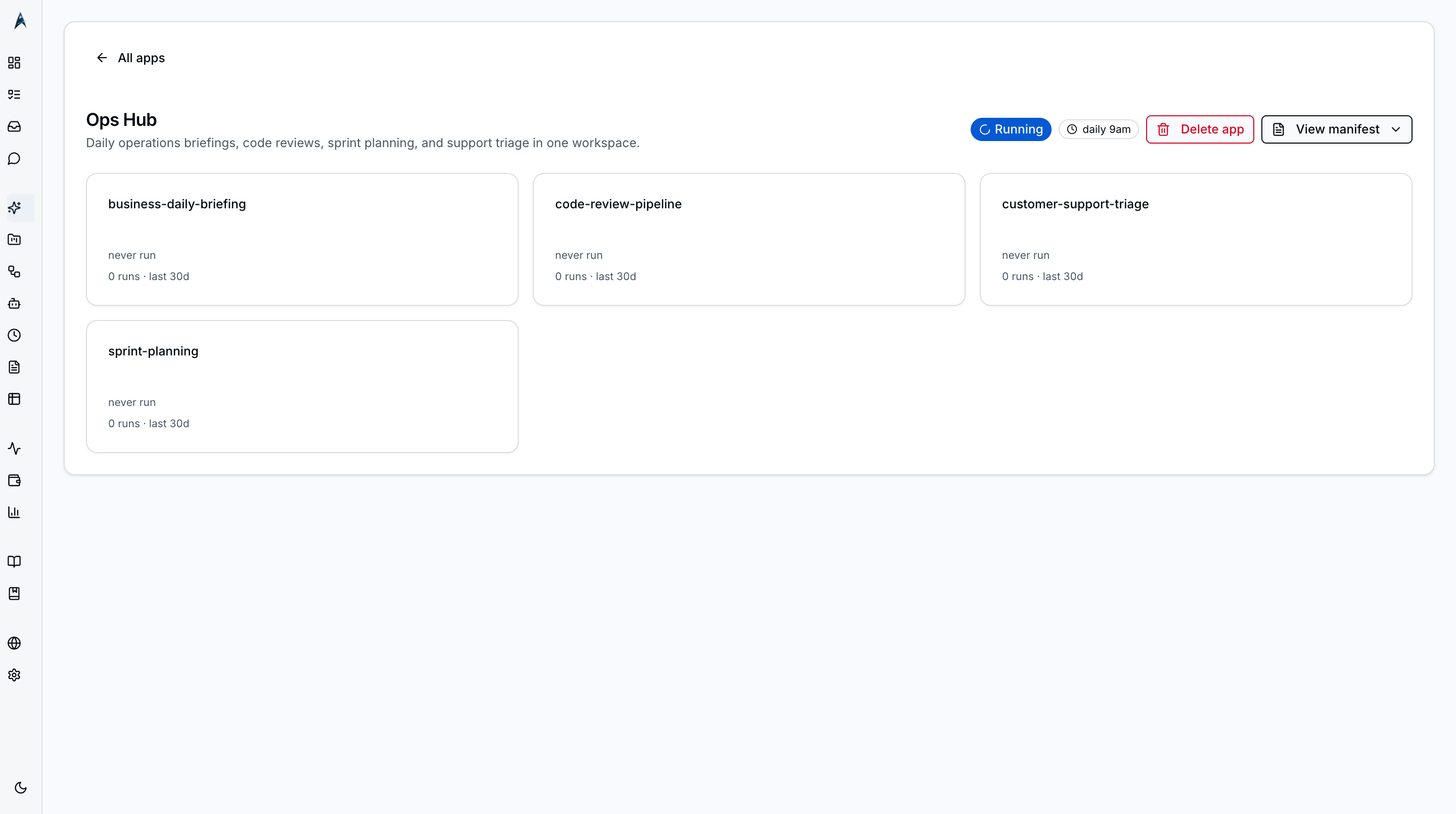 The Workflow Hub kit leads with multiple workflow blueprints and their last-run summaries. Best when an app’s value is “run these jobs on demand” rather than “store these rows”.
Key Features
Composed App Manifests
Each app lives in ~/.ainative/apps/[id]/manifest.yaml — a small file (typically 30-60 lines) that references existing primitives by slug. There is no executable code in a manifest, no migrations, no new schema. The manifest declares a profile, one or more blueprints, a table, a schedule, and a view configuration. The Apps registry loads every manifest at runtime and registers the app in the /apps gallery.
Six Kits, One Per Intent
Every composed app picks one of six kits, each with a distinct visual layout:
| Kit | Hero | Best For |
|---|---|---|
| Tracker | Table | Daily habit logs, check-ins, item lists |
| Coach | Profile + weekly run history | Coaching apps where the agent matters most |
| Ledger | Transactions table + MTD KPIs | Expense logs, invoice trackers |
| Inbox | Triage table with row-insert trigger | Lead inboxes, support queues |
| Research | Multi-blueprint research workspace | Research notebooks |
| Workflow Hub | Multi-blueprint runner with last-run summaries | On-demand job runners |
The kit reflects the intent of the app, not just its data shape. Two apps can share the same underlying table but pick different kits for different visual emphasis.
Starters Showcase
The Apps page surfaces a “starters showcase” section — one starter per kit, so the showcase doubles as a complete tour of what’s available. Clicking a starter does not install the app; it opens a chat conversation pre-seeded with a prompt that the chat agent reads and turns into a manifest. This authoring flow lets users edit the prompt before any primitives are written to disk.
Chat-Driven Composition
Apps can be composed via natural language in chat using the chat-app-builder feature. The composed-app-manifest-authoring-tools add three chat tools (set_app_view_kit, set_app_view_bindings, set_app_view_kpis) that let users edit a composed app’s view configuration without ever opening a YAML file.
Kit-Aware Detail Views
The /apps/[id] route renders a kit-aware detail view: the layout, hero block, KPI tiles, and cadence chip are all picked by the kit declared in the manifest. Two apps with different kits look very different even if they share the same underlying primitives.
How To
Browse and Pick a Starter
- Click Apps in the sidebar under the Home group
- Scroll past the materialized-apps grid to the starters showcase section
- Read each starter card — title, kit name, one-line description — to find one that matches your goal
- Click the starter card — a chat conversation opens with a pre-seeded prompt
Compose an App via the Starter Handoff
- Click a starter on the Apps page (see above)
- Read the seeded prompt in chat — edit it if you want a different table column, schedule cadence, or kit
- Press Enter to send the prompt to the chat agent
- Wait 5-15 seconds — the agent will use composition tools to write a manifest, register the profile, instantiate the blueprint, and seed the table
- Look for a materialized-app card in the assistant turn — click Open app to navigate to the new app’s detail page
Customize a Composed App’s View
- Open the chat conversation where the app was composed
- Type a natural-language request — e.g., “Add a KPI tile for total minutes this month” or “Switch to the Coach kit”
- Wait for the agent to respond with an AppViewEditorCard showing the proposed change
- Click Apply on the card — the manifest is rewritten atomically and the cache invalidates
- Refresh the app detail page to see the new layout
Install a Manifest from a Friend
- Place the manifest YAML at
~/.ainative/apps/[your-app-id]/manifest.yaml - Restart the dev server (or wait 6 seconds for the apps cache to expire)
- Visit
/apps— the app appears in the materialized-apps grid
Related
- App Builder Guide — beginner journey: pick a starter → seed in chat → use the kit view
- Chat Feature Reference — the chat surface where composition and view-editing happen
- Workflows — workflow blueprints that apps reference
- Profiles — agent profiles that apps reference
- Tables — user tables that apps reference
- Schedules — schedules that apps reference for cadence