Task Execution
Tasks are the unit of execution inside ainative-business. They move through explicit lifecycle states and stay visible from the dashboard, project detail views, workflow steps, and related documents.
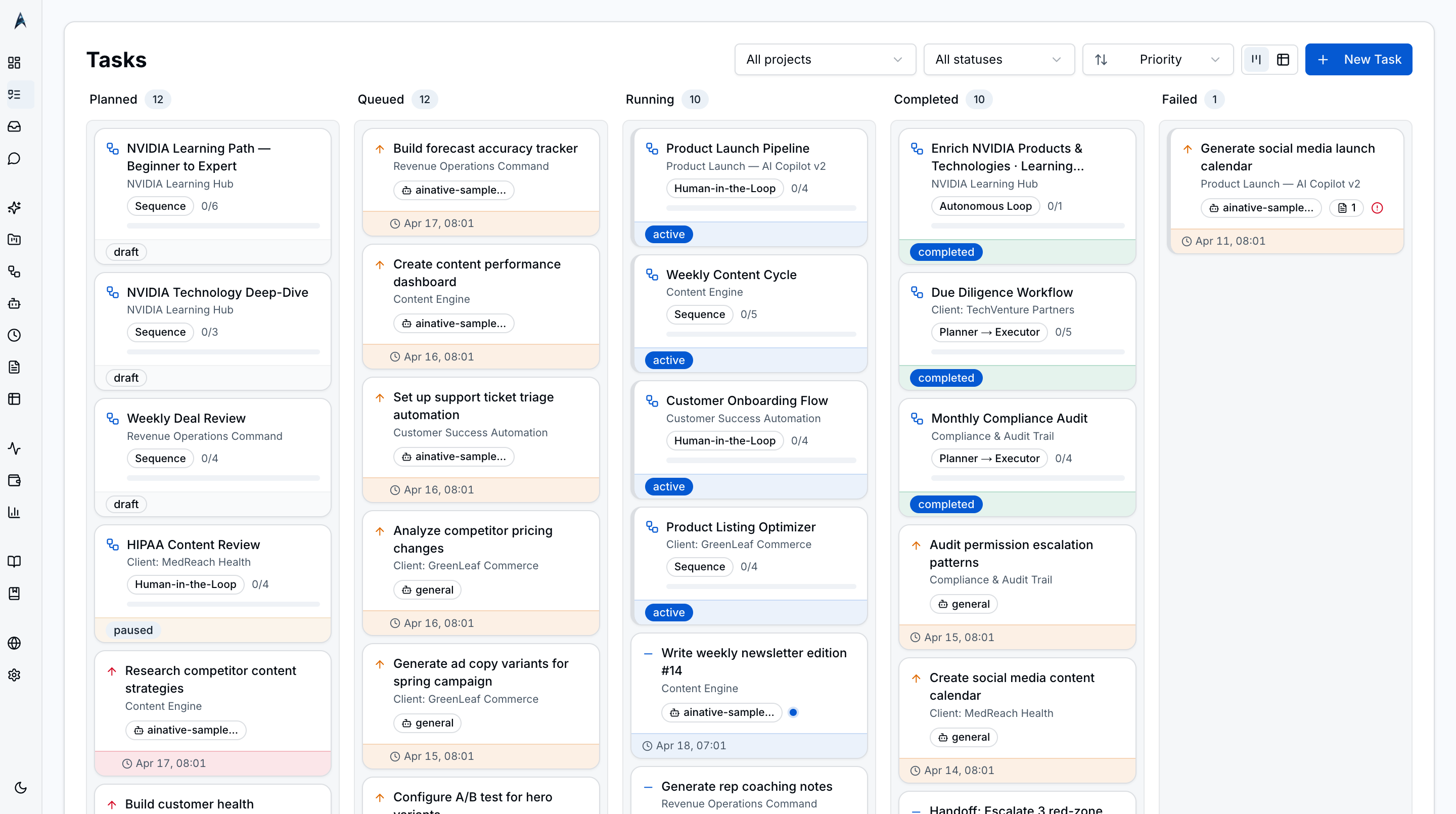
The Tasks screen is your primary surface for managing agent work. It presents all tasks as a kanban board with drag-and-drop columns, or as a sortable table — whichever fits your workflow. A filter bar, AI-assisted task creation with multi-step breakdown, bulk operations, and inline card editing let you manage work without switching context. The default seed data populates the board with business-relevant tasks across three personas — product launch, content engine, and customer success — giving you a realistic starting point to explore the interface.
Tasks lives under the Home group in the sidebar. It used to be the page at /dashboard; as of the sidebar restructure, /dashboard no longer exists and the kanban lives at /tasks. The Dashboard screen at / is now a standalone overview distinct from the task board.
Screenshots
Kanban board with columns for Planned, Queued, Running, Completed, and Failed — each card shows priority, agent profile, project, and quick actions.
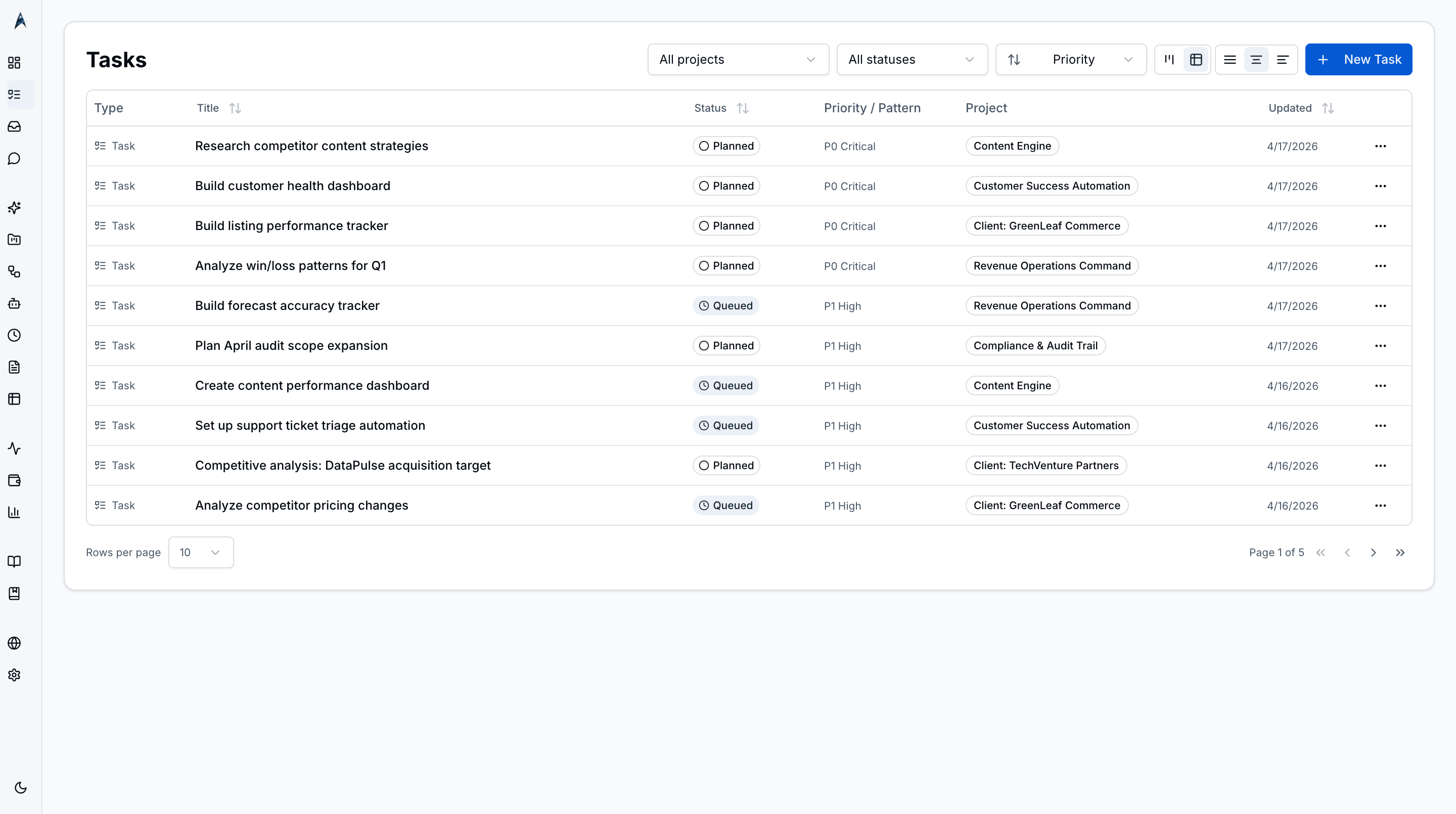 Sortable table view with columns for title, status, priority, project, agent profile, and timestamps — toggle from the toolbar.
Key Features
Kanban Board
Tasks are organized into five columns — Planned, Queued, Running, Completed, and Failed. Each column shows a count of its tasks. Cards display the task title, priority badge, agent profile, project, and quick-action buttons for editing and deleting. Heartbeat-generated tasks show a heartbeat badge to distinguish them from manually created work.
Drag-and-Drop Reordering
Drag task cards between columns to change their status, or within a column to reorder priority. The board updates the database in real time as you drop cards. Keyboard-only users can pick up a card with Space, navigate with arrow keys, drop with Space, or cancel with Escape — see Keyboard Navigation for the full announcement behavior.
Board and Table Toggle
Switch between the visual kanban board and a dense table view using the toggle in the toolbar. The table view provides sortable columns for title, status, priority, project, and timestamps — ideal for bulk review and side-by-side comparison.
Filter Bar
Combobox filters for project, status, and priority let you narrow the board or table to exactly the tasks you care about. Filters persist across view toggles and survive page reloads via URL state.
Inline Card Editing
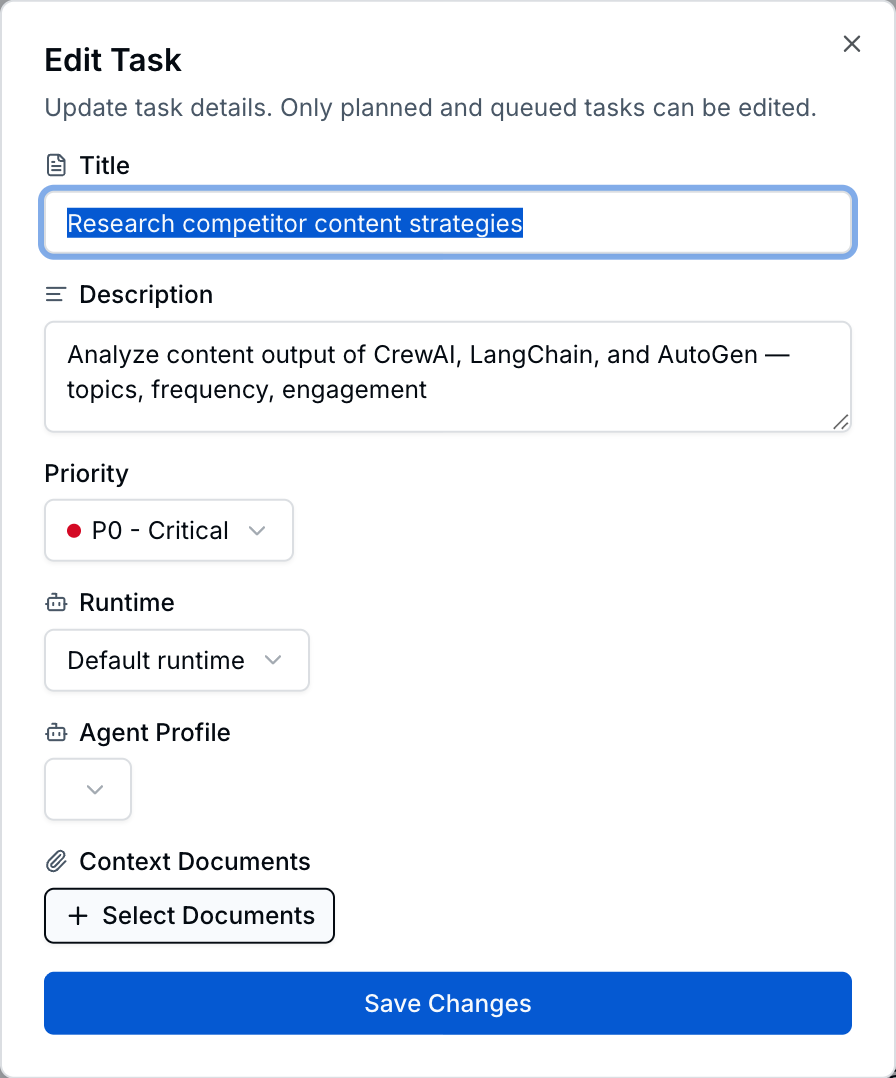 Click the edit icon on a card to swap into an inline-edit state without leaving the board — title, priority, profile, and runtime can be tweaked in place.
Click the edit icon on any kanban card to open an inline-edit mode. Title, priority, agent profile, and runtime become editable in place — no detail sheet required. Press Enter to save or Escape to cancel. Bulk reviewers stay on the board and keep their kanban context while making rapid corrections.
Task Detail View
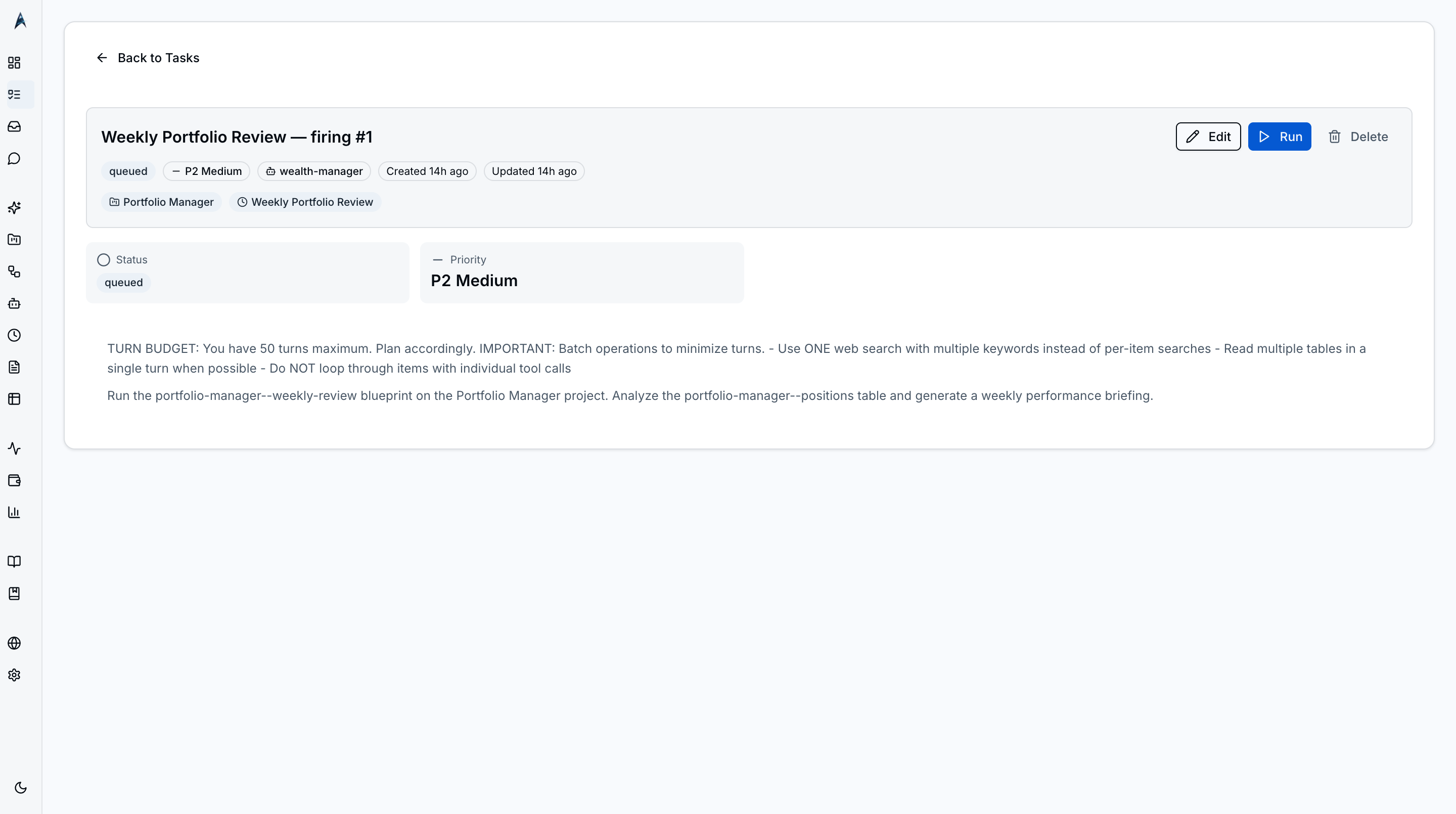 Detail pane showing full description, project, profile, runtime, execution logs, status history, and per-turn observability with token counts and timing.
Click any task card to open a detail panel with the full description, execution logs, status history, and action buttons. The pane also shows per-turn observability — every agent turn lists its tool calls, token counts, model used, and elapsed time. Edit the task inline or trigger execution directly from the detail view.
Bulk Select Mode
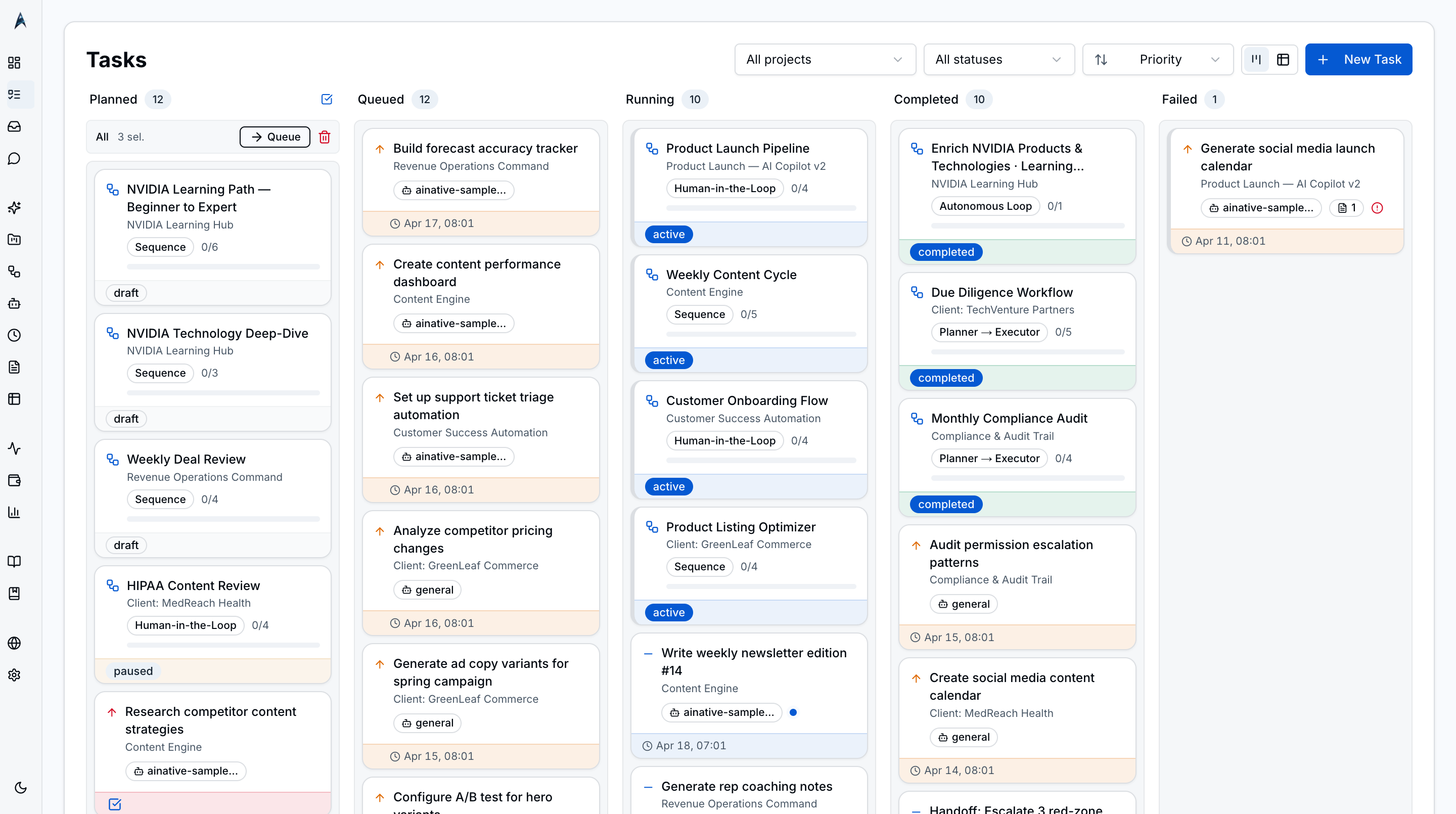 Select mode enabled: checkboxes appear on every card and a bulk action toolbar slides in with Queue, Move, and Delete actions.
Enter select mode to check multiple task cards across any column. A toolbar appears with bulk actions: queue selected tasks for execution, move them to a different status, or delete tasks that are no longer needed. This is essential when autonomous workflows or heartbeat schedules generate many tasks overnight.
Heartbeat Badges
Tasks created by heartbeat schedules display a heartbeat badge on their kanban card. This visual indicator distinguishes proactively generated work from tasks you created manually, making it easy to audit what your scheduled agents produced.
AI-Assisted Task Creation
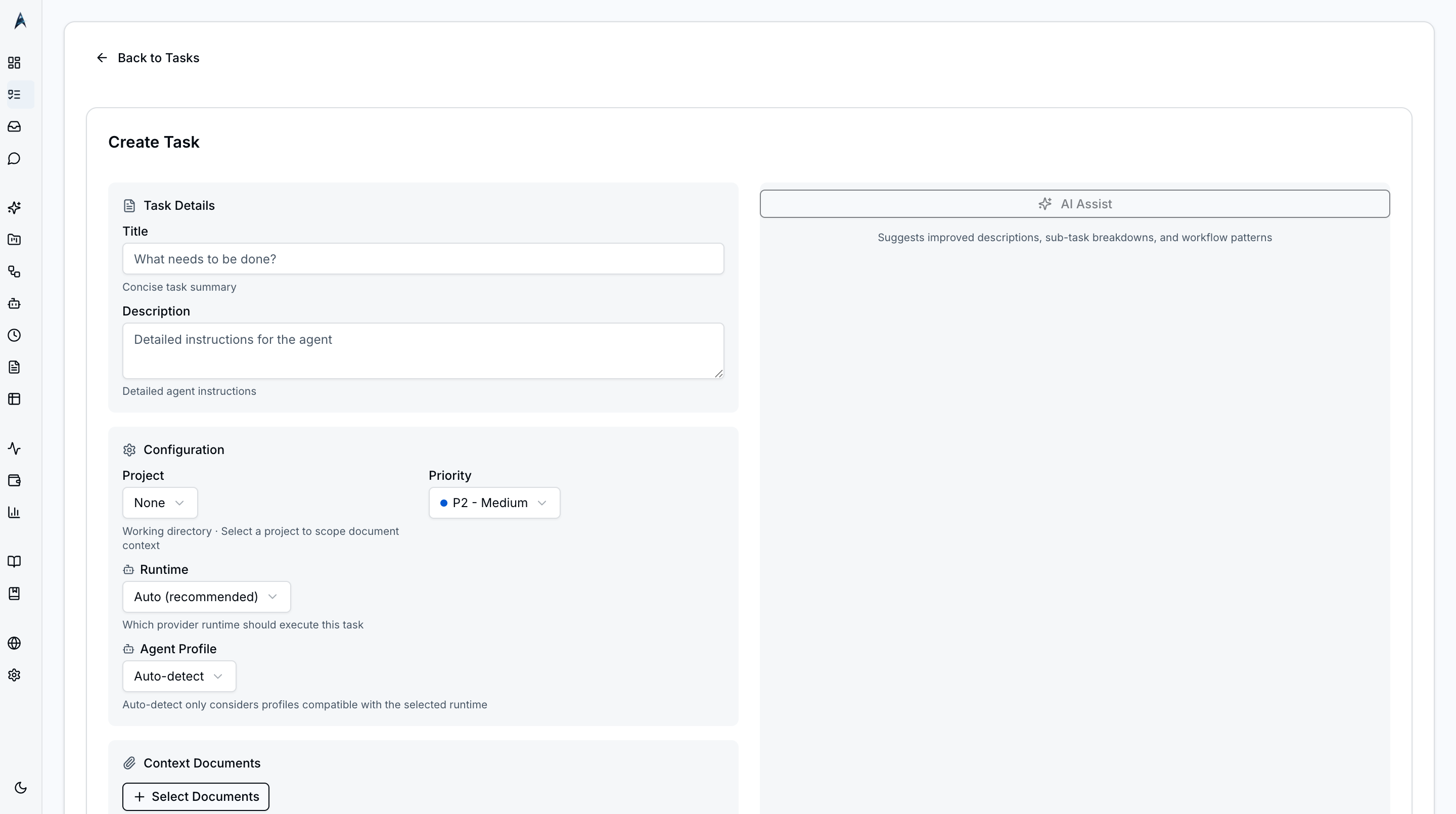 New task form with title, description, project, priority, runtime, and agent profile fields — empty and ready for input.
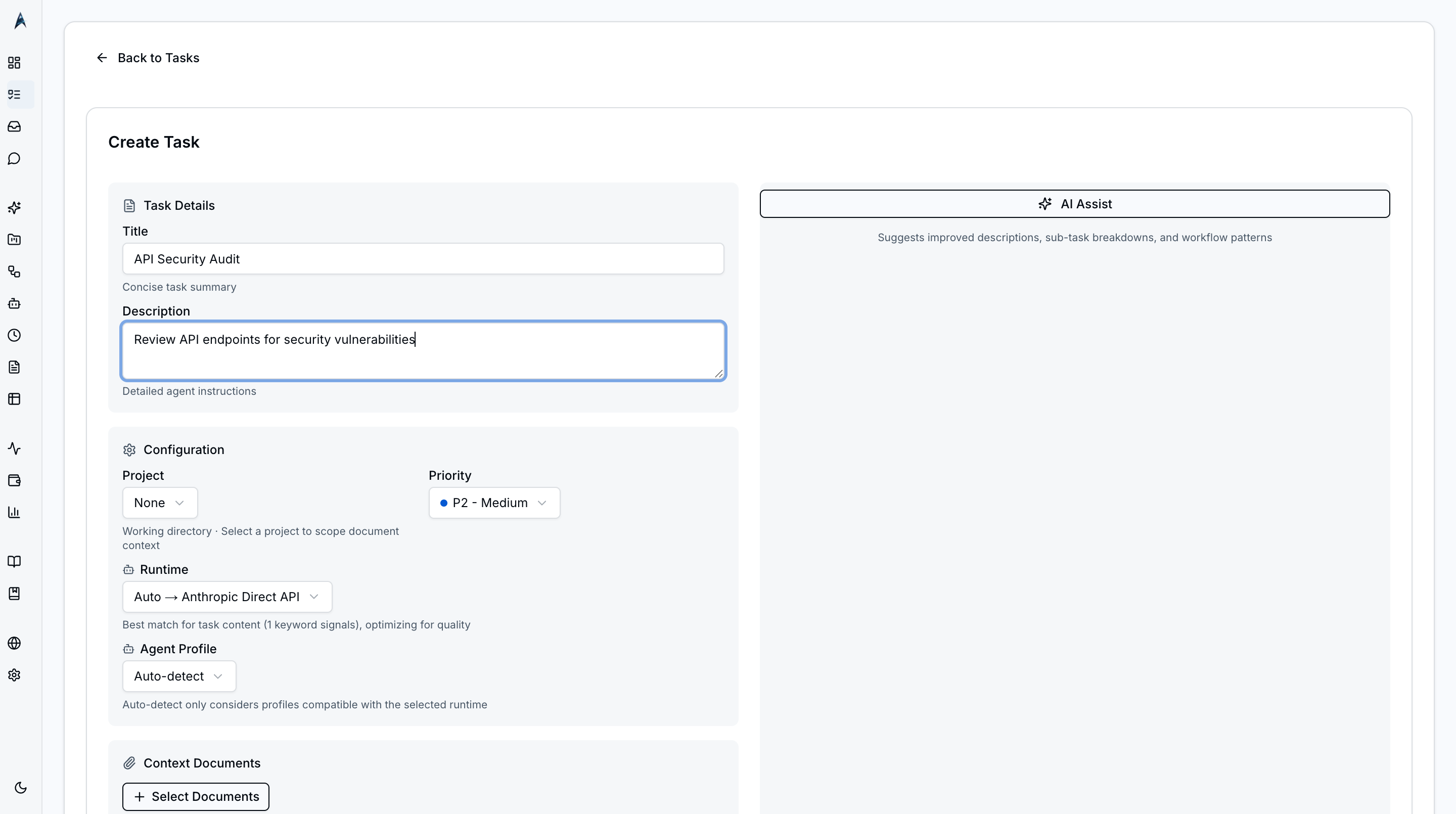 Form filled with a multi-step task description before AI Assist runs — typical user-authored input.
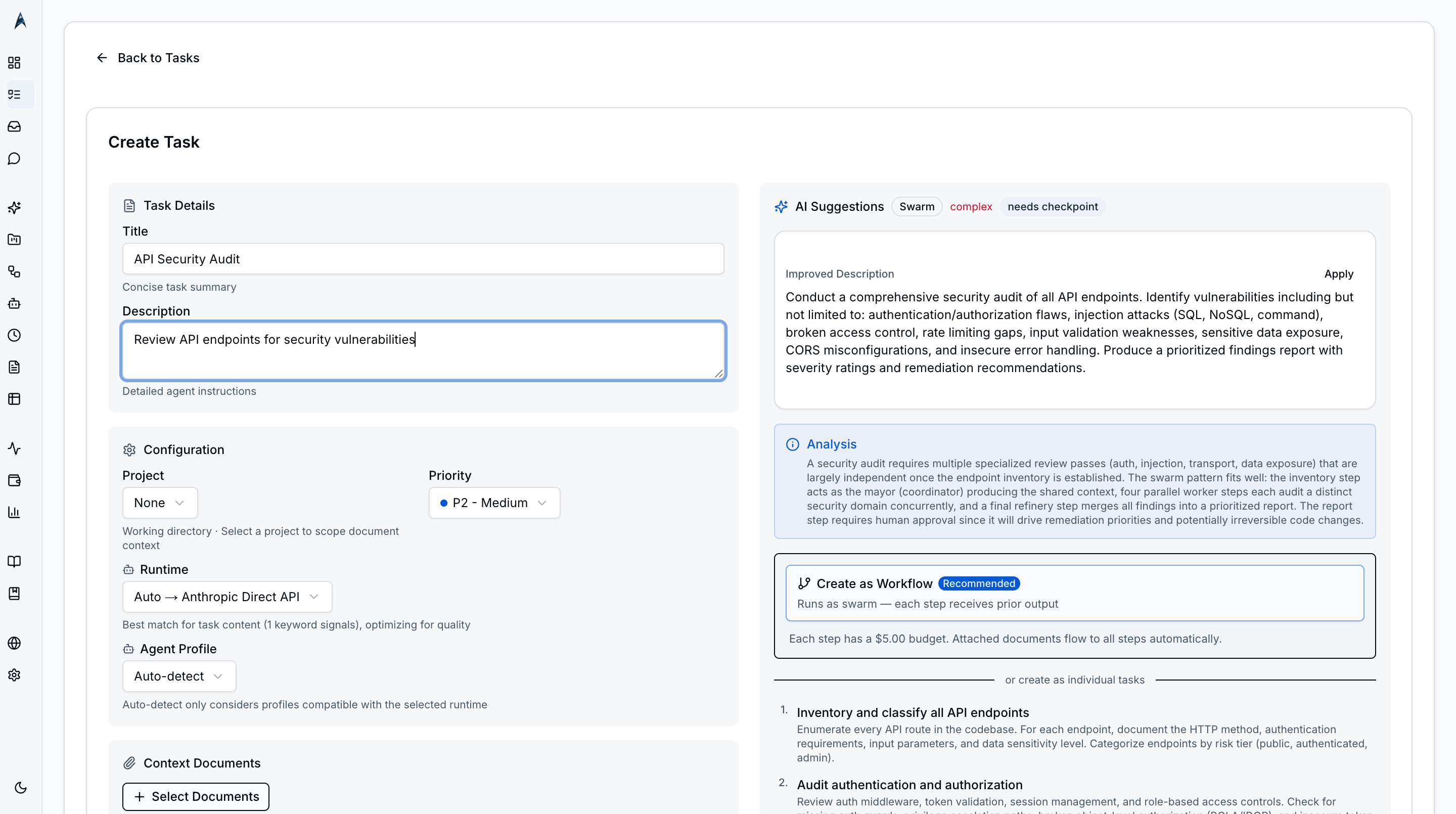 AI Assist button clicked — the agent analyzes the title and description and prepares structured enhancements.
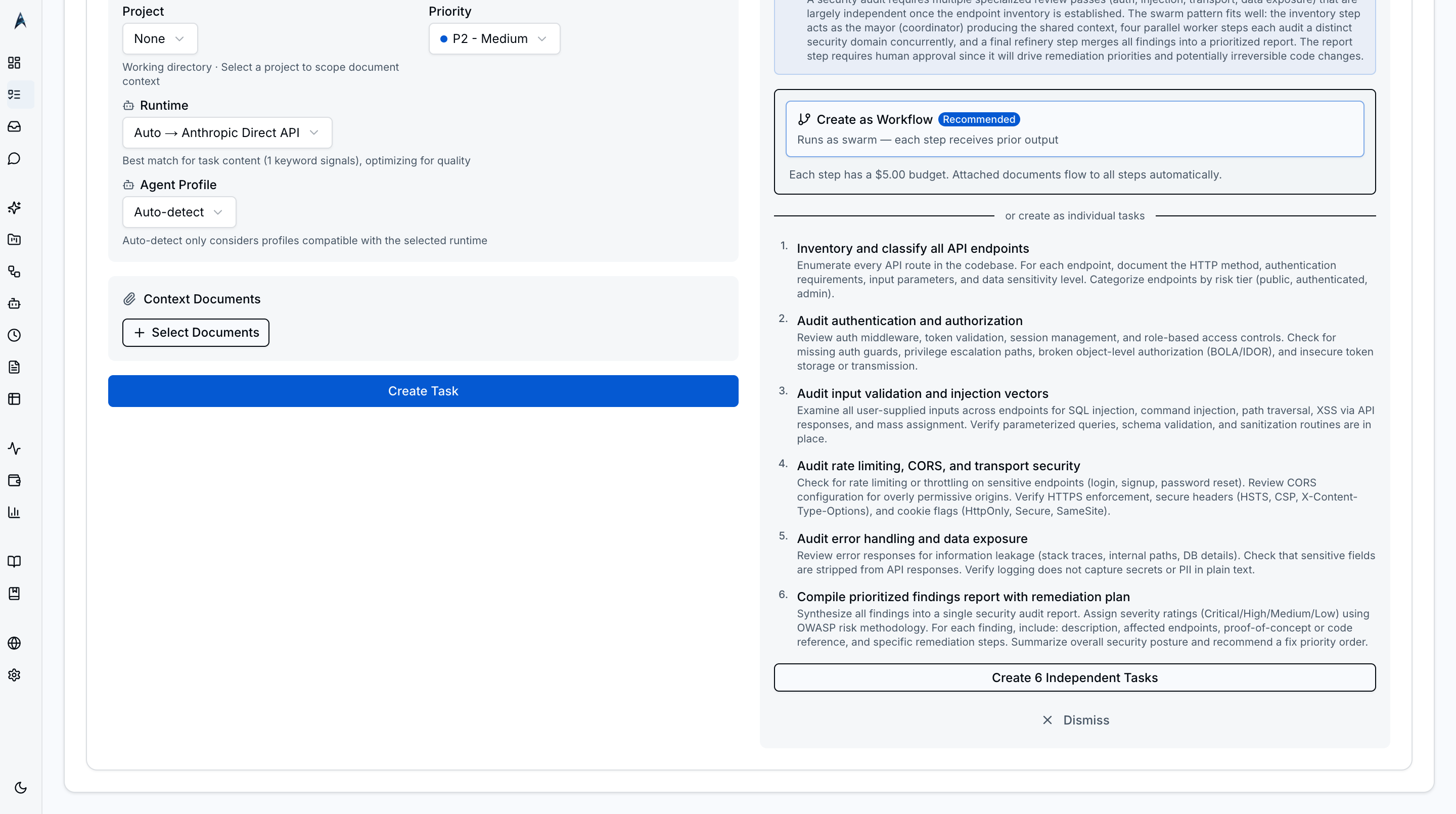 The agent identifies a multi-step task and proposes a breakdown into sub-tasks with structured acceptance criteria.
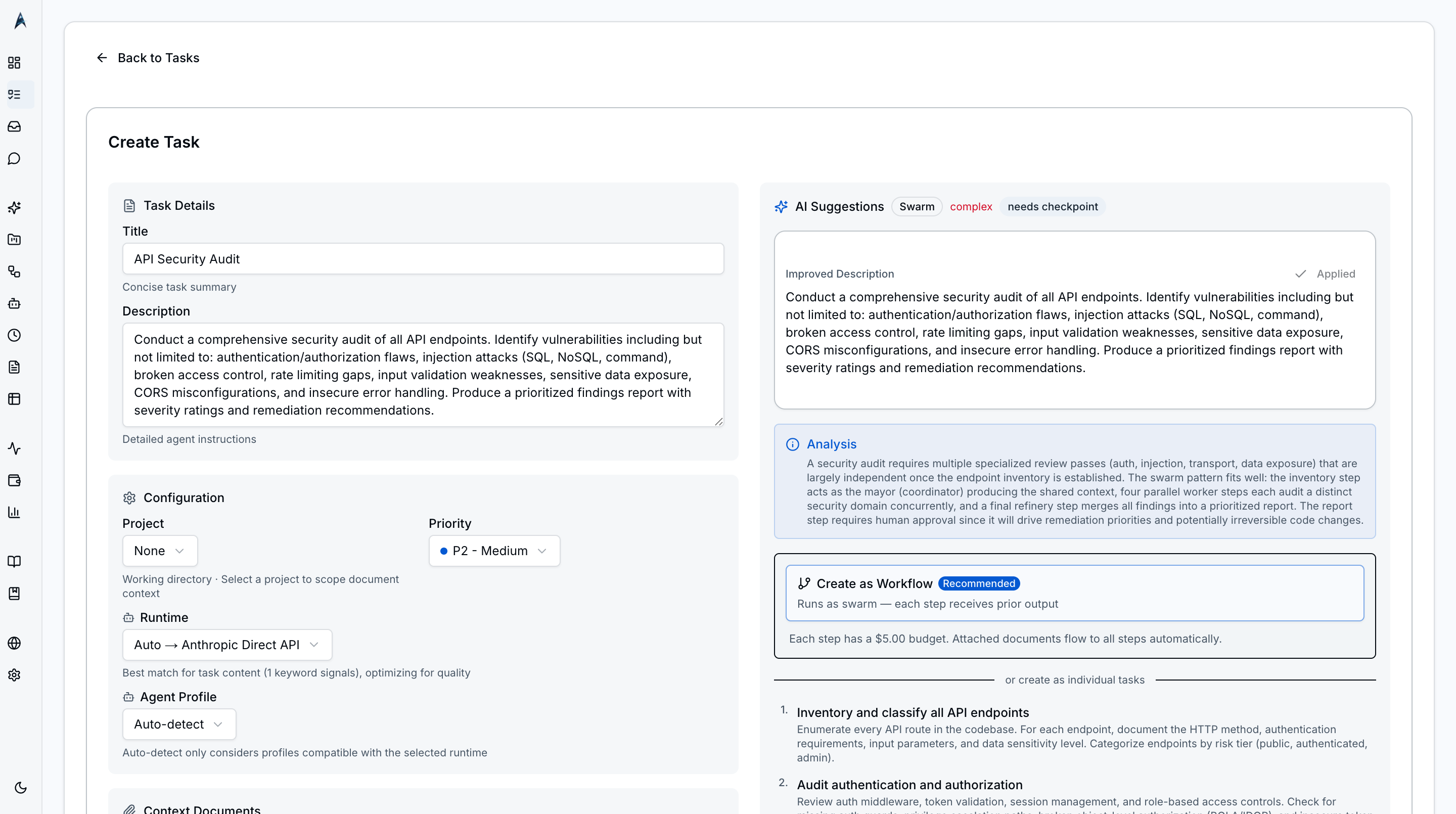 Form populated with the AI-enhanced description, structured context, and suggested parameters — review and edit before submitting.
The task creation form includes fields for title, description, project, priority, runtime, and agent profile. Click the AI Assist button after entering a title and rough description and the agent enhances them with structured context, acceptance criteria, and suggested parameters. When the analysis identifies a multi-step task, ainative-business offers to convert it into a workflow automatically.
Workflow Conversion
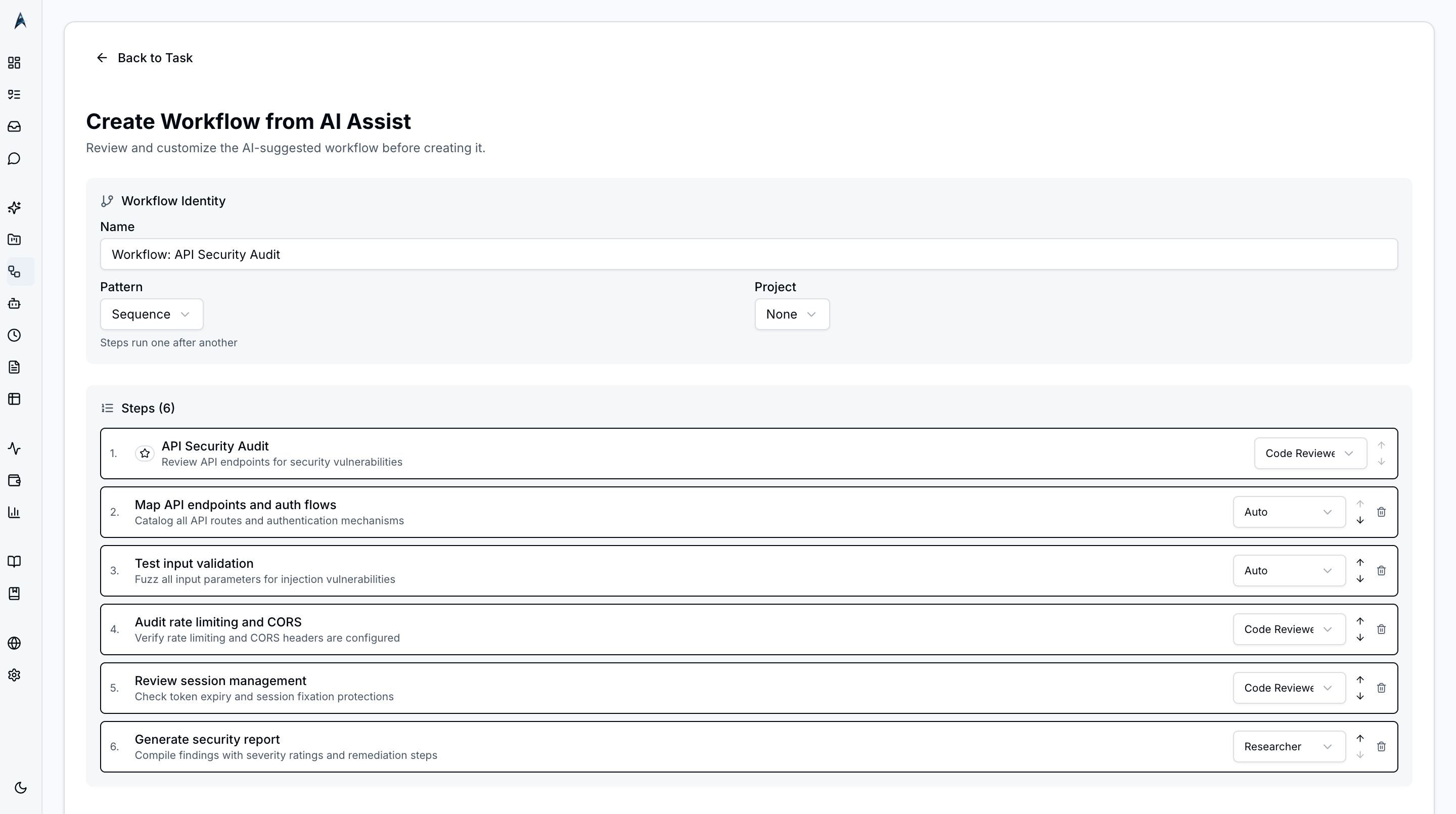 “Convert to workflow?” dialog after AI Assist detects multi-step work — accept to create a Workflow, decline to keep it as a single task.
When AI Assist detects that a task description spans multiple discrete steps, it surfaces a Convert to Workflow confirmation. Accept to spin up a new workflow with the proposed steps already populated; decline to keep the work as a single task. The dialog appears inline in the create form so you do not lose the input you have already typed.
How To
Create a New Task with AI Assist
- Click the New Task button in the Tasks toolbar, or navigate to
/tasks/new. - Enter a title and a rough description of the work.
- Optionally select a project, priority level, runtime, and agent profile.
- Click AI Assist — the agent analyzes the input and either enhances the description or proposes a breakdown into sub-steps.
- Review the AI-suggested content. If a workflow conversion is offered, accept it for genuinely multi-step work; otherwise dismiss it.
- Click Create Task (or Create Workflow) to add it to the Planned column.
Edit a Task Inline on the Board
- Hover any task card and click the edit icon.
- The card flips into inline-edit mode with editable title, priority, profile, and runtime fields.
- Press Enter to save or Escape to cancel — no detail sheet required.
Move a Task Between Statuses
- In the board view, click and hold a task card.
- Drag it to the target column (e.g., from Planned to Queued).
- Release to drop — the status updates immediately.
Filter Tasks
- Use the filter bar at the top of the Tasks page.
- Select a project, status, or priority from the combobox dropdowns.
- The board or table updates instantly to show matching tasks.
- Clear filters by clicking the reset button.
Bulk-Manage Tasks
- Click the Select button in the toolbar to enter bulk select mode.
- Check the boxes on multiple task cards (checkboxes appear on every card).
- Use the bulk action toolbar to queue, move, or delete selected tasks.
- Confirm the action and exit select mode.
Inspect Per-Turn Execution
- Click any task card to open the detail pane.
- Scroll to the Turns section — every agent turn lists its tool calls, token counts, model used, and elapsed time.
- Click a turn to expand the full request/response payload for debugging.
Navigate to Tasks Quickly
Press g then t to jump to /tasks from anywhere in the app. Press g then h to return to the Dashboard at /.
Related
- Home Workspace
- Projects
- Workflows — Multi-step orchestration and the workflow conversion target
- Profiles
- Schedules
- Keyboard Navigation
- Monitoring — Live execution logs and turn-level observability
Related Features
- Agent Integration — How agents execute tasks
- Human-in-the-Loop — Permission requests during execution
- Workflows — Chaining tasks into multi-step workflows